Abdul Basit
How to remove Windows 11 bloatware safely is important when a new laptop feels slow, shows unwanted popups, or keeps auto-installing apps you never asked for. Many beginners in Pakistan buy preloaded PCs and assume this extra stuff is normal.
The weak spot is uninstalling random apps the wrong way or running risky debloat scripts from the internet. That can break the Start menu, remove needed drivers, or cause Windows update issues later.
You don’t need heavy tools to fix it. You just need a safe, step-by-step method: create a restore point, remove only what’s unnecessary, and keep updates and security working.
How to remove Windows 11 bloatware safely usually means uninstalling unwanted apps from Settings first, then using built-in tools for stubborn apps—without touching system apps you might need.
Key Takeaways
- Understand the importance of removing Windows 11 bloatware for improved system performance.
- Learn how to safely uninstall bloatware using recommended tools.
- Create a restore point before making changes to your system.
- Effectively clean built-in apps and stop auto-start clutter.
- Keep your Windows 11 system fast and stable with our step-by-step guide.
Understanding Windows 11 Bloatware

Windows 11 comes with bloatware, software not needed for the system to work. This includes apps that some users might find useful, while others won’t use them at all.
What Is Bloatware and Why It Affects Performance
Bloatware uses up system resources like disk space, memory, and processing power. This can make your device slower and less responsive. Removing unnecessary bloatware can boost your system’s speed and efficiency.
Safe vs. Unsafe: Which Bloatware Can Be Removed
Not all bloatware is the same; some is safe to remove, while others are vital. It’s key to know the difference to avoid problems. For example, you can safely uninstall apps like Microsoft Office or Adobe Creative Cloud if you don’t use them. But, you should not remove system apps.
How to Remove Windows 11 Bloatware Safely: Step-by-Step Guide

Removing Windows 11 bloatware can make your computer run better and feel more like your own. Before you start, make sure your system is ready to avoid any problems.
Preparation: Creating a System Restore Point
Creating a system restore point is key before making big changes. It lets you go back to a previous state if something goes wrong. To do this, open the Start menu, search for “Create a restore point,” and follow the instructions.
Method 1: Using Windows 11 Built-in Options
Windows 11 has built-in ways to remove bloatware. These methods are easy and don’t need extra software.
Uninstalling Apps Through Settings
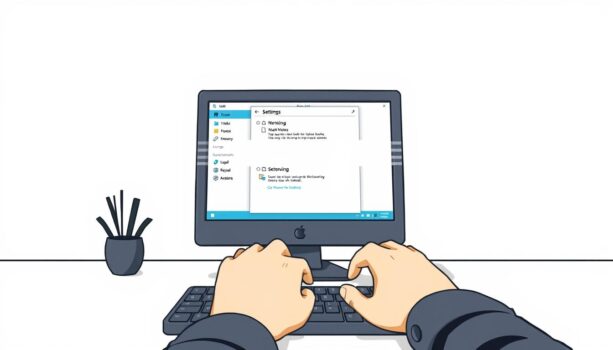
You can remove unwanted apps through the Settings app. Go to Settings > Apps > Apps & features, pick the app you want to remove, and click “Uninstall.” This works well for most bloatware apps.
Using PowerShell Commands for Advanced Removal
For more complex bloatware removal, PowerShell commands are useful. Open PowerShell as an admin and use Get-AppxPackage to list all apps. Then, remove specific apps with Remove-AppxPackage and the app’s name.
Method 2: Using Third-Party Uninstallers
If built-in options aren’t enough, third-party uninstallers can help. These tools offer more features and control over removal.
Ashampoo UnInstaller 16: Features and Process
Ashampoo UnInstaller 16 uninstalls apps and removes leftover files and registry entries. It shows you everything it’s doing, making sure everything is gone.
Revo Uninstaller Pro 5: Deep Cleaning Capabilities
Revo Uninstaller Pro 5 scans for and removes files and registry entries that others might miss. It’s great for getting rid of tough bloatware.
IObit Uninstaller 15 PRO: Batch Removal Options
IObit Uninstaller 15 PRO lets you remove multiple apps at once. It also cleans up leftover files and registry entries.
Here’s a comparison of the third-party uninstallers mentioned:
| Uninstaller | Key Features | Batch Removal | Residual File Removal |
|---|---|---|---|
| Ashampoo UnInstaller 16 | Detailed uninstallation overview, leftover file removal | No | Yes |
| Revo Uninstaller Pro 5 | Deep scanning for residual files and registry entries | Yes | Yes |
| IObit Uninstaller 15 PRO | Batch removal, leftover file and registry removal | Yes | Yes |
By following these steps and using the right tools, you can safely remove Windows 11 bloatware and make your system run better.
Explore Trusted Uninstaller Brands
If you want to compare more cleanup and uninstall tools, browse these trusted software brands available on BreTech. This is a good next step if you need deeper app removal, leftover file cleanup, or regular PC maintenance.
- Ashampoo: Reliable uninstall and cleanup tools for everyday Windows maintenance.
- Revo: Deep uninstall software for stubborn programs and leftover files.
- IObit: Popular cleanup and uninstall tools with batch removal features.
You can also explore the full Uninstaller Software category to compare available options in Pakistan.
Conclusion
Removing bloatware from your Windows 11 system is key to better performance. This guide shows you how to remove Windows bloatware and boost your computer’s speed.
Keeping your system clean by uninstalling unused apps is important. We suggest checking your installed programs often. Use built-in tools or third-party apps to uninstall bloatware Windows 10 and other unwanted software.
Controlling the apps on your system helps optimize Windows performance. Your computer will run better. For more tips on keeping your Windows system in top shape, check out our other resources and guides.
FAQs
Q: What is bloatware and why is it a problem in Windows 11?
A: Bloatware is software that comes pre-installed but isn’t needed. It uses up resources, making your computer slow. Getting rid of it can make your system run better.
Q: Is it safe to remove all pre-installed apps in Windows 11?
A: No, you shouldn’t remove all pre-installed apps. Some are key for your system to work right. It’s best to only remove the apps you don’t need.
Q: What is the best bloatware remover for Windows 11?
A: For removing bloatware, we suggest using tools like Ashampoo UnInstaller 16, Revo Uninstaller Pro 5, and IObit Uninstaller 15 PRO. They are safe and effective.
Q: Can I remove bloatware using built-in Windows 11 tools?
A: Yes, Windows 11 has tools to help remove bloatware. But, third-party tools offer more features and safety.
Q: How do I prevent bloatware from being reinstalled after removal?
A: To stop bloatware from coming back, use a good uninstaller. Also, turn off any related services or updates. Keeping your system updated helps too.
Q: Will removing bloatware void my Windows 11 warranty?
A: No, removing bloatware won’t void your warranty. But, be careful with system apps to avoid problems.
Q: Can I remove bloatware on a new Windows 11 installation?
A: Yes, you can remove bloatware on a new Windows 11. It’s a good way to start with a clean system.
Q: How often should I clean up my Windows 11 system to maintain optimal performance?
A: Clean your Windows 11 system every few months. This keeps it running smoothly and removes unwanted files.
Further Reading
- Best Uninstaller Software for Windows in Pakistan
- IObit Uninstaller vs Revo vs Ashampoo
- How To Remove Windows 10 Bloatware
- How to Force Uninstall Programs on Windows
- Common Mistakes When Uninstalling Software
- Remove Leftover Files After Uninstalling Software in Windows 10/11
For more insights, explore our Utilities & Optimization blog category.