Abdul Basit
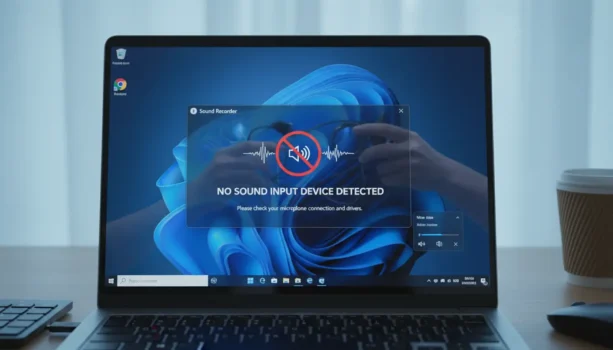
Screen Recorder No Sound in Windows 11 in Pakistan is a common headache when your video looks perfect but the audio is missing, especially for online classes, office demos, and YouTube tutorials.
The real risk is wasting time on random “audio fix” apps or cracked recorders that break your settings, add unwanted drivers, or create new problems.
A common mistake is recording with the wrong audio source (system vs mic) or blocked microphone permissions, then only noticing it after the recording is finished.
This 2026 fix guide shows the fastest checks that usually solve it, and helps you get back to clean recordings.
Most “no sound” problems come from three places: Windows sound settings, microphone privacy permissions, or the recorder’s selected audio source. Fix those first, then test with a short 10–15 second recording before you record your full video.
Understanding Screen Recorder No Sound in Windows 11
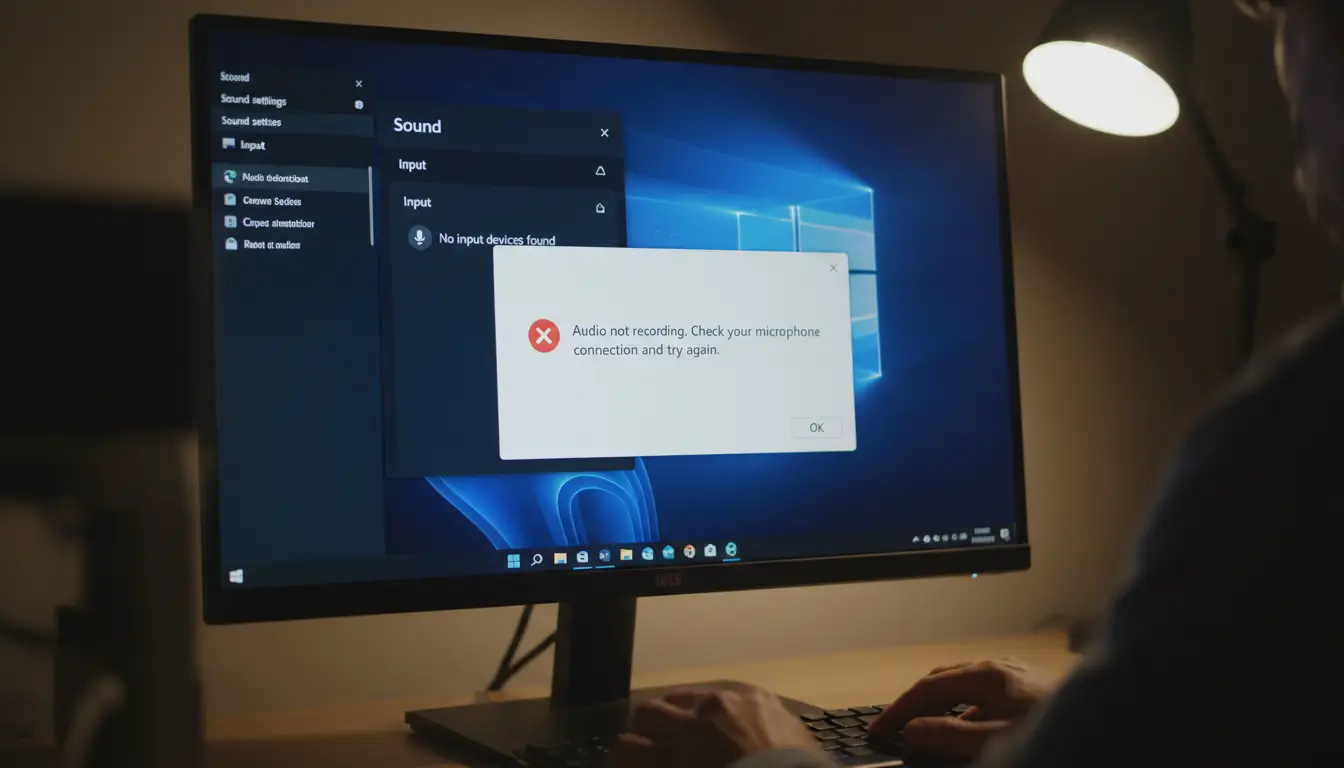
No sound during screen recording can be really frustrating for Windows 11 users. It’s important to know what might cause this problem. Issues often come from wrong audio settings, poor microphone setups, or picking the wrong audio source in recording software.
Also, problems can happen when hardware and software don’t work well together. These issues can stop audio from recording during screen recording in Windows 11. This can really slow down users who are working on important tasks.
Common Causes of Audio Issues
Knowing the common causes of screen recording sound problems in Windows 11 can help fix them. Here are some main reasons:
- Misconfigured audio settings in Windows.
- Inadequate microphone setup.
- Selection of the wrong audio input source in the recording software.
- Compatibility issues between different hardware and software components.
Impact on User Experience
Audio problems during screen recording can really hurt the user experience. These issues can mess up video presentations, tutorials, or content creation. In Pakistan, where creators use video to share knowledge or promote their work, these problems can hurt their professionalism.
It’s key to make sure audio works well for clear communication and quality content.
Troubleshooting Steps for Screen Recorder No Sound in Windows 11
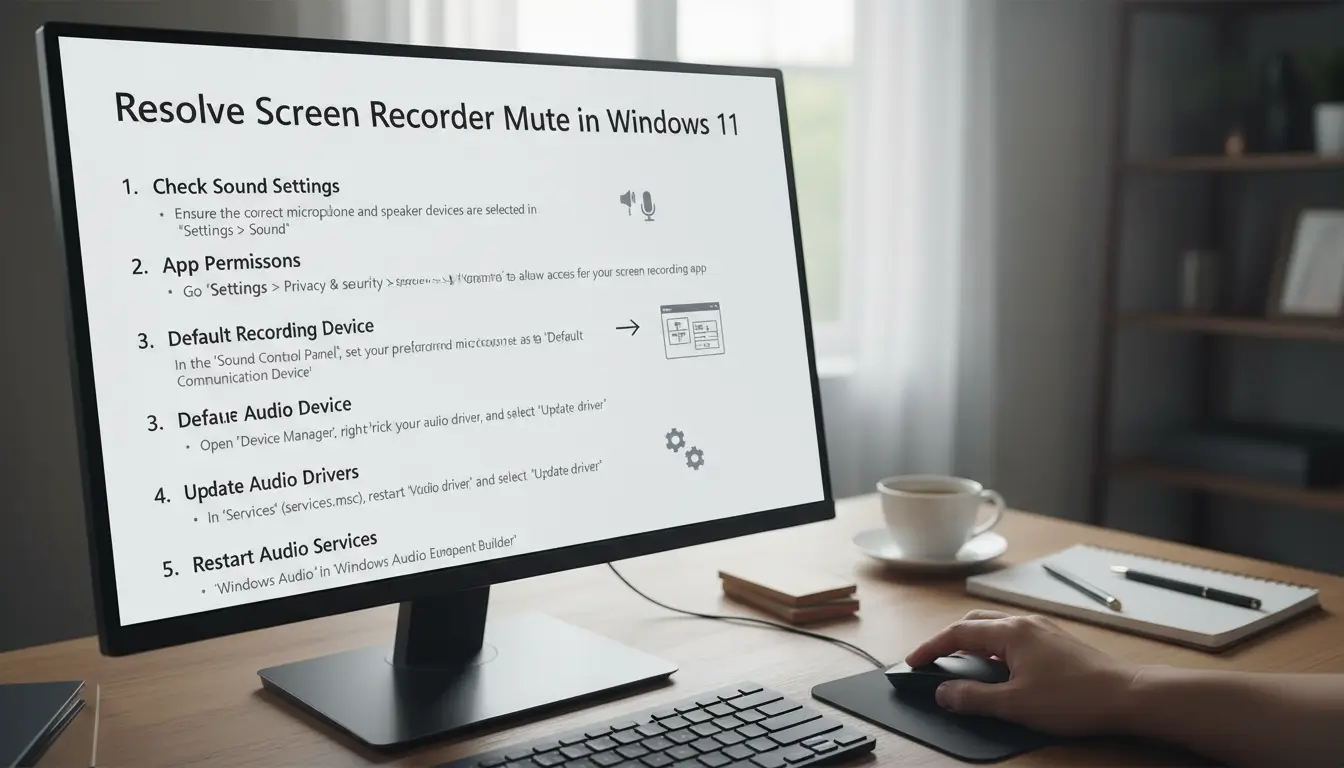
When you have audio problems with a screen recorder in Windows 11, it’s key to follow certain steps. These steps help find and fix the issue of no sound during recordings. People in Pakistan who face the screen recorder no sound issue on Windows 11 will find these methods helpful.
Windows Sound Settings Check
First, check the sound settings on your Windows 11 device. Make sure the right playback and recording devices are chosen. To access sound settings, right-click the sound icon in the taskbar. Look at the following:
- Ensure the correct output device is selected for playback.
- Make sure that no devices are muted.
- Adjust the volume levels for both the system and software applications.
Tip: After you change any setting, do a quick test recording (10–15 seconds) so you don’t lose a full lecture or tutorial again.
Adjusting Microphone Permissions
Microphone access is key for capturing audio with video. In Windows 11, it’s vital to allow apps to use the microphone. Here’s what to do:
- Go to Settings > Privacy & security > Microphone.
- Ensure that access to the microphone is enabled for the screen recording application.
- Change settings to allow apps to access your microphone.
Configuring the Correct Audio Source in the Recorder
Picking the right audio source in your screen recording software is crucial. Check the settings in your recorder:
- Open the screen recorder application.
- Locate the audio input settings.
- Select the correct microphone or audio source needed for recording.
If you need system audio (like a lecture video), make sure “system sound” is enabled. If you need your voice, make sure the correct microphone is selected.
Conclusion
Experiencing no sound while screen recording on Windows 11 can be really frustrating, even in Pakistan. But, by using the right troubleshooting steps, most audio problems can be fixed fast. It’s important to check sound settings, adjust microphone permissions, and pick the right audio sources.
If you also want a stable, genuine recorder setup for Windows 11, browse our screen recorder options here: screen recorder software on BreTech.
Further Reading
- Fix Screen Recorder Lags or Drops FPS Issues in Pakistan
- Best Screen Recorders in Pakistan
- Best Screen Recorder for Online Classes in Pakistan
- Best Screen Recorders Without Watermark in Pakistan
- EaseUS RecExperts vs Movavi Screen Recorder in Pakistan
Want more troubleshooting guides like this? Browse our Software Help posts.
FAQs
Q: Why is my screen recorder not capturing audio in Windows 11?
A: Issues with screen recorder audio in Windows 11 often stem from misconfigured audio settings. This can also be due to incorrect microphone setup or choosing the wrong audio source in the software. Make sure these settings are correct to solve the problem.
Q: How can I fix the screen recorder mute issue in Windows 11?
A: To fix the mute issue, start by checking your Windows sound settings. Then, verify that your microphone is allowed to record. Lastly, ensure you’ve picked the right audio source in your screen recording software.
Q: What should I do if there is no sound while recording on Windows 11?
A: First, check if your audio devices are connected properly. Next, review the audio settings in Windows and your recording software. Make sure the correct audio sources are selected and not muted.
Q: Are there specific tools recommended for screen recording on Windows 11?
A: Yes, we suggest using tools like Wondershare DemoCreator, EaseUS RecExperts, and Movavi Screen Recorder. These are known for their reliability and ability to handle audio issues during recording.
Q: Why is it important to avoid using cracked screen recording software?
A: Cracked software can cause instability, security risks, and licensing problems. It can also affect the quality of your recordings. It’s best to use genuine tools for reliable performance and proper functionality.