Abdul Basit
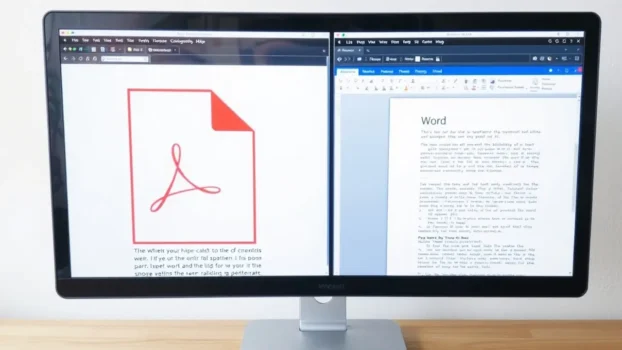
How to convert PDF to Word without losing formatting in Pakistan is a problem many students, office staff, and freelancers face every day. One wrong converter and your clean PDF turns into broken lines, random fonts, and messy tables in Word.
This 2026 guide is written for Pakistani users who want simple, reliable ways to turn PDFs into editable Word documents while keeping layouts, headings, and tables in place.
We’ll walk through trusted PDF tools, online services, and best practices so your documents stay professional when you share them with clients, schools, or offices.
Key Takeaways
- Understanding the differences between PDF and Word files.
- Common challenges faced during PDF to Word conversion.
- Methods and tools to maintain formatting.
- Step-by-step instructions for using effective conversion tools.
- Best practices for preserving quality in your documents.
Understanding PDF and Word File Conversion

Knowing the difference between PDF and Word files is key for effective conversion. PDFs have fixed layouts, so content looks the same everywhere. Word documents, however, are all about editing, with flexible formatting and layout. This difference makes converting PDF to Word tricky, especially keeping the formatting right.
Understanding these basics is the first step in managing documents well.
What Makes PDF and Word Different?
PDFs are for sharing documents and keeping their look the same. They keep text, fonts, and images as the creator intended. Word files, on the other hand, are for editing and changing layouts.
When converting PDF to Word, it’s important to use a tool that keeps the layout and style the same.
Common Challenges in PDF to Word Conversion
Converting PDF to Word can be tricky. Some tools might mess up the layout, moving text or losing images. This is especially true for PDFs with complex layouts like tables or graphics.
Choosing the right PDF to Word converter can help avoid these problems and make the process smoother.
The Importance of Maintaining Formatting
Keeping formatting the same is crucial for many documents. It’s important for reports and academic papers to look right. Good formatting makes the document look better and helps get the message across.
Users should find ways to keep PDF formatting when converting to Word. This can make a big difference in how well the document is received.
Methods to Convert PDF to Word Without Losing Formatting

Turning PDFs into Word format can be tricky. The right methods are key to success. Here, we explore different tools and services to help you get the best results.
Using PDF Editing Tools
PDF editing software is great for keeping formatting intact. Tools like EaseUS PDF Editor, Ashampoo PDF Pro, and Foxit PDF Editor are top choices. They let you edit and convert PDFs easily, keeping the layout intact.
You can also look at Wondershare PDFelement, PDF-XChange Editor, SwifDoo PDF, and PDFChef by Movavi for advanced conversion and editing features.
Key features include:
- OCR support for scanned documents
- Batch editing and batch conversion for multiple files
- User-friendly interfaces for streamlined processes
If you want a stable, offline option with local support, you can buy licensed PDF editor tools in Pakistan from BreTech and get fast digital email delivery for your activation details.
Online Conversion Services
Online services are popular for their ease of use. Many browser-based PDF to Word converters can make quick work of conversions without installing software. However, their reliability can vary. It’s important to consider:
- Data security and privacy concerns
- Potential inconsistencies in formatting
- Limits on file size, pages, or daily conversions
For sensitive or complex documents, a trusted desktop PDF editor from BreTech is usually a safer, more reliable choice.
Desktop Applications for Reliable Conversion
For complex documents, desktop apps like Foxit PDF Editor and Wondershare PDFelement are top picks. They focus on precision and keeping formatting intact. Features include:
- Batch processing for large numbers of documents
- Advanced editing tools for enhanced customization
- Improved security options for sensitive files
When choosing a tool, think about your needs. The right tool will make your conversion process smoother.
| Tool | Format Preservation | Unique Features |
|---|---|---|
| EaseUS PDF Editor | High | OCR support, batch editing, clean Word export |
| Ashampoo PDF Pro | High | One-time license, strong layout control |
| Wondershare PDFelement | High | Cross-platform, form handling, templates |
| PDF-XChange Editor | High | Lightweight, detailed export options |
| Foxit PDF Editor | High | Collaboration, multi-platform workflows |
If you’re looking for a single tool that can edit PDFs, convert them to Word, and keep the original layout, explore BreTech’s PDF editor collection in Pakistan with PKR pricing and quick email delivery.
How to Convert PDF to Word Without Losing Formatting

Turning a PDF into a Word document while keeping the original look can be tricky. EaseUS PDF Editor is a great tool for this job. It makes the process easy and keeps your formatting just right. This guide will show you how to convert PDFs to Word without losing any formatting.
Step-by-Step Guide on Using EaseUS PDF Editor
To begin, open your PDF in EaseUS PDF Editor. Here’s what to do next:
- Launch EaseUS PDF Editor after installation.
- Select the PDF file you want to convert.
- Go to the conversion tool in the software.
- Pick the Word format from the options.
- Hit the convert button to start the process.
The software uses advanced OCR technology. It also keeps your document’s look and feel the same.
Best Practices to Preserve Format Quality
To get the best results when converting PDFs to Word, follow these tips:
- Use software made for keeping formatting.
- Check the output settings to make sure formatting is saved.
- Look over the converted document for any needed changes.
- Start with high-quality PDFs to keep formatting better.
Conclusion
Converting PDFs to Word documents without losing formatting is key for keeping documents professional. This is especially true in Pakistan’s diverse business world. Knowing the differences between PDF and Word formats helps users tackle common conversion challenges.
There are many ways to convert PDFs to Word, like online services, desktop apps, or advanced PDF tools. Each method offers a solution for keeping formatting intact.
Using the best practices for PDF to Word conversion improves document quality and workflow. As PDF editing tech gets better, staying current with new tools and methods is important. This ensures users can create perfect documents for work and personal use.
BreTech aims to make document management easier for everyone in Pakistan. With the right knowledge and technology, anyone can confidently handle PDF to Word conversions. This leads to better communication and success in both business and personal life.
Want more help with PDFs and documents? Check our other PDF and Office productivity guides on BreTech to learn about editing, signing, and securing your files.
Further Reading
Want to keep improving your PDF and document workflows in Pakistan? Check out these helpful posts:
- Best PDF Editing Software for Pakistani Users
- Best Diagram Software in Pakistan
- How to protect a PDF document with passwords and encryption
- PDF Editor with Digital Signature Support in Pakistan (2026 Guide)
- Best PDF Tools for Legal and Government Use in Pakistan
- How to Convert Word to PDF Without Losing Formatting
For more step-by-step guides, visit our Office Productivity blog category.
FAQs
Q: How can I convert a PDF to Word without losing formatting?
A: Use a professional PDF editor that supports high-quality export to Word. Tools available from BreTech are designed to keep fonts, spacing, and layout as close to the original PDF as possible. Always review the converted file and make small adjustments if needed.
Q: What are the best tools for PDF to Word conversion with formatting integrity?
A: Professional PDF editors such as the ones offered by BreTech are better for preserving formatting than most free web converters. They provide more control over export settings, better handling of tables and images, and offline processing for sensitive files.
Q: Why is maintaining formatting essential when converting PDF to Word?
A: Keeping formatting is key for professional documents. It makes reports, assignments, and contracts easier to read and understand. Losing layout or structure can cause confusion, especially in business and academic environments.
Q: Are online PDF to Word converters reliable for preserving layout?
A: Online converters are convenient and quick for simple documents, but they are not always perfect with complex layouts. They can also raise privacy concerns for sensitive files. For important work, desktop PDF editors are usually more reliable.
Q: What should I do if my converted PDF to Word document has misaligned text?
A: First, try adjusting the export settings and converting again. If the problem continues, switch to a more advanced PDF editor with better layout control. You can also open the Word file and manually fix headings, tables, and spacing.
Q: How does OCR technology help in PDF to Word conversion?
A: OCR (Optical Character Recognition) is used when a PDF is made from scanned pages or images. It recognises the text inside images and converts it into editable Word text. This turns non-editable scans into proper documents that you can update and format.
Q: What are the best practices for ensuring successful PDF to Word conversion?
A: Use trusted PDF software, start from a clean PDF, choose the right export settings, and always review the result in Word. For regular document work in Pakistan, investing in a reliable PDF editor from BreTech helps keep your conversions consistent and professional.