Abdul Basit
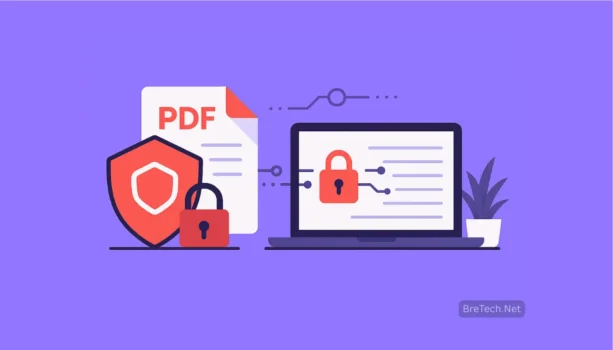
How to Protect a PDF Document is a skill you need if you share contracts, CNIC copies, bank statements, or office reports in Pakistan. One careless share or weak setting and your sensitive information can be copied, forwarded, or edited without you knowing.
The real problem is that many people send an unprotected pdf or rely on random online converters that keep a copy of their files. Others think “Save as PDF” in Word is enough, but that does not stop someone from printing, copying text, or changing numbers inside the document.
The good news is you can fix this with a few smart steps. By adding a strong password, turning on encryption, and blocking editing, copying, and printing, you keep control even after the pdf leaves your computer. Redaction tools help you remove data that must never be seen at all.
In this step-by-step guide, you’ll learn practical, offline ways to protect a pdf document using reliable pdf editor tools available in Pakistan, so your files stay professional and secure when you share them with clients, schools, or offices.
Why You Need to Protect PDF Files in Pakistan in 2026
Many people assume the file format is secure just because it is a pdf, but an unprotected file can be downloaded, printed, and forwarded by anyone. Once a pdf document leaves your inbox or WhatsApp chat, you lose control if you have not added any pdf protection.
For small businesses, schools, and freelancers in Pakistan, this can lead to unauthorized access to invoices, marks sheets, or HR data. It also creates a real risk of unauthorized editing, where someone quietly changes numbers or terms in a proposal and then shares that altered copy with others.
As more offices move to working with pdfs on desktop and mobile, protecting the files before they leave your device is one of the best ways to keep data safe.
Main Ways to Protect a PDF Document (Quick Overview)
There are several ways to protect a pdf, and in many cases you will combine them for stronger pdf security:
| Protection Method | What It Does | Best Use Case |
|---|---|---|
| Password protection | Users are prompted to enter a password to open the pdf | Simple contracts, bills, fee vouchers |
| Encryption | Scrambles contents until the right key is used | Highly confidential reports and records |
| Permission settings | Restricting access to editing, copying and printing | Certificates, offers, legal documents |
| Redaction | Permanently removes confidential data | CNIC, account numbers, internal notes |
| Digital signature | Confirms who signed and if changes were made | Contracts, approvals, policy docs |
A capable pdf editor lets you mix password protection, permission settings, and redaction so authorized users can view the file while misuse and unauthorized distribution are reduced.
How Password Protection Works in a PDF
Most modern pdf software gives you two levels of password protection. The first is an open password. When you password-protect a file with this setting, anyone who wants to access the contents is prompted to enter the password in a small dialog box before the document opens.
The second level is a permissions password. This controls what people can do after they open the pdf. With careful permission settings, you can restrict editing, block copying and printing, or limit how pages are extracted. Only the person who knows the permissions password can change these options later.
For many small business owners in Pakistan, a simple habit works well: they send quotes as password-protected PDFs and block printing until the client confirms. This makes it harder for others to casually copy and forward their prices.
Step-by-Step: How to Password-Protect a PDF File Offline
The exact screen labels vary, but the core steps are the same in most desktop pdf editor tools. You will usually:
- Open the pdf document in a trusted editor
- Add a password and turn on encryption
- Set permissions to block editing, copying, and printing
- Save and test your password-protected pdf
Open Your PDF in a Trusted Editor
Start by opening your pdf document in a reputable desktop pdf editor. Avoid random online tools for files that contain sensitive information. An offline workflow gives you more control and keeps data on your own system.
Add a Password and Turn On Encryption
Next, go to the Protect, Security, or Encrypt menu and choose to add a password. Here you will typically set an open password and choose an encryption method. Use a strong password with a mix of characters and make sure the option to encrypt a pdf with a modern standard is turned on so the file cannot be read without the correct password.
Set Permissions to Block Editing, Copying and Printing
After basic password protection, adjust the permission settings. You can restrict editing so people cannot change text or images. You can also block copying and printing or allow only low-resolution prints if that suits your workflow. These options are controlled by a separate permissions password, which you keep private so only you can update the rules later.
Save and Test Your Password-Protected PDF
When you are done, save the file as a new password-protected pdf so you keep the original version separate. Close the file and open it again to make sure you see the prompt to enter a password. If possible, test on another device or user account to confirm that users can view the file but cannot perform actions you have blocked.
Advanced Ways to Protect Your PDF Files for Offices in Pakistan
In larger teams, simple password protection is sometimes not enough. When multiple people share the same password, it becomes difficult to control who has access and who might forward a file.
In these cases, you may want to combine encryption, digital signature workflows, and internal rules for restricting access. Advanced tools can tie viewing rights to specific accounts so only certain staff members can open a protected file. If someone leaves the organisation, you can revoke their access without changing the document itself.
A secure setup often uses certificate-based verification instead of shared passwords. Each recipient gets their own credentials, and users can view the file only when their identity is confirmed. This can be combined with rights management so that highly confidential pdfs never open on devices that are not approved.
Choosing the Right PDF Editor for Protection Tasks
Not every pdf editor offers the same security features. Some tools focus on simple edit and convert functions, while others include a full set of ways to protect your files.
A good editor for Pakistan-based work should support password protection with both open and permissions options, strong encryption, and clear controls to restrict editing, copy, and printing. Built-in redaction tools and digital signature support are also important if you work with long contracts or government forms.
For most users, an offline editor on a desktop system is the best way to keep data safe. Unlike a quick online pdf service, an offline editor does not upload your documents to third-party servers. You decide where files are stored and who can access them.
When you are evaluating pdf software, take a moment to check where the pdf protection settings are located, how easy it is to set a password, and whether the program clearly shows what users will be allowed to do.
PDF Protection Tools Available from BreTech
For Pakistan-based users who want reliable pdf protection, BreTech offers licensed pdf editor tools with password protection, strong encryption, and redaction support. You can choose the edition that fits your work style, whether you mostly share contracts, legal documents, or internal reports.
1. Ashampoo PDF Pro: One-Time Secure PDF Suite
Ashampoo PDF Pro is ideal if you prefer a one-time license for your pdf editor. It offers strong password protection, AES encryption, and permission controls so you can block editing, copying, or printing. Its OCR and batch tools help you prepare and lock multiple invoices, contracts, and reports in one go.
2. EaseUS PDF Editor: Simple Protection for Everyday Users
EaseUS PDF Editor is a beginner-friendly pdf editor that still includes powerful protection. You can add an open password, restrict copying and printing, and apply basic redaction before sharing files. It works well for students, freelancers, and small offices who need an easy way to secure important pdf documents.
3. PDF-XChange Editor: Advanced Control for Power Users
PDF-XChange Editor is a feature-rich Windows pdf editor for power users. Along with encryption and password-protected pdf files, it provides detailed markup, comments, and OCR for review workflows. After editing, you can lock the file with strict permissions so only trusted users can print or modify sensitive pages.
Best Practices Before You Share a Protected PDF
Even with strong tools, a few habits make pdf security much more effective. Before you send a file, run a simple checklist:
- Check that you protected the latest version of the pdf document, not an old draft.
- Confirm that editing, copying and printing are correctly restricted for this file.
- Share the password through a separate channel from the file, so email and password are not in the same message.
When you store files, keep protected copies in a clearly labelled folder and avoid saving passwords in plain text inside that location. If you stop using a shared mail account or a staff member leaves, update shared passwords and close any access that is no longer needed. These small actions reduce the chance of unauthorized access months later.
Also remember that redaction and password protection are not the same thing. If you need to remove confidential lines, you must use a proper redaction feature so that the text is removed from the file, not just hidden by a shape. Always check the resulting pdf to ensure that deleted data cannot be copied or revealed.
Conclusion: Simple Ways to Protect Your PDF Files in Pakistan
When it comes to pdf protection, you do not need a complex system to get real benefits. With one reliable pdf editor you can add a password, enable encryption, and adjust permission settings so only authorized users can open, print, or change your files.
By combining strong password practices, careful permission settings, and smart use of redaction, you can protect pdf files that contain sensitive information without slowing down your daily work. The result is a more professional workflow, fewer worries about unauthorized distribution, and better trust from clients, students, and partners in Pakistan.
BreTech provides genuine pdf editor licenses in Pakistan with PKR pricing, fast digital email delivery on most orders (usually within 1–72 business hours), and local support as an authorized reseller. That way, you get strong pdf protection features without worrying about fake or risky licenses.
Explore more tools in our PDF Editor and Office Productivity software pages in Pakistan.
To compare vendors, visit our Software Brands page and browse dedicated pages for leading pdf tools such as Ashampoo and Foxit.
Further Reading
Want to learn more about protecting and editing PDF files in Pakistan? Check out these helpful posts:
- How to Protect a PDF Document
- Best PDF Redaction Software in Pakistan
- Best PDF Editing Software in Pakistan
- Best Diagram Software in Pakistan
- PDF Editor with Digital Signature Support in Pakistan
- Best PDF Tools for Legal and Government Use in Pakistan
- How to Convert PDF to Word Without Losing Formatting
For more tutorials, visit the Office Productivity blog category.
FAQs: Protecting and Securing PDF Files in Pakistan
Q: What is the safest way to protect a PDF document with a password?
A: The safest approach is to add a password in a trusted pdf editor, turn on strong encryption, and then use permission settings to block editing, copying and printing for sensitive documents.
Q: What is the difference between password protection and encryption in a PDF file?
A: Password protection controls who can open or change the file, while encryption scrambles the content so it cannot be read without the correct key, even if someone gets a copy of the pdf.
Q: How can I protect my PDF from editing, copying and printing?
A: Open the pdf in your editor, go to the security options, and restrict editing plus copying and printing using a permissions password, then save it as a password-protected pdf.
Q: Is it better to encrypt a PDF offline or use an online pdf protection tool?
A: For confidential files, offline protection on your own desktop is usually better because you keep full control of the pdf document and do not upload it to external servers.
Q: Can I remove a password from my own password-protected pdf later?
A: Yes, as long as you know the password, you can open the pdf, change the password protection settings, and save a new unprotected copy for internal use.
Q: Which PDF editor is best for PDF protection features in Pakistan?
A: The best choice is a pdf editor that offers strong encryption, clear password-protect options, and reliable permission settings. BreTech provides several tools with local support so you can pick the one that fits how you protect your documents.