Abdul Basit
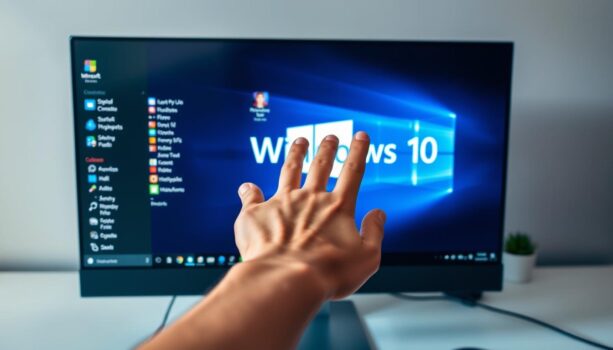
Remove Windows 10 Bloatware safely with clear, beginner-friendly steps. This guide shows how to make Windows lighter and faster without risking system errors.
First, you’ll create a restore point. Then remove built-in apps using Settings or PowerShell, trim startup apps, and clean leftovers so nothing slows you down.
We’ll also use trusted tools like Ashampoo UnInstaller 16, Revo Uninstaller Pro 5, and IObit Uninstaller 15 PRO to find hidden remnants and keep Windows stable. By the end, your PC should boot quicker and feel smoother.
Key Takeaways
- Efficiently remove unwanted software from your Windows 10 system.
- Improve system performance by decluttering and freeing up resources.
- Utilize powerful tools like Ashampoo UnInstaller 16 and Revo Uninstaller Pro 5.
- Follow a safe and easy-to-understand removal process.
- Enhance your overall computing experience with optimized Windows performance.
Understanding Windows 10 Bloatware and Its Impact

It’s key to know about Windows 10 bloatware to keep your computer running smoothly. Bloatware is software that comes on your computer without your asking. It can slow things down and even risk your privacy.
What Is Bloatware and Why Should You Remove It?
Bloatware can make your computer slow and use up space. It can also put your privacy at risk. By getting rid of it, you can make your computer faster, free up space, and stay safer online. At BreTech, we suggest removing pre-installed programs to improve your Windows 10 experience.
Many people don’t realize how much bloatware is on their computers. It includes trial versions of software, apps you don’t use often, and tools from the manufacturer that you might not need every day.
Identifying Safe-to-Remove vs. Essential Windows Apps
Not all software on your computer is bad or safe to remove. It’s important to tell the difference between bloatware and apps that your computer really needs. Be careful when you uninstall software to avoid losing something important.
To find out what bloatware you can remove, you can:
- Check if the software is useful.
- Look up the app online to see if it’s important.
- Use Windows 10’s uninstaller to safely get rid of unwanted programs.
Potential Benefits of Removing Unnecessary Software
Getting rid of software you don’t need can make your computer run better. It can also make your experience using it better and help you manage your storage better. By uninstalling software you don’t use, you can:
- Make your computer start up faster and work better.
- Have more space for important programs and files.
- Lower the risk of security problems from old or unused software.
At BreTech, we stress the importance of keeping your Windows 10 system clean. By understanding bloatware and how to remove it safely, you can control your computer better.
How to Remove Windows 10 Bloatware Safely

To clean up your Windows 10 system, we’ll show you how to safely remove bloatware. Getting rid of unwanted apps can make your computer run better and feel more user-friendly.
Preparation: Creating a System Restore Point
First, make a system restore point. This step lets you go back to a previous state if something goes wrong while removing bloatware.
- To create a system restore point, go to Control Panel > System and Security > System.
- Click on System Protection on the left side.
- Select the drive you want to create a restore point for and click Create.
- Follow the prompts to complete the process.
Method 1: Using Windows 10 Built-in Uninstaller
Windows 10 has a built-in uninstaller. It helps you remove apps you don’t need.
Step-by-Step Process for Removing Apps via Settings
To remove apps using the Settings app:
- Open Settings by pressing Windows + I.
- Click on Apps.
- Select Apps & features.
- Find the app you want to remove and click on it.
- Click Uninstall and follow the prompts.
Using PowerShell Commands (For Advanced Users)
If you’re more advanced, PowerShell commands can help remove bloatware.
Get-AppxPackage | Select Name, PackageFullName
This command lists all installed Appx packages. To remove a package, use:
Remove-AppxPackage -Package <PackageFullName>
Method 2: Using Third-Party Uninstaller Tools
For a deeper clean, consider third-party uninstaller tools.
Ashampoo UnInstaller 16: Features and Removal Process
Ashampoo UnInstaller 16 is a strong tool. It uninstalls apps and removes leftover files and registry entries.
| Feature | Description |
|---|---|
| Deep Uninstall | Removes all traces of an application |
| Context Menu Integration | Easy uninstall from the context menu |
Revo Uninstaller Pro 5: Features and Removal Process
Revo Uninstaller Pro 5 offers a detailed uninstall process. It can also remove leftover files.
- Download and install Revo Uninstaller Pro 5.
- Select the app you want to uninstall and choose Uninstall.
- Follow the prompts to complete the uninstallation.
IObit Uninstaller 15 PRO: Features and Removal Process
IObit Uninstaller 15 PRO has a simple interface. It helps remove unwanted apps and files.
- Launch IObit Uninstaller 15 PRO.
- Select the apps you want to uninstall.
- Click Uninstall to remove the selected apps.
By following these steps, you can safely remove Windows 10 bloatware. This will improve your system’s performance.
Conclusion
Removing Windows 10 bloatware is key to making your PC faster. It helps improve your system’s performance and user experience.
We talked about safe ways to remove bloatware. This includes using Windows 10’s built-in uninstaller and third-party tools. These methods help you control your system’s resources, making Windows 10 faster and more efficient.
At BreTech, we suggest checking installed apps regularly. This keeps your system clean and optimized. Users in Pakistan can make sure their Windows 10 PCs run smoothly and efficiently.
By following this guide, you can have a more efficient and streamlined computing experience. You’ll get the most out of your system’s capabilities.
Clear Bloatware the Safe Way (Beginner-Friendly)
Remove built-ins, clean leftovers, and keep Windows 11 fast and stable with trusted uninstallers. Explore Uninstaller Software in Pakistan.
Further Reading
- Best Uninstaller Software for Windows in Pakistan
- IObit Uninstaller vs Revo vs Ashampoo
- How To Remove Windows 11 Bloatware
- Best PC Optimization Software in Pakistan
- Best PC Optimizer Software for Gaming in Pakistan
- How to Force Uninstall Programs on Windows
For more insights, explore our Utilities & Optimization blog category.
FAQ
Q: What is bloatware and why is it a problem?
A: Bloatware is software that comes with Windows 10 but isn’t needed. It can slow down your computer and make it less enjoyable to use. Getting rid of it can make your computer run better and feel more like your own.
Q: How do I identify safe-to-remove bloatware vs. essential Windows apps?
A: To tell if an app is safe to remove, check what it does. Important apps help keep your computer running smoothly. Bloatware, on the other hand, is usually trial software or games. Always research an app before you remove it.
Q: What are the benefits of removing Windows 10 bloatware?
A: Removing bloatware can make your computer faster and use less memory. It also makes your computer easier to use. Plus, it helps keep your computer safe from viruses and frees up space on your hard drive.
Q: Can I remove Windows 10 bloatware using built-in tools?
A: Yes, Windows 10 has tools to help you remove bloatware. You can use the Settings app or PowerShell. But, tools like Ashampoo UnInstaller 16 and Revo Uninstaller Pro 5 offer more features.
Q: Is it safe to use third-party uninstaller tools to remove bloatware?
A: Reputable third-party tools like Ashampoo UnInstaller 16 and Revo Uninstaller Pro 5 are safe. But, always choose tools from trusted sources to avoid problems.
Q: How can I optimize my Windows 10 system after removing bloatware?
A: After removing bloatware, update your Windows 10 and clean your disk. Also, turn off programs that start automatically. Keeping your system updated and clean helps it run smoothly.
Q: Can removing bloatware improve my PC’s speed?
A: Yes, removing bloatware can make your PC faster. It frees up resources and reduces the load on your system. This makes your computer more responsive and efficient.
Q: Where can I buy authorized licenses for uninstaller tools?
A: You can buy licenses for tools like Ashampoo UnInstaller 16 from BreTech. We offer digital delivery and competitive prices in Pakistan.