Abdul Basit
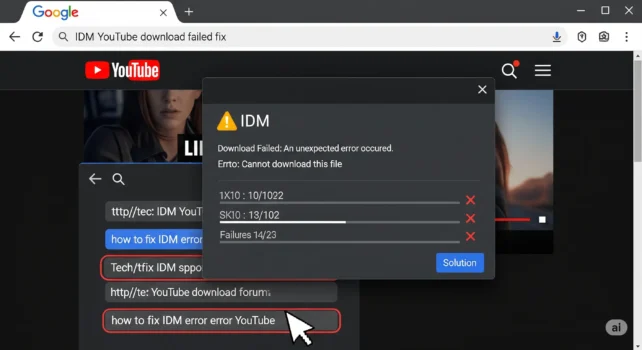
IDM Cannot Download This Protected Stream hits when you click download on YouTube or a site player, and IDM refuses right when you need the video for class, work, or offline viewing in Pakistan. In that moment, protected streaming is usually the reason, not your internet speed.
Many users try quick browser add-ons, random scripts, or old IDM builds. That often breaks IDM integration, causes repeated errors, and can risk your PC security. The safer fix is updating IDM integration the right way, not forcing blocked links.
This 2026 guide focuses on legal, safe troubleshooting: update IDM, re-enable the browser extension, check capture settings, and reset conflicts in Chrome/Edge/Firefox. If the video is DRM-locked, the right answer is official download options, not bypass attempts.
IDM cannot download protected streams when DRM or encrypted streaming blocks direct download links. Updates can fix browser integration, but DRM-locked videos need official download options.
IDM Cannot Download This Protected Stream for Legal Reasons
Why IDM Shows the Protected Stream Error
IDM speeds up downloads by splitting files into smaller parts. It works well with browsers by catching direct download links. But when a site uses protected streaming, IDM may not find a downloadable file link.
Common Problems with Downloading Videos
There are several reasons video downloads with IDM might not work. Users often find the video download panel does not show up. This can happen because of:
- Browser conflicts that prevent the panel from showing.
- Outdated versions of IDM or the browser extension after updates.
- Digital Rights Management (DRM) protections on certain content.
Identifying Protected Streams
Protected streams use encrypted playback or DRM that blocks normal downloading. If the video plays in the browser but IDM cannot capture a link, the stream is likely protected and may require an official download option instead.
Fix IDM Protected Stream Error in Chrome, Edge, and Firefox
Step 1: Update IDM and Reinstall Browser Integration
Update IDM to the latest build, then check the IDM extension in your browser. If it is missing or disabled, reinstall it and restart the browser. Many download panel issues start after a browser update.
Step 2: Fix IDM Extension Conflicts
Temporarily disable ad blockers, privacy blockers, and other download extensions, then test again. If the IDM download panel returns, re-enable extensions one by one to find the conflict.
Step 3: Confirm IDM Browser Integration Settings
Open IDM Options, then go to General and confirm your browser is selected for integration. Close the browser fully and reopen it, then try again.
Step 4: Clear Cache and Reset Video Capture
Clear your browser cache, restart the browser, and test the same video again. If the video plays but IDM still cannot capture a link, it is likely DRM or encrypted streaming and IDM will not download it.
Why IDM Cannot Download Protected Streams
The IDM protected stream error appears when a website uses DRM or encrypted streaming that blocks direct downloading. This is a copyright protection method, and IDM is designed not to bypass it. Troubleshooting helps when the issue is integration or browser detection, but DRM-locked videos usually require official download options.
Understanding What IDM Can and Cannot Do with Protected Streams
IDM is great for downloading videos that provide a direct link or supported stream format. If the platform delivers video through DRM, IDM may show a block message and you will not be able to download it using the download panel.
Legal Alternatives When IDM Cannot Download a Protected Stream
If the stream is DRM-locked, the safest option is to use official offline viewing if the platform provides it. For classes, demos, and personal notes, a screen recorder can help where you have permission and it follows the website’s terms.
Downloading Videos from YouTube
Downloading videos from YouTube can be limited by protected streaming. If IDM does not show the panel, first fix browser integration and extension conflicts. If the video remains protected, use official YouTube offline options where available.
Handling Different File Types
Online media comes in many file types, which can be tricky. Some types might not work with IDM, leading to download failures. Knowing which formats IDM supports helps you avoid wasted attempts.
| Tool Type | Best Use Case | Supported File Types |
|---|---|---|
| IDM | General downloads | MP4, FLV, AVI, WMV |
| Alternative Tools | Official downloads or supported apps | Depends on the platform |
| Screen Recorders | Recording lessons and demos where permitted | MP4, MKV, MOV |
| Browser Extensions | Easier access on specific sites | Varies widely |
What You Should Not Try
Avoid cracked IDM builds, random scripts, or tools that claim to remove DRM. These can trigger malware, break browser settings, and may violate website terms. If a video is protected, focus on safe troubleshooting, official downloads, or recording only when permitted.
Preventing Future Download Issues
To avoid problems with IDM, it helps to follow best practices. Being proactive improves stability and reduces repeated errors.
Best Practices for Downloading Videos
- Always check the video source before you start downloading.
- Use IDM’s video download panel to test formats when available.
- Know any download limits set by the website.
Regularly Updating IDM and Your Browser
Keeping IDM and your browser up to date is vital. Updates often improve compatibility with new video formats and browser changes.
- Turn on automatic updates for IDM to get the latest features.
- Regularly check for browser updates to avoid compatibility problems.
Understanding Download Protection and Why It Cannot Be Bypassed
Many videos are protected due to copyright and DRM, so downloads may be blocked. Knowing about download protection helps you understand why some streams are not downloadable.
- Respect the rules around protected content.
- Do not try to bypass protections, as it can create security and legal problems.
Conclusion
If IDM cannot download a protected stream, the cause is usually DRM or encrypted playback, not your internet speed. Use the steps above to fix IDM browser integration, and use official download options or recording where permitted if the stream is locked.
Following best practices and keeping software updated is key. It helps you avoid problems and keeps your PC safer while downloading.
Explore more tools in our Download Managers category. Need an official IDM license in Pakistan? View IDM here.
FAQs
Q: How to fix the issue where IDM cannot download a video from a protected stream?
A: If you see this message, it is often due to DRM or encrypted streaming which IDM cannot bypass. First update IDM and your browser, then reinstall the IDM extension. If the content remains protected, use official download options or a screen recorder where permitted.
Q: What should I do if IDM fails to show the download panel?
A: First confirm IDM integration is enabled in your browser. Then disable ad blockers or download extensions that may conflict. Restart the browser and test again.
Q: Is there a legal solution for downloading content that IDM cannot access?
A: If the stream is DRM-protected, the safest choice is official offline viewing if the site provides it. Only download or record content when you have permission and it follows the platform’s terms.
Q: How can I solve the issue of IDM not downloading videos from Google Chrome?
A: Ensure the IDM extension is installed and enabled in Chrome, then update IDM. Disable conflicting extensions and restart Chrome. If the video is DRM-locked, IDM will still be unable to download it.
Q: Why does IDM show a block message while trying to download protected streams?
A: IDM shows a block message because the streaming site is using DRM or encrypted delivery designed to prevent direct downloading. In this case, IDM will not capture a usable file link.
Q: Can I download a video from a site that uses strong protection?
A: If the site uses DRM, IDM will not download it. Check for official offline viewing options. If you are allowed to capture it for personal use, a screen recording tool may be an alternative.
Q: What file types are commonly blocked when trying to download streams?
A: Encrypted streams and DRM-protected formats are commonly blocked. Standard direct video files may work, but protected playback usually will not.
Q: How to manually configure IDM settings for better downloading performance?
A: In IDM Options you can adjust connections and general download settings. This helps with normal downloads, but it will not allow IDM to download DRM-protected streams.
Q: What should I do if the IDM dialog does not appear for video content?
A: Reinstall the browser extension, disable conflicting extensions, and restart the browser. If the video still plays but IDM cannot detect a link, it is likely protected streaming.
Further Reading
- What is IDM serial number
- Understanding IDM Prices in Pakistan
- IDM Not Downloading YouTube Videos
- How to Install IDM Extension in Chrome
- IDM Not Downloading Videos? Fix YouTube & Browser Issues
- YouTube Video Downloader for Mac in Pakistan
Learn how to fix common software issues with less confusion in our Software Help guides.