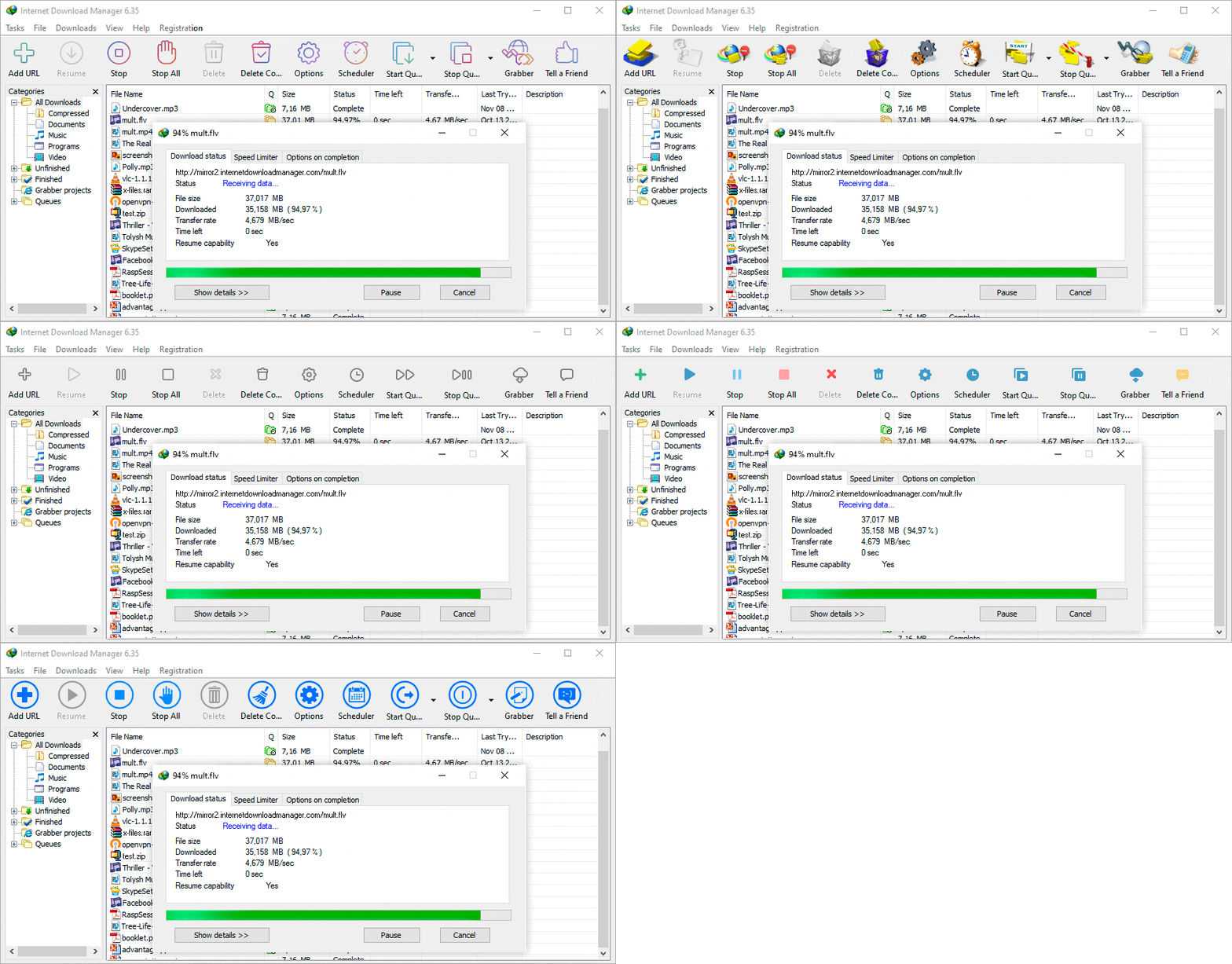
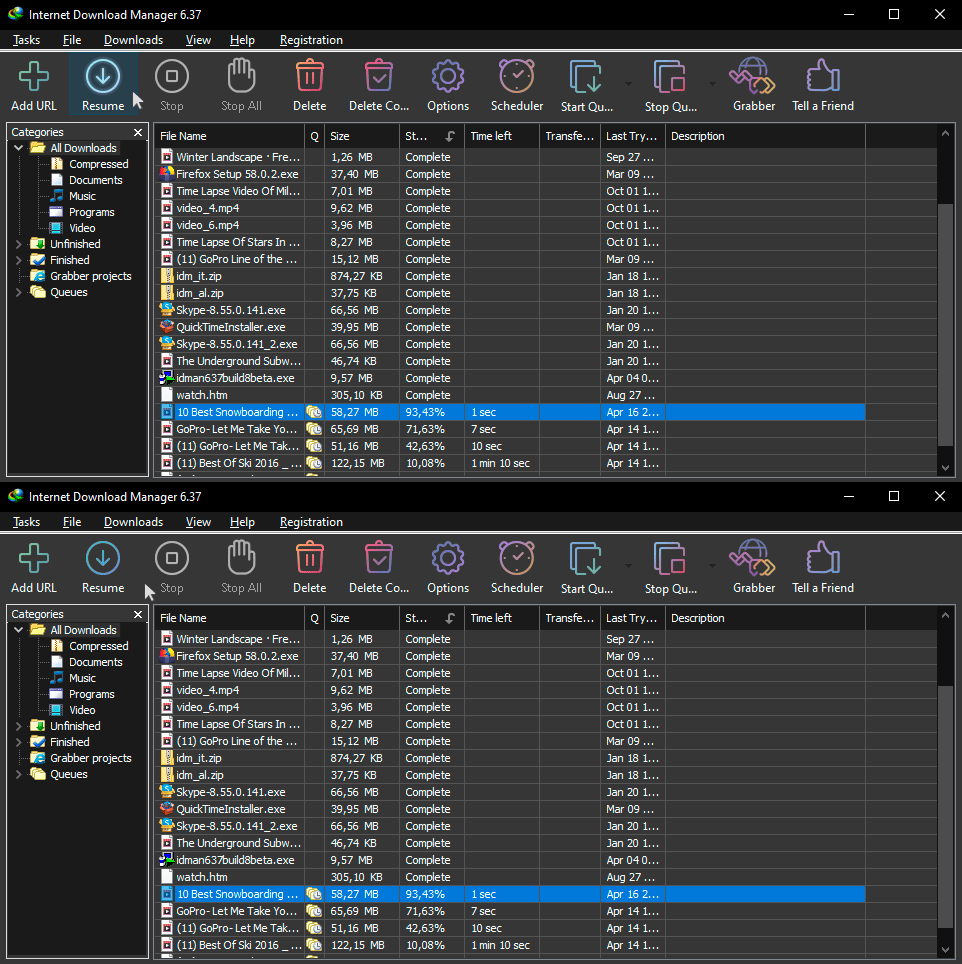
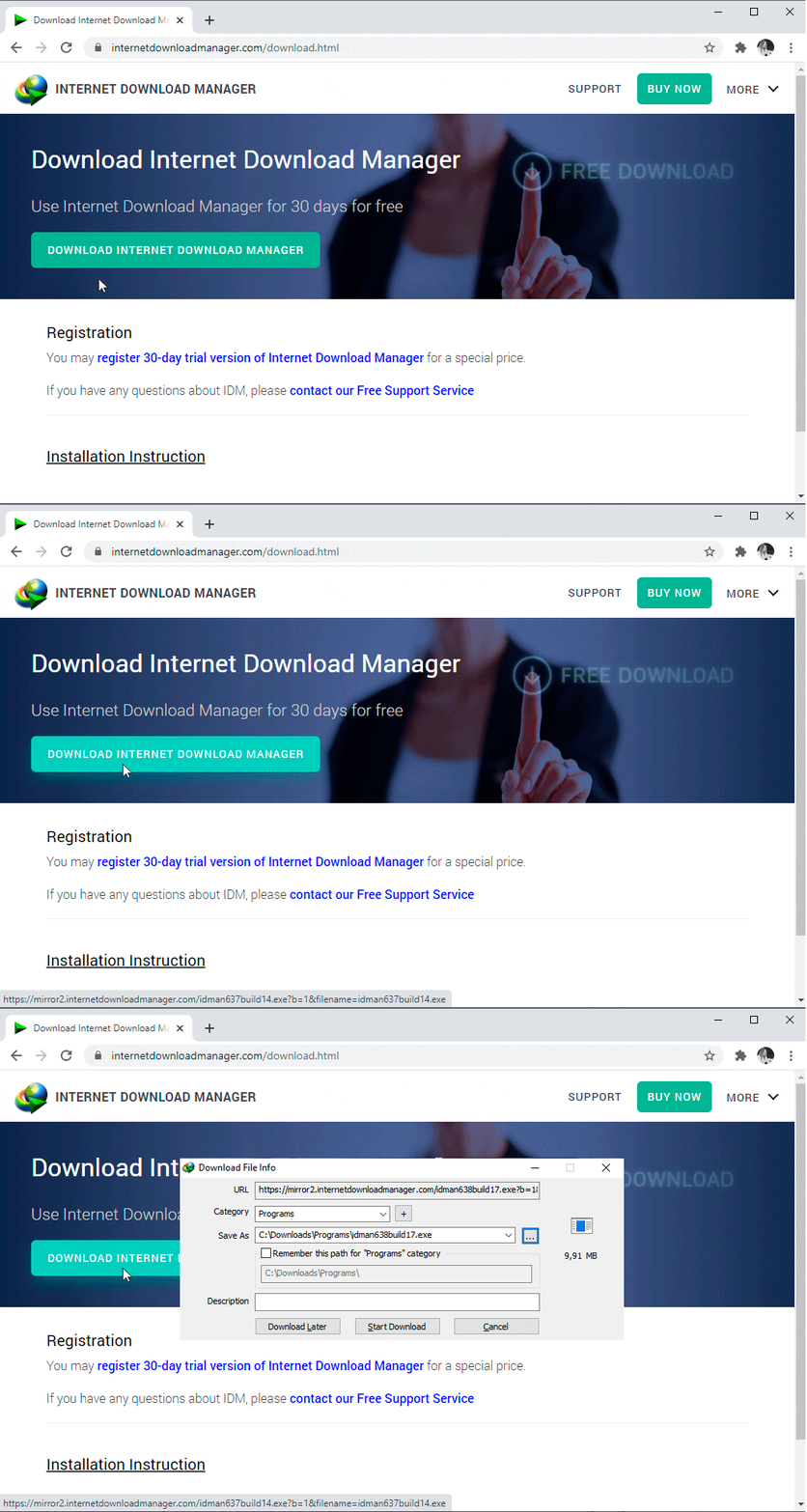
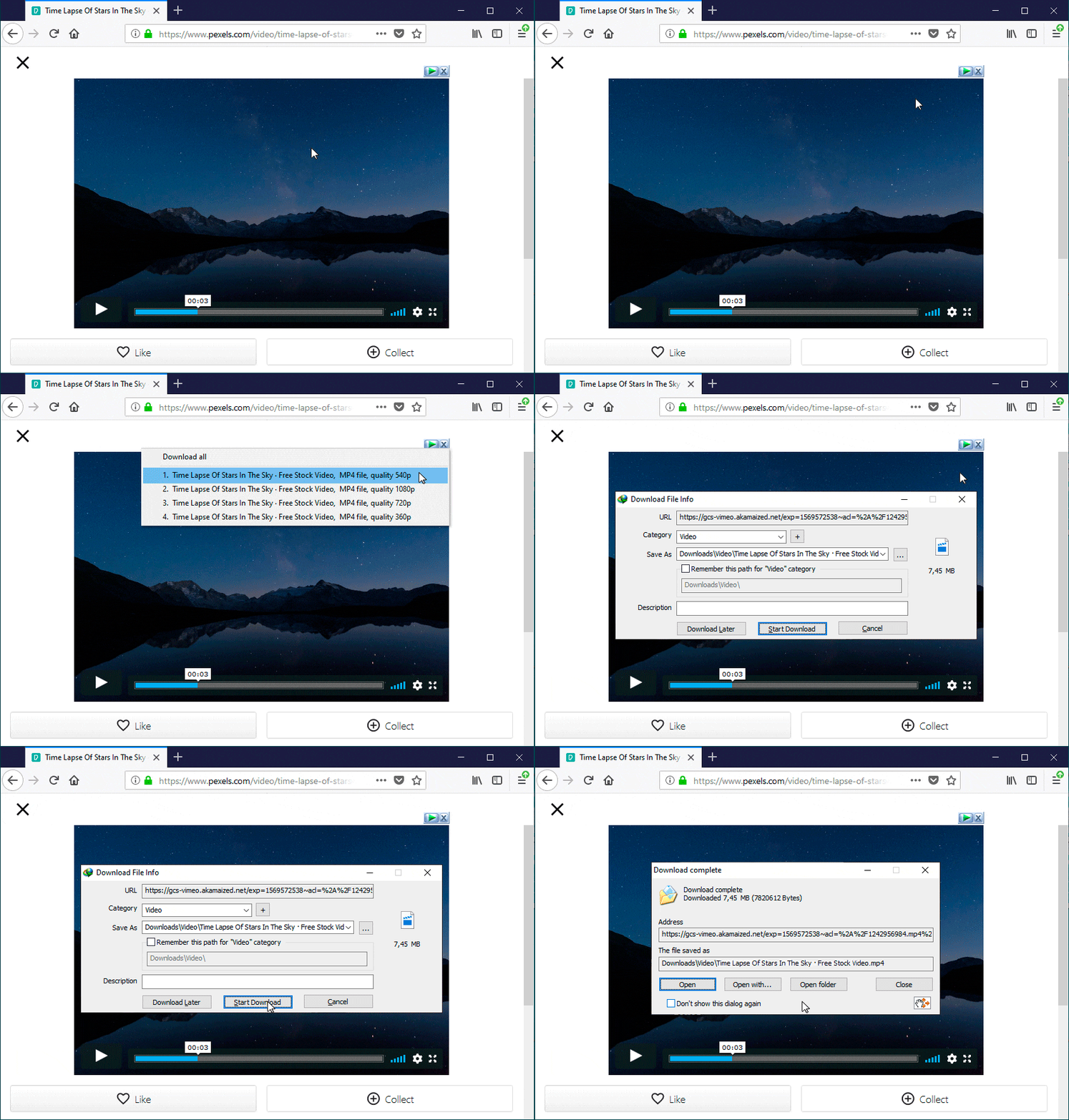
IDM Site Grabber helps you download website pages and files for offline use when your internet is slow, unstable, or you need a backup copy.
Many people waste time copying links one by one, or they download too much because they don’t set filters properly.
IDM Grabber uses a simple wizard to choose the site scope, file types, and rules, so your download stays clean and organised.
It works best for sites that allow crawling and direct file links. If a site is heavily dynamic, blocked by permissions, or protected by anti-bot rules, you may only get partial results.
Understanding the Internet Download Manager Grabber Wizard
The IDM Site Grabber wizard is the built-in project tool in Internet Download Manager that helps you save web pages and files for offline use in an organised way. Many users also search for it as “IDM Grabber” or “Site Grabber” (sometimes written as “sitegrabber”).
Instead of promising to “download any full website,” the wizard works by following links it is allowed to access and then downloading only the file types you choose. Results depend on the website structure, permissions, and your filter rules.
The wizard lets you set the download scope (how deep it should follow links), choose file types, and apply include or exclude filters. This is the key step that keeps your project clean, fast, and not filled with unwanted files.
It works best on normal sites with direct page and file links. If a site is heavily dynamic, login-protected, or uses anti-bot restrictions, the project may download only part of the content.
How to Set Up IDM Site Grabber for Efficient Downloads
Setting up IDM Site Grabber is straightforward and can be done in a few simple steps. First, open IDM and navigate to the Site Grabber feature. The wizard will guide you through the setup process, allowing you to configure settings according to your download requirements.
- Open IDM and Select Site Grabber: Launch IDM and click on the Site Grabber icon in the main interface.
- Configure Basic Settings: The wizard will prompt you to enter the URL of the website you want to download from. Enter the URL and click ‘Next.’
- Set Filters: Apply filters to specify the types of files you want to download. For example, you can choose to download only images or exclude certain file types.
- Start Download: Once you have configured the settings, click ‘Start’ to begin the download process.
By following these steps, you can set up IDM Grabber to efficiently download files from your chosen websites.
Enhance Your Downloading Experience for 2026
Ready to take your downloading to the next level? Purchase a genuine IDM license key for full access to all features, including the powerful Site Grabber wizard.
If you’re in Pakistan, purchase IDM from BreTech to get a secure, locally supported license key.
What Files Can You Download?
IDM Site Grabber is versatile and can download various types of files from websites. Whether you need images, videos, documents, or entire web pages, IDM Site Grabber has you covered.
This feature makes it an excellent tool for offline browsing, allowing you to access web content even without an internet connection.
Types of Files You Can Download:
- Images: Download all images from a web page or specific images based on your filters.
- Videos: Save videos from websites for offline viewing.
- Documents: Download documents such as PDFs, Word files, and more.
- Complete Web Pages: Download entire web pages, including all embedded content.
With IDM Site Grabber, you can easily download and save all necessary files for future use.
Step-by-Step Guide on How to Use IDM Grabber
Using IDM Grabber is simple, and this step-by-step guide will walk you through the process. By following these instructions, you can efficiently download files from any website.
Step-by-Step Instructions:
- Launch IDM: Open IDM from your desktop or start menu.
- Access the Site Grabber: Click on the Site Grabber icon in the toolbar to open the wizard.
- Enter URL: Input the URL of the website you want to download from.
- Set Download Preferences: Configure the filters to include or exclude specific file types.
- Start the Download: Click ‘Start’ to begin downloading the selected files.
This guide ensures that you can use IDM Site Grabber effectively, saving time and effort in your downloading tasks.
Common Issues and Solutions
While IDM Grabber is a powerful tool, you might encounter some issues during use. Here are common problems and their solutions to help you troubleshoot effectively.
Common Issues:
- Slow Downloads: Ensure that your internet connection is stable and fast. Consider adjusting the download settings for optimal performance.
- Incomplete Downloads: Check if the files are large and if there are any interruptions in your internet connection.
- Errors in Downloading Specific Files: Verify that the filters are correctly set and that the files are available on the website.
By addressing these common issues, you can ensure a smooth downloading experience with IDM Grabber.
How to Use Filters in IDM Grabber
Filters are an essential part of IDM Grabber, allowing you to specify the types of files you want to download. This feature helps you avoid unnecessary data and focus on what you need.
Applying Filters:
- Open Site Grabber Settings: Access the Site Grabber settings from the main IDM interface.
- Set Include Filters: Specify the file types you want to include in the download, such as images or documents.
- Set Exclude Filters: Identify the file types you want to exclude from the download to avoid unnecessary files.
- Apply and Save: Save the settings and start the download process.
Using filters effectively ensures that you download only the required files, saving time and storage space.
Managing Downloaded Files
Once you have downloaded files using IDM Site Grabber, it’s essential to manage them efficiently. Here are some tips to help you organize your downloaded files for easy access and use.
Tips for Managing Downloaded Files:
- Create Folders: Organize downloaded files into folders based on file type or project.
- Rename Files: Rename files for easy identification and access.
- Backup Files: Regularly backup your downloaded files to prevent data loss.
By managing your downloaded files effectively, you can ensure they are easy to access and use when needed.
Advanced Features
IDM Grabber offers several advanced features that can enhance your downloading experience. These features provide additional functionality and customization options.
Advanced Features:
- Scheduling Downloads: Schedule downloads to start at a specific time, ensuring they don’t interfere with your online activities.
- Batch Downloads: Download multiple files simultaneously, saving time and effort.
- Automatic File Organization: Automatically organize downloaded files into folders based on predefined rules.
Exploring these advanced features allows you to maximize the potential of IDM Site Grabber.
Safety Tips
While using IDM Site Grabber, it’s essential to follow safety tips to ensure your downloads are secure. These tips help you avoid potential risks and protect your data.
Safety Tips:
- Verify Source Websites: Ensure that the websites you download from are reputable and secure.
- Use Antivirus Software: Scan downloaded files with antivirus software to detect and remove any malware.
- Update IDM Regularly: Keep IDM updated to the latest version to benefit from security patches and new features.
By following these safety tips, you can ensure a secure downloading experience with IDM Site Grabber.
Upgrade Your Downloading Capabilities Today
Before concluding, ensure you’re fully equipped to handle all your downloading needs with IDM. Whether you’re looking to download entire websites or specific files, having the right tools makes all the difference.
- Purchase a genuine IDM license now via our affiliate link.
- If you’re in Pakistan, buy IDM directly from BreTech for local support and secure transactions.
Conclusion
In conclusion, learning how to use IDM Site Grabber can significantly enhance your downloading experience. Here are the key points to remember:
- Set Up IDM Site Grabber: Configure the Site Grabber settings for efficient downloads.
- Apply Filters: Use filters to download only the necessary files.
- Manage Downloads: Organize and manage your downloaded files effectively.
- Use Advanced Features: Explore advanced features such as scheduling and batch downloads.
- Follow Safety Tips: Ensure your downloads are secure by following safety tips.
By following this guide, you can master the use of IDM Site Grabber and optimize your downloading process.
Additional Resources
- What is IDM serial number
- Why IDM Not Downloading Videos?
- Understanding IDM Prices in Pakistan
- How to Install IDM Extension in Chrome
- Fix IDM Cannot Download This Protected Stream Error
FAQs
Q: What is IDM Site Grabber?
A: IDM Site Grabber is a built-in tool in Internet Download Manager that creates a project to save web pages and files for offline use, using rules, filters, and link scope control.
Q: What is IDM Grabber?
A: “IDM Grabber” is a common name people use for IDM Site Grabber. It collects links from a website based on your scope rules, then downloads only the file types you allow.
Q: Do I need to install IDM Site Grabber separately?
A: No. Site Grabber comes inside IDM. Install Internet Download Manager, open the program, and click Site Grabber to create a new project from the main window.
Q: How do I use IDM Site Grabber to download a website?
A: Open IDM, click Site Grabber, create a new project, paste the website URL, set the link depth and scope, choose filters, then click Start. Review results and adjust rules if needed.
Q: What do people mean by “IDM link grabber”?
A: Most users mean Site Grabber. It gathers page links from the site within your chosen limits, then downloads files that match your include and exclude filters.
Q: Can IDM Site Grabber download images only?
A: Yes. In the project setup, use filters to include image formats like JPG and PNG and exclude other file types. This is useful for galleries, product images, and reference pages.
Q: Can I use IDM Site Grabber to download videos?
A: Sometimes. It can download videos if the site provides direct video files and your filters allow them. Protected streams and restricted sites may not work with Site Grabber.
Q: How do filters work in IDM Site Grabber?
A: Filters control what gets downloaded. Include filters allow selected file types or folders, and exclude filters block unwanted items. This prevents huge downloads and keeps projects clean.
Q: Does IDM Site Grabber work on Windows 11?
A: Yes, IDM works on Windows 11. Keep IDM updated so the browser integration and Site Grabber projects run smoothly with current Windows security updates.
Q: Can IDM Site Grabber download from password-protected sites?
A: Sometimes. If a site uses simple login access and IDM can reuse the session, it may work. Modern logins and strong protections can block crawling or limit downloads.
Q: Is IDM Site Grabber safe to use?
A: It’s safe when you download from legal and trusted sources. Avoid unknown websites, scan downloaded files with security software, and only save content you have permission to download.
Q: Is there a limit to how much data I can download?
A: IDM does not set a fixed “data limit,” but your storage, internet speed, and the website rules decide what you can save. Large sites can take time or download partially.
Q: Can I schedule downloads with IDM Site Grabber?
A: Yes. IDM includes a scheduler, so you can run Site Grabber projects at a chosen time, like at night, to reduce daytime internet load and interruptions.
Q: What file formats does IDM Site Grabber support?
A: It can download many common formats, including HTML pages, images, PDFs, ZIP files, audio, and some video files. What you get depends on your filters and the site’s file links.
Q: Is customer support available for IDM users in Pakistan?
A: Yes. If you buy IDM through BreTech, you can get help with choosing the right license, installation steps, and basic troubleshooting for common IDM issues in Pakistan.