Abdul Basit
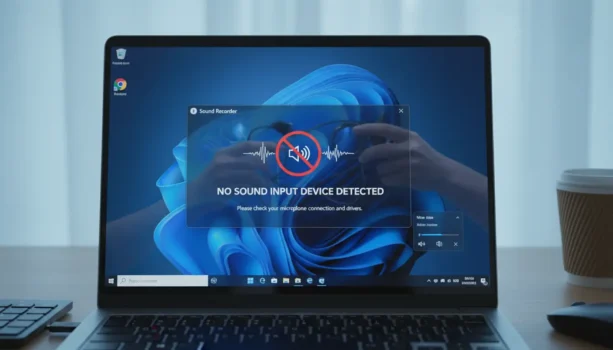
Screen recordings in Windows 11 can lose sound for simple reasons. The recording app may be using the wrong microphone, system audio may be turned off, or Windows privacy settings may be blocking audio access.
This problem is common when recording tutorials, meetings, games, online classes or app demos. Sometimes the video records fine, but the voice, speaker sound or both are missing.
The good news is that most sound recording problems can be fixed without reinstalling Windows. This guide explains the common causes and the safest fixes, from checking input settings to choosing the right screen recorder.
Key Takeaways
- A screen recording with no sound is usually caused by wrong audio input, muted system sound or blocked microphone access.
- Check Windows 11 sound settings, app permissions and the recorder’s audio options before changing advanced settings.
- Some recorders capture microphone sound only, while others can record both microphone and system audio.
- For regular tutorials, meetings or training videos, use a reliable screen recorder that clearly supports the audio source you need.
Understanding Screen Recorder No Sound in Windows 11
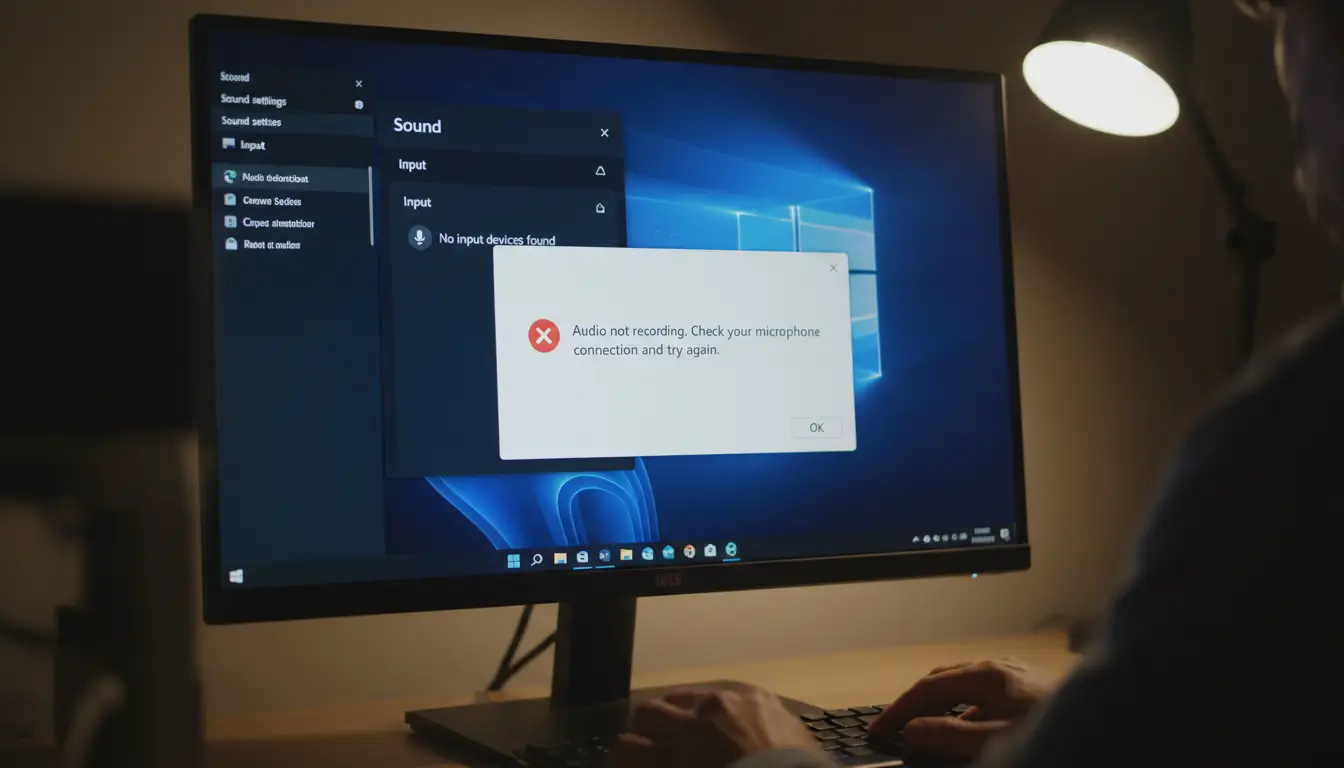
No sound during screen recording can feel confusing because everything looks fine on screen. But in many cases, audio is blocked or redirected quietly in the background.
Windows 11 updates, Bluetooth earphones, webcam microphones, and switching between speakers and headphones can change your default input device without warning. When that happens, your recorder may capture video only, with no voice or system sound.
Knowing the usual causes makes fixing the problem faster.
Common Causes of Audio Issues
Here are the most common reasons screen recording audio fails in Windows 11:
- Windows selects the wrong microphone or input device
- The recorder app is muted in Volume Mixer
- Microphone access is blocked in privacy settings
- The recorder is set to record mic audio instead of system sound, or vice versa
Impact on User Experience
Missing audio ruins recorded lectures, training videos, and client demos. For students, teachers, freelancers, and office teams in Pakistan, it often means wasted time and stress.
Fixing audio properly helps you record clear lessons, clean tutorials, and professional demos.
Troubleshooting Steps
Follow these steps in order. They fix most cases without advanced tools.
Windows Sound Settings Check
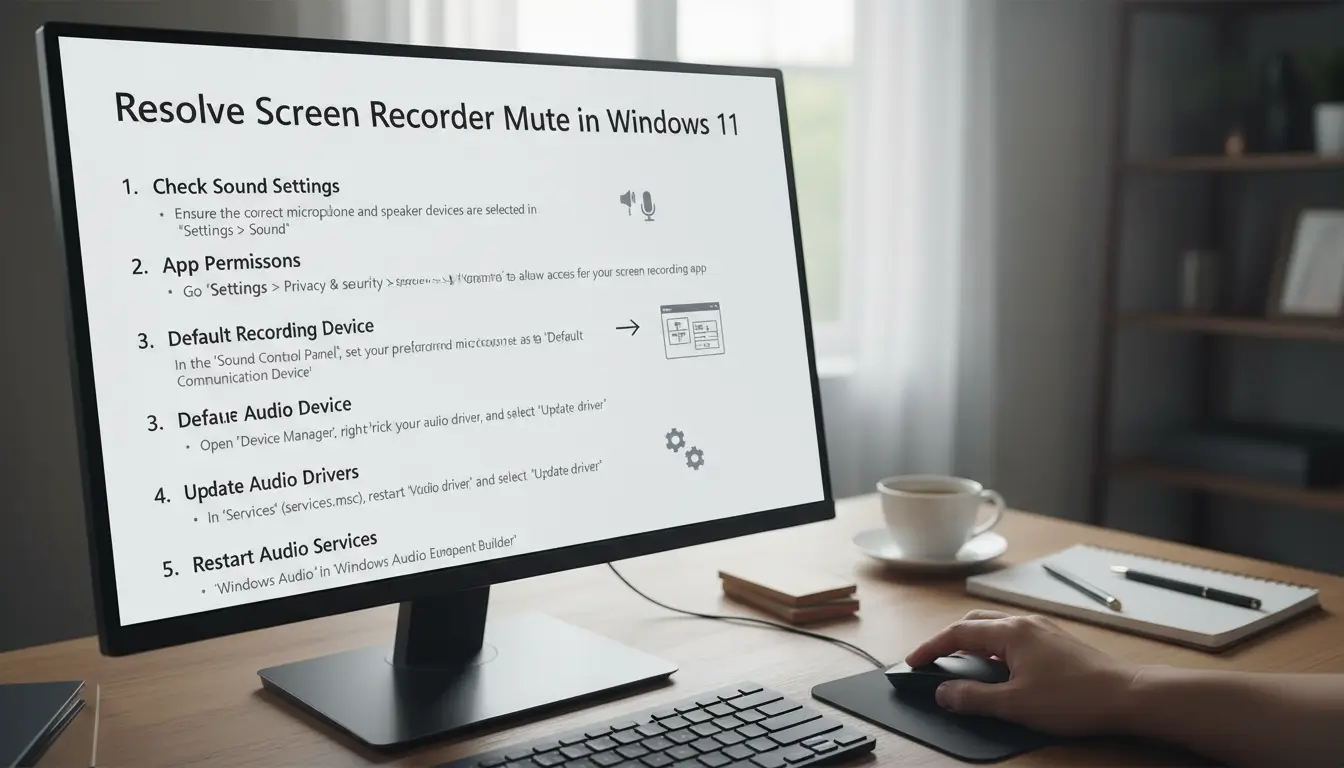
Start with Windows sound settings. Right-click the speaker icon in the taskbar and open Sound settings.
Make sure the correct output device is selected and nothing is muted. Also confirm the system volume is not too low. After any change, do a short test recording so you do not lose a full lecture again.
Check Volume Mixer for the Recorder App
Sometimes Windows mutes only one app, not the whole PC. This is common after updates or when switching devices.
Open Volume Mixer and find your screen recorder and browser. Make sure they are not muted and the volume slider is not at zero. Then test again with a 10–15 second recording.
Adjust Microphone Permissions
Microphone access is required to record your voice. In Windows 11, apps can be blocked even if the microphone works in other programs.
Go to Settings > Privacy & security > Microphone. Turn on microphone access and allow your recorder to use it. Close the recorder, reopen it, and test again.
If you want official guidance directly from Microsoft, you can review Windows 11 audio and microphone help here: Windows 11 sound and microphone help (Microsoft)
Set the Correct Default Input Device
Windows can auto-switch your microphone when you connect a headset, webcam, or Bluetooth earbuds. Your recorder may still be listening to the old device.
Go to Settings > System > Sound > Input and select the microphone you actually want. Speak and check the input level bar moves. Then set the same microphone inside your recorder app.
Select the Right Audio Source in the Recorder
Inside your screen recorder, confirm what you want to record:
If you need system sound, enable system audio. If you need your voice, select the correct microphone. If you are making tutorials, many users need both on.
Always check this before you press Record.
If your recorder does not show both system audio and microphone options clearly, the issue may be a limitation of the software you are using rather than only a Windows 11 setting.
When Basic Fixes Do Not Work
If your screen recorder still has no sound after trying these steps, the problem may be the recorder itself.
Many free, outdated, or unofficial screen recorders do not handle Windows 11 audio properly. Some fail to capture system sound, some miss microphone input, and some become unreliable after Windows updates or device changes.
This is one reason many users in Pakistan switch to a more reliable screen recorder after repeated failed recordings. If you regularly record online classes, tutorials, office demos, or client walkthroughs, using a stable recorder can save time and prevent repeat work.
Use a Reliable Screen Recorder with Better Audio Support
A better screen recorder should make it easy to:
- record system sound and microphone together
- choose the correct audio source clearly
- work properly with Windows 11 updates
- record lectures, tutorials, and demos without random audio failure
If you need a smoother recording experience, you can explore our Best Screen Recording Software in Pakistan guide to compare suitable options.
If you are deciding between tools, you can also review EaseUS RecExperts vs Movavi Screen Recorder in Pakistan to see which option fits your use case better.
Conclusion
Why does my screen recording have no sound in Windows 11? In most cases, Windows selected the wrong microphone, the recorder is muted in Volume Mixer, microphone permissions are blocked, or the wrong audio source is selected inside the recorder.
These quick checks solve many cases. But if the issue keeps coming back, the recorder itself may be the real problem, especially if you are using a free, outdated, or unofficial tool.
If you want more reliable recording for online classes, tutorials, work demos, or content creation, explore genuine screen recorder software on BreTech for Windows 11 users in Pakistan.
FAQs
Q: Why does my screen recording have no sound in Windows 11?
A: This usually happens because Windows selected the wrong microphone, the recorder app is muted in Volume Mixer, or microphone permissions are blocked in Windows 11 settings.
Q: How do I fix Windows 11 screen recording audio not working?
A: Check Windows Sound settings, then Volume Mixer, then Settings > Privacy & security > Microphone, and finally confirm the correct audio source (mic or system sound) inside your recorder.
Q: Why is my screen recorder recording video but no audio?
A: Your recorder may be set to the wrong audio source, or Windows switched the default input device after an update, headset, webcam, or Bluetooth connection. Select the correct mic and test again.
Q: How do I record system sound on Windows 11 screen recordings?
A: In your recorder settings, turn on “system sound” or “speaker audio.” Also make sure the correct playback device is selected in Windows Sound settings, then do a 10–15 second test.
Q: What if screen recording audio issues keep happening again and again?
A: If Windows settings are correct but your recordings still miss sound, the problem may be the recorder itself. In that case, switching to a more reliable screen recorder with proper system audio and microphone support is often the better long-term solution.
Q: What if my microphone works in Zoom but not in my screen recorder?
A: Windows 11 may allow Zoom but block your recorder. Go to Settings > Privacy & security > Microphone and allow your screen recording app, then restart the recorder and test again.
Further Reading
If audio is missing or muted during recording, these related guides can help you choose better tools or fix common issues:
- Best Screen Recording Software in Pakistan
- EaseUS RecExperts vs Movavi Screen Recorder in Pakistan
- Screen Recorder Lags or Drops FPS in Pakistan
Explore more practical tips, tool comparisons, and setup guides in our Screen Recording section.