 Abdul Basit
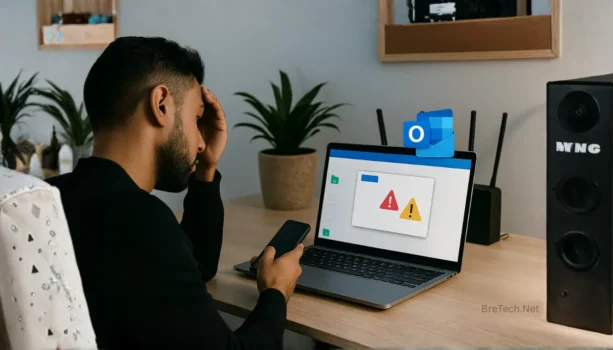
Outlook has exhausted all shared resources can stop emails, calendars, attachments, and shared mailboxes in Pakistan SMB offices. It usually happens because of heavy shared mailboxes, large OST/PST files, cached shared folders, or unstable add-ins.
A common mistake is rebuilding the Outlook profile again and again without checking the real cause. First check Safe Mode, add-ins, the Download shared folders setting, OST size, and mailbox load.
This guide explains safe fixes for Microsoft 365, Exchange, and Outlook users. It also shows when to involve IT and when an OST/PST recovery tool may be needed before deleting or replacing data files.
Outlook “exhausted all shared resources” is usually caused by shared mailbox caching, large OST/PST files, add-ins, or profile damage. Start with Safe Mode, disable add-ins, reduce shared mailbox load, and test Download shared folders. If Outlook still crashes or mailbox data will not open, recover access before deleting OST or PST files.
Quick Diagnosis Checklist: Outlook Has Exhausted All Shared Resources
Use this checklist before changing settings.
- Does the error happen only in a shared mailbox?
- Does it also happen in the main mailbox?
- Did you recently migrate, rebuild, or re-add the account?
- Is the OST/PST file very large?
- Are many shared mailboxes open in Outlook?
- Did you install any new add-ins, such as PDF, CRM, or antivirus email plugins?
- Does Outlook work in Safe Mode?
Fix Outlook Download Shared Folders and OST Size Issues
If the error happens mostly with a shared mailbox, check the Download shared folders setting first.
This setting can cache shared mailbox data inside the local OST file. In busy SMB offices, this can make the OST file very large. Outlook may then become slow, freeze, or show shared resource errors.
Try this safe test:
- Open Outlook
- Go to File → Account Settings → Account Settings
- Select the email account
- Click Change → More Settings → Advanced
- Untick Download shared folders
- Restart Outlook and test the shared mailbox again
This does not delete mailbox data. It only changes how Outlook stores shared mailbox folders locally.
If Outlook becomes stable after this change, the issue is likely linked to shared mailbox caching or OST size.
5 Fast Fixes for Outlook Shared Resource Errors
Work in this order. After each step, open Outlook and test the shared mailbox again.
Fix 1: Restart Outlook and Windows
This clears stuck background processes, file locks, and temporary Outlook problems.
It is a simple step, but it can quickly fix a short-term Outlook resource issue.
Fix 2: Start Outlook in Safe Mode and Disable Add-ins
Safe Mode helps confirm if an add-in is causing the issue.
- Press Windows + R
- Type:
outlook.exe /safe - Press Enter
- If Outlook opens normally, disable add-ins one by one
- Start with the newest or least trusted add-ins
In many SMB offices, one PDF, CRM, or antivirus email add-in can cause Outlook problems after an update.
Fix 3: Reduce Open Data Files and Shared Mailboxes
Too many mailboxes and data files can overload Outlook.
- Close unused shared mailboxes
- Remove old archives you do not need every day
- Keep only active shared mailboxes open
- Avoid loading many large PST files at the same time
This is especially important for front desk, accounts, sales, and support teams that use multiple shared mailboxes.
Fix 4: Run Microsoft 365 Apps Quick Repair
Quick Repair can fix damaged Office components without changing mailbox data.
- Open Windows Settings or Control Panel
- Go to Microsoft 365 Apps or Office
- Choose Modify
- Select Quick Repair
- Restart Outlook after repair
Use Online Repair only if Quick Repair does not help and your IT admin approves it.
Fix 5: Create a Fresh Outlook Profile
If Outlook is stuck because of profile damage, a new profile can fix the problem.
- Open Control Panel
- Go to Mail
- Click Show Profiles
- Click Add
- Create a new profile
- Set the new profile as default
- Re-test the shared mailbox
Do not delete the old profile until you confirm that the new profile works and all required mailbox data is available.
When to Escalate
Stop repeating basic fixes if you see these signs:
- The error remains in Safe Mode
- The error returns after a new profile
- Multiple users get the same error on the same shared mailbox
- Outlook search or indexing stays unstable
- The OST/PST file is very large
- Outlook crashes when opening old mail or archive folders
- The mailbox does not re-sync properly
At this point, treat the issue as a shared mailbox setup problem or possible OST/PST data-file problem.
If Outlook Data Files Are Corrupted
If Outlook cannot open, keeps crashing, or the mailbox will not re-sync cleanly, recover access first. Do not rush to delete OST or PST files.
For Pakistan SMBs, the safest choice depends on the file type. Use an OST converter when the Outlook profile is broken, a PST repair tool when a PST file is corrupted, and a PST merge tool when old archives are making Outlook slow.
Stellar Converter for OST: Regain Access When Profiles Break
Use this when the OST file is orphaned, the Outlook profile is lost, or Outlook cannot load mailbox data properly.
Converting OST to PST can help you access emails before rebuilding the setup.
→ Buy Stellar Converter for OST
Stellar Repair for Outlook: Fix Broken PST Files
Use this when PST files are damaged after imports, migrations, system crashes, or long-term use.
A PST repair tool can help restore folders and emails so Outlook becomes stable again.
→ Buy Stellar Repair for Outlook
Stellar Merge PST for Outlook: Combine Archives Cleanly
Use this when users have many PST archives and Outlook becomes slow or unstable.
Merging PST files into a cleaner structure can reduce confusion and improve long-term mailbox management.
→ Contact BreTech for Stellar Merge PST
Advanced Fixes for Admins and IT Teams
Use these steps when the fast fixes do not hold, especially in offices with heavy shared mailboxes.
Only change admin settings if your IT admin approves and you have a safe recovery plan.
Re-cache Shared Mailboxes Safely
For heavy shared mailboxes, local caching can overload Outlook.
- Test with Download shared folders turned off
- Restart Outlook
- Check if the shared mailbox becomes stable
- Test performance before making the change for all users
This is one of the most useful checks when shared mailbox OST size keeps growing.
Reduce OST Size and Mailbox Load
Large OST files can make Outlook slow and unstable.
- Archive old items
- Keep only active folders cached locally
- Remove unused shared mailboxes
- Avoid keeping old PST archives open every day
- Use a controlled PST workflow for cold data
The goal is to keep Outlook light enough for daily use.
Review Automapping and Shared Mailbox Setup
Some environments work better when shared mailboxes are added in a controlled way.
- Review automapping settings
- Add shared mailboxes only for users who need them
- Avoid giving every user access to too many mailboxes
- Test one affected user before changing the full team
This helps reduce Outlook load and avoids repeated profile problems.
Prefer 64-bit Outlook for Heavy Mailbox Environments
If your office uses large mailboxes, many shared folders, or big archives, 64-bit Outlook can be more suitable than older 32-bit setups.
This is useful for IT teams handling large Microsoft 365 or Exchange environments.
Pakistan IT Team Playbook
Use this order in your support ticket notes:
- Start Outlook in Safe Mode
- Disable add-ins, starting with the newest one
- Close extra shared mailboxes and data files
- Test the Download shared folders setting
- Check OST/PST size and mailbox load
- Run Microsoft 365 Apps Quick Repair
- Create a fresh Outlook profile
- If OST/PST corruption is suspected, recover access before deleting files
- Confirm the fix with the user
- Document the final change before closing the ticket
This process helps avoid repeat work and protects mailbox data.
Shop by Category and Brand
For Outlook recovery problems, start with BreTech’s Email Recovery tools if Outlook will not open mailboxes, shared folders, OST files, or PST archives after a migration or profile issue.
If you need OST/PST repair, conversion, or mailbox archive tools, explore Stellar software on BreTech and choose the product based on your file type and problem.
Note: Product features, editions, and system requirements can change. Always check the product page or contact BreTech before buying if you are not sure which tool fits your case.
FAQs
Q: Why does Outlook show exhausted all shared resources?
A: This error usually appears when Outlook is overloaded by shared mailboxes, large OST/PST files, add-ins, or damaged profile settings. It is common in offices where many users work with shared mailboxes.
Q: Why does this error happen more in shared mailboxes?
A: Shared mailboxes can load many folders, permissions, and cached items. If Download shared folders is enabled, Outlook may store more shared mailbox data locally, which can increase OST size.
Q: Should I rebuild the Outlook profile first?
A: No. Start with Safe Mode, add-in cleanup, shared mailbox load, and the Download shared folders setting first. Rebuild the profile only if the basic fixes do not work.
Q: Is it safe to delete the OST file?
A: It can be safe only if the mailbox can fully re-sync from the server. If the OST file may contain important data or cannot re-sync properly, recover access first before deleting anything.
Q: When do I need an OST to PST converter?
A: You may need an OST to PST converter when the Outlook profile is broken, the OST file is orphaned, or Outlook cannot open mailbox data properly.
Q: When do I need a PST repair tool?
A: You may need a PST repair tool when a PST archive is corrupted, Outlook crashes when opening it, or folders and emails are missing after import or migration.
Q: Will these fixes work on Microsoft 365 and Exchange?
A: Yes. The basic troubleshooting order is similar for Microsoft 365 and Exchange. Admins may also need to adjust shared mailbox caching, automapping, and mailbox access settings.
Further Reading
Want to learn more about Outlook recovery and email data tools? Read these related guides:
- Best PST Repair Software in Pakistan
- Best Email Recovery Software in Pakistan
- Best Exchange Server Recovery Software in Pakistan
- Email Converter Software in Pakistan
- Best Email Client for Windows in Pakistan
See more guides in our Email Recovery section for Outlook repair, PST recovery, email backup, and mailbox data recovery help.