 Abdul Basit
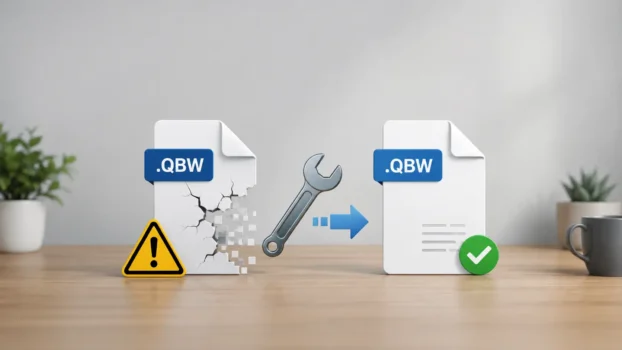
A corrupted QBW file can bring an entire business to a halt. Payroll may stop, invoices cannot be sent, and important financial records can become inaccessible. QuickBooks File Doctor is one of the first tools many users try, but it does not always solve the problem.
When File Doctor fails, knowing what to try next can help protect your data and avoid unnecessary repair attempts.
This guide walks through practical repair options in order, from built-in QuickBooks tools to third-party software, so you can make an informed decision without wasting time on steps that do not fit your situation.
Key Takeaways
- QuickBooks File Doctor handles common company-file and some network problems, but it does not fix every damaged QBW file.
- Keep an untouched copy of the affected QBW file and protect existing backups before attempting further repairs.
- QuickBooks Verify Data can identify company-file integrity problems, while Rebuild Data can repair detected data damage.
- A recent QBB backup may be a better recovery option than repairing a badly damaged working file.
- Stellar Repair for QuickBooks is a dedicated third-party option when appropriate QuickBooks repair and recovery methods are not enough.
- No repair tool guarantees complete data recovery. A consistent and tested backup routine remains the best protection.
What Is QuickBooks File Doctor and What Does It Actually Fix?
QuickBooks File Doctor is an Intuit diagnostic and repair utility available through QuickBooks Tool Hub. It is designed to help with QuickBooks Desktop company-file problems and some network-related issues.
Intuit currently recommends File Doctor for problems such as:
- Error -6150
- Error -6000 -82
- Error -6000 -305
- Error -6000 -301
- Error -6147
- Error -6130
- Missing or blank customer, vendor, or employee lists
File Doctor can also help diagnose some problems related to accessing QuickBooks company files over a network.
It runs a scan, attempts supported repairs, and then lets you test whether the company file opens correctly.
Where it can fall short:
- The QBW file still will not open after the scan
- QuickBooks continues to detect data-integrity problems
- The problem is caused by the QuickBooks installation rather than the company file
- A multi-user or network configuration problem requires separate troubleshooting
- Storage problems continue damaging or interrupting access to the file
- A healthy backup provides a safer recovery option
If File Doctor reports that it cannot repair the problem, or the file still shows errors afterward, move to the next recovery step rather than repeatedly running the same repair.
Step 1: Back Up Before You Do Anything Else
Before running additional repair tools, copy the affected QBW file to a separate safe location. Do not overwrite the original.
If a repair attempt changes the file without solving the problem, keeping the original gives you another copy to use with a different recovery method.
Save a copy to:
- An external USB drive or hard disk
- A separate folder on another healthy storage drive
- Another secure backup location that will not overwrite your working file
For guidance on building a reliable backup strategy, see File Backup vs System Image Backup in Pakistan. It explains the difference between file-level backups and full-system images, which can be useful when protecting important accounting data.
Also check whether you have a recent .QBB backup. QuickBooks Desktop supports manual and scheduled automatic backups, but automatic backups need to be configured.
If a recent QBB backup exists and opens correctly, restoring it may be safer and faster than repairing a badly damaged working file.
Step 2: Run QuickBooks File Doctor Through QuickBooks Tool Hub
If you have not already followed the current File Doctor process, run it through the latest QuickBooks Tool Hub.
The current process is:
- Close QuickBooks Desktop.
- Download and install the latest QuickBooks Tool Hub from Intuit.
- Open Tool Hub and select Company File Issues.
- Select Quick Fix my File.
- When it finishes, open QuickBooks and test the company file.
- If the problem remains, return to Company File Issues.
- Select Run QuickBooks File Doctor.
- Select your company file from the dropdown, or browse to it manually.
- Choose Check your file and select Continue.
- Enter your QuickBooks Admin password and continue.
The File Doctor scan time depends on the company-file size and can take around 10 to 15 minutes.
Intuit also notes that the scan may sometimes report that it was unsuccessful even when it corrected the problem. Test the company file after the scan finishes.
If File Doctor completes but QuickBooks still cannot open the company file or continues to show data problems, move on to the built-in data-integrity tools.
Step 3: Use Verify and Rebuild Data Inside QuickBooks
The Verify Data and Rebuild Data utilities are built into QuickBooks Desktop.
Verify Data checks the company file for common data-integrity problems. If QuickBooks reports that the data has lost integrity, Rebuild Data can attempt to repair the detected damage.
To Verify
- Close open QuickBooks windows.
- Go to File > Utilities > Verify Data.
- Allow QuickBooks to scan the company file.
If QuickBooks reports that it detected no problems with your data, the file has passed that integrity check.
If QuickBooks says your data has lost integrity, continue with Rebuild Data.
To Rebuild
- Go to File > Utilities > Rebuild Data.
- QuickBooks will ask you to create a backup first.
- Save the backup under a new name so you do not overwrite another backup.
- Allow Rebuild Data to complete.
- Run Verify Data again afterward.
If the second Verify finds no problems, the repair may have resolved the detected integrity issue.
If problems remain, note any reported errors and consider whether a recent backup or another recovery method is more appropriate than repeatedly rebuilding the same file.
Step 4: Try Other QuickBooks Tool Hub Options When the Symptoms Match
Not every problem opening a company file is caused by corruption inside the QBW file.
QuickBooks Tool Hub includes other utilities that may help when the symptoms point to a program, installation, or network problem.
| Tool | When It May Help |
|---|---|
| Quick Fix my Program | QuickBooks freezes, crashes, or has program-related problems |
| QuickBooks Install Diagnostic Tool | QuickBooks installation or Microsoft component problems |
| QuickBooks Database Server Manager | Multi-user hosting and network access problems |
Quick Fix my Program closes background QuickBooks processes and performs a quick program repair.
The Install Diagnostic Tool is more relevant when the QuickBooks installation itself appears damaged.
QuickBooks Database Server Manager is designed for systems where a server hosts company files for multiple QuickBooks users.
Do not run every Tool Hub utility simply because the QBW file is damaged. Choose the tool that matches the actual symptom.
When Built-In Tools Are Not Enough: Signs You May Need Specialist Software
Some situations may require a dedicated QBW repair tool rather than additional QuickBooks program troubleshooting.
Consider specialist software when:
- QuickBooks cannot open the QBW file after File Doctor and appropriate troubleshooting
- File Doctor completes but the company-file problem remains
- Verify and Rebuild continue to detect data damage
- A suitable QBB backup is unavailable
- An available backup also needs data recovery
- QuickBooks Auto Data Recovery does not provide the required data
- You want to inspect potentially recoverable QBW data before deciding whether to save a repaired file
At this stage, a dedicated QBW repair application may be worth considering.
Comparing QuickBooks Repair Methods vs Stellar Repair for QuickBooks
| Criteria | QuickBooks File Doctor | Verify & Rebuild Data | Stellar Repair for QuickBooks |
|---|---|---|---|
| Provider | Intuit | Intuit | Stellar |
| Access | QuickBooks Tool Hub | Built into QuickBooks Desktop | Separate third-party software |
| Main purpose | Company-file and some network problems | Find and repair data-integrity issues | Repair corrupt QBW files and recover QuickBooks file data |
| QBW support | Yes | Yes | Yes |
| QBB recovery | Not its main purpose | No | Yes |
| Preview recoverable data | No dedicated recovery preview | No | Yes |
| Best use | Common QuickBooks file problems | Detected company-file integrity problems | When native repair and recovery options are insufficient |
QuickBooks File Doctor and Verify/Rebuild should normally be checked before moving to third-party repair software.
Important: No repair program can guarantee that every record will be recoverable. The result depends on the condition of the QBW file and how much usable file data remains.
For a broader look at repair applications, see Best File Repair Software Tools.
About Stellar Repair for QuickBooks
Stellar Repair for QuickBooks Software is a dedicated Windows application designed to repair corrupt QuickBooks company files.
According to Stellar’s current product specifications, it can:
- Repair corrupt QBW company files
- Recover QuickBooks data from QBB backup files
- Recover company, customer, vendor, and employee information
- Preview recoverable data before saving
- Support QuickBooks Pro, Premier, and Enterprise files
- Work with supported QuickBooks files from versions 2007 through 2024
The preview feature is particularly useful because it lets you inspect recoverable QuickBooks components after the scan before saving the repaired data.
If your company file comes from QuickBooks 2025 or a newer version, confirm compatibility with your exact version before purchasing because Stellar’s currently published specifications list support through QuickBooks 2024.
Stellar Repair for QuickBooks is a third-party product and is not affiliated with Intuit. It should be considered after the appropriate QuickBooks repair, backup, and recovery options have been checked.
You can also browse Stellar software in Pakistan for other specialist file and data recovery tools.
Check Whether QuickBooks Auto Data Recovery Can Help
Before purchasing a repair tool, also check whether QuickBooks Auto Data Recovery (ADR) is available for your installation.
ADR can use copies of the company file and Transaction Log file to recover lost or corrupted QuickBooks data.
Intuit states that ADR is available for QuickBooks Pro, Premier, and Enterprise Solutions for Windows. It is not available for Accountant editions.
ADR also has a 1.5 GB file-size limitation for generating recovery files.
This means ADR availability depends on your QuickBooks edition, company-file size, and whether the required recovery files exist.
ADR is intended to be used after appropriate troubleshooting has already been attempted.
Preventing QBW File Corruption in the Future
Repairing a corrupt company file can be stressful. Reducing the risk of future data loss is easier than trying to recover an important accounting database after something goes wrong.
Keep Regular QuickBooks Backups
Use manual backups or configure QuickBooks’ scheduled automatic backup feature.
Choose a backup frequency that matches how often your accounting information changes.
Keep More Than One Backup
Do not keep your only QBB backup beside the working QBW file on the same storage device.
Maintain separate backup copies so one disk failure does not affect both your working file and every recovery copy.
Keep Older Backup Generations
Do not overwrite every previous backup with the newest one.
Keeping several backup generations gives you more recovery choices if corruption began before anyone noticed the problem.
Close QuickBooks Normally
Avoid unnecessary forced shutdowns while QuickBooks is writing data to the company file.
If QuickBooks repeatedly freezes or crashes, troubleshoot the program or system problem instead of relying on forced shutdowns.
Keep Your Storage Healthy
Storage problems can affect access to important files and may contribute to repeated file errors.
Watch for read/write errors, disappearing drives, unusual slowdowns, bad-sector warnings, or other signs of storage trouble.
For practical checks, see Disk Health Checker Tools for Windows.
If a drive appears to be physically failing, protect important data before repeatedly running repair operations on it.
Use Proper Multi-User Hosting
If several users access the same QuickBooks company file, follow QuickBooks’ supported multi-user hosting setup.
QuickBooks Database Server Manager is designed to help manage access to company files stored on the server in a multi-user environment.
Verify Important Restored Files
After restoring or repairing a company file, run QuickBooks Verify Data before treating it as your main working copy.
Keep the previous file until you are satisfied that the restored or repaired version contains the information you need.
When to Contact a QuickBooks Data Recovery Specialist
If every appropriate software-based recovery option has failed and the accounting data is critical, professional data-recovery assistance may be the next step.
Consider specialist assistance when:
- The company file was stored on a physically failing drive
- Repair tools cannot produce usable recoverable data
- Important financial records cannot reasonably be recreated
- The original damaged file needs to be preserved for further recovery attempts
Intuit also provides data-recovery services for supported QuickBooks products in certain situations. Availability can depend on your product and region.
Do not keep modifying your only copy of an important damaged QBW file while testing different solutions.
Preserve the original file so another recovery method remains possible.
Conclusion
QuickBooks File Doctor is a solid starting point, but it is not designed to solve every company-file problem.
When it falls short, work through the recovery options in a sensible order: protect the original QBW file and backups, run Quick Fix my File and File Doctor, check the company file with Verify Data, use Rebuild Data when integrity problems are detected, and consider your available backups or Auto Data Recovery.
If the QBW file is still damaged after the appropriate QuickBooks recovery options have been checked, a dedicated tool such as Stellar Repair for QuickBooks may be worth considering.
Actionable next steps:
- Copy the affected QBW file to a safe location before further repair attempts.
- Check whether you have a recent healthy QBB backup.
- Run Quick Fix my File and QuickBooks File Doctor through Tool Hub.
- Run Verify Data and use Rebuild Data if QuickBooks reports integrity problems.
- Check Auto Data Recovery if your QuickBooks edition supports it.
- Consider dedicated QBW repair software if the native options do not produce a usable company file.
- Set up a regular backup routine after recovery.
Businesses in Pakistan can browse File Repair & Recovery Software to compare genuine repair tools with PKR pricing and available local support.
If you need help choosing a suitable repair product or license, contact BreTech support before purchasing.