 Abdul Basit
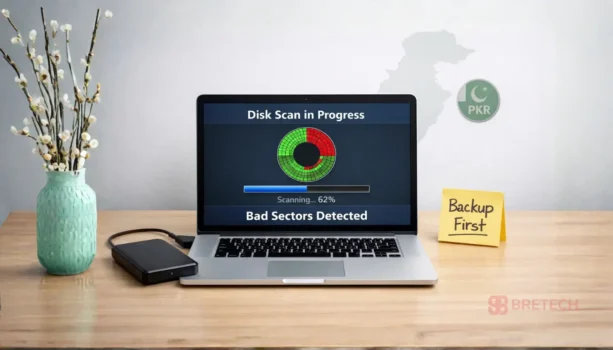
The best bad sector repair software can help when a hard drive slows down, freezes, shows disk errors, or becomes difficult to read. For users in Pakistan, the main job is to check the disk safely, protect important files, and decide whether the drive can still be used or should be replaced.
Bad sectors can happen because of file system errors, weak storage areas, power problems, age, heat, or physical damage. Good disk tools can check disk health, find weak sectors, fix some logical errors, manage partitions, and help you clone data before the problem gets worse.
This guide explains what bad sectors mean, what software can and cannot fix, which HDD bad sector repair tools are safer to use, and when it is better to stop troubleshooting and replace the drive.
If clicking noises start or errors increase quickly, prioritize hard drive recovery and plan a replacement.
Key Takeaways
- AOMEI Partition Assistant, EaseUS Partition Master, and MiniTool Partition Wizard are the main tools to compare for bad sector checking, surface testing, partition checks, and disk cloning.
- These tools can help detect weak or unreadable sectors, fix some logical disk errors, and move data to a safer drive.
- No software can physically repair a damaged hard drive surface. If bad sectors keep increasing, recover your files and replace the drive.
- If files are missing, unreadable, or the drive freezes often, use data recovery first before running repeated repair scans.
Quick Decision Table
| If your problem is… | Best next step | Better tool choice |
|---|---|---|
| PC is slow or freezing | Run one careful surface test | AOMEI Partition Assistant, EaseUS Partition Master, or MiniTool Partition Wizard |
| Disk errors or file system problems | Check partition and file system errors | EaseUS Partition Master or MiniTool Partition Wizard |
| Weak sectors but drive still works | Clone data before failure | AOMEI Partition Assistant or EaseUS Partition Master |
| Files missing or unreadable | Recover important files first | Data recovery software |
| Clicking noise or repeated failures | Stop heavy scans and replace drive | Data recovery + new drive |
If the drive is freezing, clicking, or disconnecting again and again, do not keep running scans. Recover what you can first, then plan a replacement to avoid full data loss.
Choose the Right Software Path Based on Drive Condition
If bad sectors are involved, do not choose software only by brand name. First check the drive condition, then choose the correct software category.
If the drive is still opening normally but shows slow speed, disk errors, or weak sectors, compare options in Partition Management Software. These programs are usually better for surface testing, partition checks, disk checking, and cloning.
If files are already missing, corrupted, unreadable, or the drive freezes during copying, start with Data Recovery Software. In this case, protecting files is more important than running repair scans.
If Windows is not booting or the drive cannot be accessed properly from Windows, check Windows Data Recovery Solutions before trying repeated repair attempts.
The safe order is simple: recover important data first, then scan the disk, then clone or replace the drive if needed.
Understanding Bad Sectors
Bad sectors are damaged or unreliable areas on a hard drive, SSD, USB drive, or storage disk that can no longer store data safely. Think of them like weak spots on the drive where data may not read or write correctly.
These disk issues can lead to slow performance, file corruption, boot problems, and data loss. Finding bad sectors early gives you time to back up, clone, recover, or replace the drive before it fails completely.
Bad sectors can be logical or physical. Logical bad sectors are usually linked to file system errors or software-level issues. Physical bad sectors happen when the storage surface or memory area is damaged. Physical damage usually gets worse over time.
Causes of Bad Sectors
Bad sectors can happen because of:
- Sudden power failure
- Unsafe shutdowns
- Old hard drives with heavy use
- Heat or poor ventilation
- Physical damage, such as dropping a laptop or external drive
- File system errors
- Virus or malware damage
- Manufacturing defects
Stable power, safe shutdowns, and regular backups can reduce risk, but every storage drive can fail with age.
Signs of a Failing Hard Drive
Common warning signs include:
- Frequent crashes or slow performance
- Clicking or grinding noises
- Files becoming corrupted
- Windows showing disk errors
- The system failing to boot
- External drive disconnecting repeatedly
- Copying files becoming very slow
- Drive health warnings in disk tools
If you notice these signs, scan carefully and prepare a backup or recovery plan.
Hard Disk Repair Tools: What They Can Do for Bad Sectors
Disk repair software can help, but it has limits. No software can physically repair a damaged hard drive surface. A tool can scan the disk, check file system errors, mark weak areas, manage partitions, clone the drive, or help you decide whether replacement is needed.
For bad sectors, recovery alone is not always enough. You also need tools that can test, isolate, and manage damaged disk areas safely.
- For surface tests, partition checks, and bad sector checking, use tools from Partition Management Software.
- For disk diagnostics, boot checks, and system-level disk health, see System & Disk Utilities.
Best practice: run one careful scan, note the result, and stop if bad sectors increase. Repeated deep scans can stress a weak drive.
Detection of Bad Sectors
One of the main jobs of disk checking software is to detect bad sectors. These tools scan the drive and identify areas that are weak, unreadable, or already failing.
This helps you understand how serious the problem is. A few weak sectors may be manageable for a short time, but increasing bad sectors usually means the drive should be replaced.
If you want to compare health-check features before buying, this guide on disk health checker tools in Pakistan can help you understand what to look for in a proper disk checking tool.
File System Checks and Logical Repair
Disk utilities can run file system checks to find logical errors. In some cases, Windows or a disk tool may mark bad areas as unusable so the system avoids writing new data there.
This can help stabilize the drive for a short time while you prepare recovery, cloning, or replacement. It should not be treated as a permanent fix for physical damage.
Disk Cloning and Migration
Before a hard drive fails completely, it is important to move your data to a safer location. Disk cloning is useful because it can help move your system and files to a new drive before the old drive becomes unreadable.
If you are moving from one NVMe SSD to another, this step-by-step guide on how to clone NVMe SSD to NVMe SSD can help you understand the cloning workflow before you start.
If the drive is too unstable, do not force cloning again and again. Recover the most important files first or ask a technician to handle the drive.
Which Bad Sector Repair Tool Is Best?
For most PC and laptop users, the best bad sector repair tool is the one that can scan the disk safely, show clear results, and help you clone or move data before the drive fails.
Choose AOMEI Partition Assistant if you want surface testing, partition management, and cloning in one tool. Choose EaseUS Partition Master if you want a simple interface with disk checking, health checks, and migration options. Choose MiniTool Partition Wizard if you want partition control, surface testing, and disk checking with multiple edition choices.
If the drive is clicking, freezing, or losing files, do not start with repair. Start with data recovery first.
Top HDD Bad Sector Repair Tools in Pakistan
These tools are available at BreTech with PKR pricing, local payment options, and digital delivery. They are useful for checking bad sectors, testing disk surfaces, managing partitions, fixing logical disk issues, and cloning weak drives before replacement.
Important: No software can physically repair a damaged hard drive surface. These tools can help with scanning, logical repair, bad sector checking, disk management, and safe migration.
1. AOMEI Partition Assistant
AOMEI Partition Assistant is one of the best fits for this guide because it supports disk surface testing, partition checking, disk management, and drive cloning. It is useful when a hard drive is still readable but showing weak sectors, slow performance, or partition errors.
Use it when you need to check disk condition, manage partitions, clone a weak drive, or prepare for safe replacement.
These editions let you choose the right disk management tool for PC users, server environments, or technician work.
Available editions: Professional | Server | Technician | Unlimited
2. EaseUS Partition Master
EaseUS Partition Master is a strong option for users who need partition repair, disk checking, file system error checks, disk health checks, bad sector scan, and disk cloning. It is suitable for home users, offices, and technicians who want a clean interface for checking and managing disk problems.
Use it when the drive is still working, but Windows shows disk errors, partition issues, or slow drive behavior.
These editions are useful when you need partition control, disk checking, and migration options before the situation gets worse. If you are confused between editions, read this guide on EaseUS Partition Master editions in Pakistan.
Available editions: Professional | Server | Technician | Unlimited
3. MiniTool Partition Wizard
MiniTool Partition Wizard is useful for surface testing, partition management, disk checking, and cloning. It is a good fit when you want to detect bad sectors and understand whether the drive is becoming risky.
Use it for disk checks and partition control, but do not treat it as a physical hard drive repair tool. If bad sectors keep increasing, recover your files and replace the drive.
These editions help you pick the right partition control tool for personal use, business use, server use, or technician work. For edition choice, see the MiniTool Partition Wizard editions guide.
Available editions: Pro | Pro Platinum | Pro Ultimate | Server | Enterprise | Technician
If you are comparing tools before purchase, this AOMEI Partition Assistant vs MiniTool Partition Wizard guide can help you choose between two popular disk management options.
BreTech helps users in Pakistan choose genuine software licenses with PKR pricing, local payment options, digital delivery, activation help, and invoice support.
Free Bad Sector Repair Tool vs Paid License
Many users first search for a free bad sector repair tool. Free tools can help with simple checks, but they may not be enough for serious disk problems, business data, technician work, or server drives.
A free tool may be enough when:
- You only want to check if bad sectors exist
- The drive does not have important data
- You already have a full backup
- You are testing a spare USB, old HDD, or non-critical disk
A paid license is better when:
- You need cloning or migration features
- The drive has office, business, or customer data
- You need technician use rights
- You need server support
- You want updates and activation support
- You want to avoid cracked or unsafe installers
A free bad sector repair tool can be useful for basic checking, but it is not always the safest choice when the drive has important files. If you need cloning, business use, technician use, server support, updates, or activation help, a paid license is usually safer.
Avoid cracked repair tools. When a drive already has important data, unsafe software can make the problem worse. The first goal should be protecting your files, not trying many free tools one after another.
If you are not sure why genuine licensing matters, read this guide on how to buy genuine software in Pakistan.
HDD vs SSD Bad Sector Repair
Bad sectors are usually discussed with HDDs, but SSDs can also develop bad blocks or weak storage areas. The safe approach is similar: check the drive, protect your files, and replace the storage if errors increase.
For HDD Drives
HDDs can show signs like clicking, grinding, slow copying, and repeated read errors. If an HDD starts making noise, stop heavy scans and recover important files first.
For SSD Drives
SSDs may not make noise, but they can show health warnings, sudden file errors, slow performance, or disappearing partitions. If an SSD shows bad block warnings or health drops quickly, back up your data and plan replacement.
In both cases, software can help check and manage the problem, but it cannot physically restore damaged storage.
When to Use Data Recovery Software Instead
Use data recovery software before repair scans if your files are already missing, corrupted, unreadable, or the drive is freezing often. Recovery tools are for saving files from a weak or damaged drive. They do not repair bad sectors.
Choose recovery first when:
- Important files are missing
- Normal copying fails
- The drive freezes during access
- The external drive disconnects often
- Windows asks to format the drive
- You hear clicking or grinding noise
- Bad sectors are increasing quickly
For recovery-first cases, this guide on the best data recovery software in Pakistan can help you choose a safer recovery path before running more disk repair scans.
After your important files are safe, you can check whether the drive is still usable or should be replaced.
Trusted Disk Repair Brands Available at BreTech
All tools listed in this guide come from known software vendors with proper licensing and updates.
- View all disk and partition tools from AOMEI.
- Compare recovery and disk management software by EaseUS.
- Explore partition and recovery solutions from MiniTool.
Pick the brand you already trust, then select the right edition based on home use, business use, server use, or technician work. This helps avoid buying the wrong license type.
What to Avoid When Using Repair Tools
Using the wrong repair tool or method can sometimes do more harm than good. Here are a few things to avoid when dealing with bad sectors.
Free or Cracked Software Risks
Cracked software is risky, especially when your drive already has important data. These tools can create more problems, including:
- Malware or viruses
- Unsafe installers
- Data exposure
- Broken activation
- No updates or support
- Wrong scan results
Always use genuine, licensed software from reputable sources. Built-in Windows tools can help with basic checks, but they should also be used carefully on weak or failing drives.
One-click Repair Tools
Be careful with one-click repair tools that promise instant hard drive repair. Bad sectors need careful checking. A simple button cannot safely fix every disk problem.
Use tools that show clear scan results, disk health, partition status, or cloning options. If the drive is getting worse, stop testing and focus on recovery.
Repeated Deep Scans
Running many deep scans on a weak drive can create extra stress. If one scan shows many bad sectors, do not keep testing just to confirm the same result.
At that point, recover files, clone the drive if possible, and replace it.
Ignoring Hardware Failure
Sometimes a hard drive is simply beyond repair. If you continue to experience problems after using repair tools, or if the disk shows signs of severe physical damage, replacement is the safer choice.
Continuing to repair a failing hard drive can lead to permanent data loss. Recognize when it is time to stop.
Safe Practices for Hard Disk Health
Regular Backups
Creating regular backups is your first protection against data loss. If bad sectors appear, you will already have a recent copy of your important files.
For office users, backups are even more important because lost files can delay work, customer service, accounts, invoices, or projects. If you are confused between simple file backup and full system protection, this guide on file backup vs system image backup in Pakistan explains the difference in a practical way.
Monitoring Disk Health
Keep an eye on disk health using disk management tools. Many utilities can show drive condition, errors, or S.M.A.R.T. warnings.
Catching problems early gives you time to recover data, clone the disk, or replace the drive before it fails fully.
Preventing Future Bad Sectors
You cannot fully prevent bad sectors, but you can reduce the risk.
- Use stable power
- Avoid sudden shutdowns
- Keep your PC cool
- Handle laptops and external drives carefully
- Do not ignore strange noises
- Replace old drives early
- Keep regular backups
Good habits can reduce risk, but no hard drive lasts forever.
When to Replace Your Hard Drive
Signs Replacement Is Needed
Replace the drive if you notice:
- Bad sectors keep increasing
- The drive makes clicking or grinding noises
- Windows keeps freezing
- Files become corrupted again and again
- The drive disappears from Windows
- Cloning fails repeatedly
- Disk health tools show serious warnings
A weak drive may work for some time, but it should not be trusted for important files.
Repair Cost vs Replacement Cost
If repair attempts are becoming expensive, slow, or risky, a new drive is usually the better option. For many users, replacing the drive is safer than repeatedly testing a failing one.
If the data is valuable, recover the data first. Then replace the drive.
Choosing the Right Replacement Drive
When choosing a replacement, consider your storage needs, budget, and performance requirements. For many PCs and laptops, upgrading from HDD to SSD can improve speed and reliability.
Choose a reliable drive with a good warranty, and keep backups even after replacement.
Conclusion: Repair Bad Sectors Safely and Protect Data
AOMEI Partition Assistant, EaseUS Partition Master, and MiniTool Partition Wizard are useful bad sector checking and disk management tools. They can help with surface testing, partition checks, logical disk repair, cloning, and drive migration.
No software can physically repair a damaged hard drive surface. If bad sectors keep increasing, files become unreadable, or the drive starts clicking, recover your important data first and plan a replacement.
BreTech helps users in Pakistan choose genuine disk and partition software with PKR pricing, local payment options, digital delivery, activation help, and invoice support.
Choose a licensed tool that matches your problem, so you can scan safely, protect your files, and avoid risky cracked software.
FAQs
Q: What is the best bad sector repair software in Pakistan?
A: For bad sector checking and disk management, AOMEI Partition Assistant, EaseUS Partition Master, and MiniTool Partition Wizard are good options. Choose based on whether you need home use, business use, server support, or technician licensing.
Q: Can hard disk repair software fix bad sectors on an HDD?
A: Software can help with logical errors, file system problems, and bad sector checking. It cannot physically repair damaged hard drive surfaces. If the bad sectors are physical, the safer choice is to recover data and replace the drive.
Q: What should I do first if my damaged hard drive is slowing down or freezing?
A: Stop heavy use and protect your important files first. Run a careful scan only if the drive is stable. If files are missing or the drive freezes often, use data recovery before more repair attempts.
Q: Is it safe to use CHKDSK to fix bad sectors?
A: CHKDSK can help check file system errors and locate weak areas, but it can stress an unstable drive. If the drive is clicking, freezing, or disconnecting, do not run repeated deep scans. Recover important files first.
Q: Can partition tools repair physical bad sectors?
A: No. Partition tools can scan, detect, manage, mark, or help work around bad areas. They cannot repair physical damage on a hard drive surface.
Q: Is there any free bad sector repair tool?
A: Some free tools can check bad sectors or run basic disk tests. For cloning, technician use, server use, business use, updates, and safer activation, a paid license is usually better.
Q: Can I use the same bad sector tool for SSD?
A: Many disk tools can scan both HDD and SSD drives, but SSD problems are different from HDD problems. If SSD health is dropping or bad blocks appear, back up your data and plan replacement.
Q: How do I recover data from an HDD with bad sectors?
A: Focus on recovering data from readable areas first. If normal copying fails, use data recovery software or get technician help. After recovery, replace the drive if bad sectors keep increasing.
Q: Can I repair an external hard drive with bad sectors the same way?
A: An external hard drive is still a storage drive inside a case. Use the same safe approach: scan carefully, recover important files, and replace the drive if errors increase or it disconnects often.
Q: Should I keep using a hard drive after bad sectors are found?
A: You may use it for temporary, non-important data only if errors are small and stable. Do not store important files on a drive that already shows bad sectors. Replace it early.
Q: How can I prevent bad sectors in the future?
A: You cannot fully prevent bad sectors, but you can reduce risk with stable power, safe shutdowns, less heat, careful handling, and regular backups. Replace aging drives before warnings become serious.
Further Reading
For more help with hard drive errors, disk health, backup, and safe recovery steps in Pakistan, explore these BreTech guides:
- AOMEI Partition Assistant vs EaseUS Partition Master in Pakistan
- Best Backup Software in Pakistan
- Affordable Data Recovery Software in Pakistan
- Best Enterprise Data Recovery Software in Pakistan
- Best File Repair Software in Pakistan
For more related guides, browse our File & Drive Recovery section for tips on recovery, repair, and backups.