 Abdul Basit
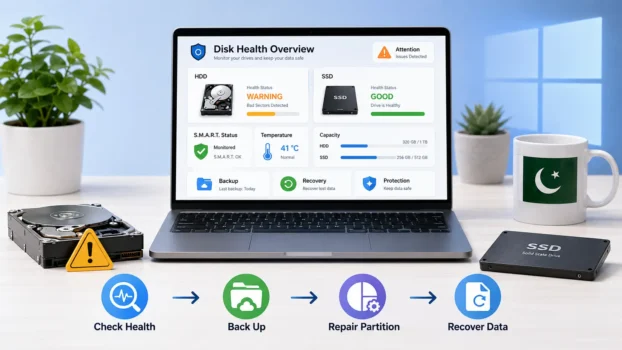
Hard disk health checker tools help Windows users check HDD or SSD health, S.M.A.R.T. status, temperature, bad sectors, and early drive failure warnings before important files are lost.
For Pakistan users, this matters because power cuts, voltage issues, dust, heat, and older hardware can increase the risk of sudden data loss.
The right tool can help you check drive health, back up important data, clone the disk, repair partition issues, or recover files if the problem has already started.
BreTech helps Pakistan buyers choose genuine software licences with PKR pricing, digital email delivery, local payment support, invoice support, and activation guidance.
Hard Disk Health Checker Tools: Quick Comparison
This table includes basic hard disk health checker tools plus related backup, partition, cloning, and recovery software you may need after a drive warning.
| Tool Type | Best For | Use When |
|---|---|---|
| Free S.M.A.R.T. checker | Basic HDD, SSD, and NVMe health status | You only want to check drive health, temperature, and warning signs |
| Windows disk check | Quick file system scan | Windows shows a scan, repair, or disk error message |
| SSD brand tool | SSD health, firmware, and wear check | You use a branded SSD or NVMe drive |
| AOMEI Partition Assistant Professional | Partition repair, disk surface test, SSD migration | Your drive works but partitions need management or checking |
| AOMEI Partition Assistant Technician | Technician partition management | You repair or manage multiple customer or office PCs |
| EaseUS Partition Master Professional | Partition resizing, migration, and disk management | You want an easier paid partition tool for Windows |
| EaseUS Partition Master Technician | Technician disk management | You need commercial use for client or office systems |
| MiniTool Partition Wizard Pro Platinum | Partition management, cloning, OS migration, and partition recovery | You want a MiniTool option for disk management on personal or small office PCs |
| MiniTool Partition Wizard Technician | Technician partition management, cloning, boot repair, and client disk work | You repair or manage multiple customer, office, or server systems |
| MiniTool Power Data Recovery Personal | Recovery from deleted, formatted, RAW, or lost partition data | Files are already missing, formatted, or inaccessible |
| AOMEI Backupper Professional | Backup, cloning, and system image | Your drive is still working and you want to protect data before failure |
| AOMEI Backupper Technician | Backup and cloning for technicians | You manage multiple customer or office PCs |
| AOMEI Backupper Technician Plus | Advanced technician and business backup | You need wider workstation or server-level support |
| Stellar Data Recovery Premium | Recovery from deleted, lost, or damaged data | Files are already missing, formatted, or inaccessible |
| Paragon Hard Disk Manager for Business | Advanced business partitioning, RAID management, and disk wiping | Managing storage, backups, and migrations across company or client PCs |
Important: If your drive is clicking, not detected, or physically damaged, do not keep scanning it again and again. Software may not be enough. Back up what you can and avoid actions that may make recovery harder.
Explore Related Software Collections
Need help choosing the right software type before buying? These BreTech collections can help:
- File & Drive Recovery for HDD, SSD, USB, SD card, formatted drive, and inaccessible partition recovery.
- File & Folder Backup for important file backup and routine data protection.
- Disk & System Imaging for disk cloning, system image backup, and full PC protection.
- Partition Management for resizing, repairing, converting, and managing disk partitions.
- Technician Tools for repair shops, IT teams, and service providers.
Why Hard Disk Health Checking Matters in Pakistan
A hard disk drive (HDD), SSD, or NVMe storage device can fail slowly before it stops working completely. Warning signs may include freezing, slow file opening, clicking sounds from an HDD, boot errors, missing files, or bad sector warnings.
Many users in Pakistan keep using the same drive until Windows becomes unstable. This can make data recovery harder and more expensive.
A hard disk health checker helps you detect potential issues early. If the drive is in good condition, you can continue monitoring it. If the drive shows warnings, you should back up or clone the drive before it fails.
For a wider backup comparison, read our guide on best backup software in Pakistan.
First Check: Is Your Drive Healthy, Failing, or Already Damaged?
Before choosing software, check your situation.
| Situation | What It Means | Best Next Step |
|---|---|---|
| Drive works normally | No clear warning yet | Use a S.M.A.R.T. checker monthly |
| PC is slow or freezing | Drive may have bad sectors or file errors | Check health and back up important files |
| Windows shows disk errors | File system or partition problem may exist | Back up, then use partition or repair tools |
| Files are missing | Data loss may already have happened | Stop writing new data and use recovery software |
| Drive makes clicking sounds | Possible physical HDD failure | Stop using it and avoid risky repair attempts |
| SSD health is low | SSD wear may be increasing | Clone or back up before failure |
| External drive is disconnecting | USB, cable, enclosure, or drive issue may exist | Copy important files before further testing |
If your files are already deleted, missing, or inaccessible, read our guide on best data recovery software in Pakistan.
How to Check Hard Disk Health on Windows
Start with a basic health check before buying any paid software. This helps you understand whether your drive only needs monitoring, backup, cloning, partition repair, or data recovery.
You can check hard disk health on Windows using:
- A free S.M.A.R.T. checker
- Windows built-in disk checking tools
- Your SSD brand’s own health tool
- A paid disk, backup, or recovery tool if action is needed
Free tools can show basic HDD health, SSD health, health status, temperature, and warning signs. They are useful for checking, but they do not replace backup, cloning, partition repair, or recovery software.
Free Ways to Check Hard Disk Health First
Free checking tools are useful when you only need basic health information. They help you check S.M.A.R.T. status, hard disk temperature, drive warnings, and simple errors.
You may start with a free S.M.A.R.T. checker such as CrystalDiskInfo, a basic disk test tool, Windows disk check, or your SSD brand’s own tool. These options are good for early checking only.
They are not enough when:
- Files are already missing
- Windows is not booting properly
- Partitions are damaged
- The drive has bad sectors
- You need to clone the drive
- You need automatic backup
- You manage office or customer systems
If the drive shows warnings, do not keep testing again and again. Back up important files first, then choose the right paid tool based on the problem.
Hard Disk Monitoring: What Free and Paid Tools Check
Hard disk monitoring means watching drive health before failure happens.
Basic monitoring can show:
- S.M.A.R.T. health status
- Drive temperature
- Bad sector warnings
- Power-on hours
- Read and write errors
- HDD or SSD warning status
- Expected life indicators where supported
Paid tools become more useful when monitoring shows a real problem. At that stage, you may need backup, cloning, partition repair, migration, or data recovery.
At this stage, BreTech can help you choose a suitable genuine licence for backup, partition management, recovery, technician use, or corporate disk management.
Best Paid Disk Protection Tools for Pakistan Buyers
Paid tools are better when checking the drive is not enough. If your disk has warnings, you may need backup, cloning, partition repair, migration, recovery, or corporate disk management support.
The goal is not only to check the drive. The goal is to protect your files before failure or recover them safely if damage has already happened.
1. AOMEI Partition Assistant Professional
AOMEI Partition Assistant Professional is suitable for home users, students, freelancers, and small offices that need partition management and disk surface testing.
It is not only a hard disk health checker. It is better for users who need to manage partitions, check disk surface problems, migrate an operating system, convert disks, resize partitions, or prepare a drive for safer use.
Choose AOMEI Partition Assistant Professional if:
- Your drive is working but partitions need fixing
- You want to resize, merge, split, or convert partitions
- You need SSD migration or disk conversion
- You want a paid tool with more control than basic free checkers
It is a good fit when the drive is still usable and you want to fix structure, improve disk layout, or move Windows to another drive.
2. AOMEI Partition Assistant Technician
AOMEI Partition Assistant Technician is better for IT technicians, repair shops, and service providers in Pakistan.
Choose this edition if you manage multiple customer PCs or business systems.
It is suitable for:
- Computer repair shops
- IT support teams
- Freelance technicians
- Offices with multiple Windows PCs
- Service providers needing technician usage rights
This edition is not needed for most home users. It is better when the licence must support professional or multi-PC work.
3. EaseUS Partition Master Professional
EaseUS Partition Master Professional is a user-friendly paid option for partition management, disk migration, resizing, and storage organisation.
Choose it if you want an easier interface for managing hard disk drives, SSD drives, external hard disks, or Windows partitions.
It is useful for:
- Home users
- Office users
- Remote workers
- Small businesses
- Users moving Windows to SSD
If you are comparing AOMEI and EaseUS for partition work, read our guide on AOMEI Partition Assistant vs EaseUS Partition Master in Pakistan.
For EaseUS edition help, read our guide on EaseUS Partition Master Editions in Pakistan.
4. EaseUS Partition Master Technician
EaseUS Partition Master Technician is suitable for technicians and IT consultants who manage multiple systems.
Choose this edition if you need commercial usage rights and advanced disk management for client machines.
It is a better fit for:
- IT consultants
- Managed service providers
- Repair shops
- Business support teams
- Technicians handling many Windows systems
For one personal PC, the Professional edition is usually enough.
5. AOMEI Backupper Professional
AOMEI Backupper Professional is best when your drive still works and you want to protect your data before failure.
Hard disk health checker tools tell you there may be a problem. Backup software helps you act before the problem becomes data loss.
Choose AOMEI Backupper Professional if:
- Your drive health is weak but still readable
- You want system backup or file backup
- You need disk cloning before replacing a drive
- You want scheduled backup for a home or office PC
This is a strong choice when prevention is more important than recovery.
For edition help, read our guide on AOMEI Backupper Editions in Pakistan.
6. AOMEI Backupper Technician
AOMEI Backupper Technician is made for technicians and service providers who need to back up, clone, or protect multiple customer systems.
Choose this edition if you work on many PCs and need a genuine licence suitable for service use.
It is suitable for:
- IT repair shops
- Computer technicians
- Office IT teams
- Support providers
- Businesses managing multiple Windows PCs
7. AOMEI Backupper Technician Plus
AOMEI Backupper Technician Plus is better for larger technician use, business environments, and more advanced deployment needs.
Choose this edition if you manage both workstations and server-level needs, or if your work requires a wider technician licence.
It is not the first choice for home users. It is mainly for advanced business and service use.
If you are unsure whether you need backup, cloning, or partition management, read our guide on AOMEI Partition Assistant vs Backupper in Pakistan.
8. Stellar Data Recovery Premium
Stellar Data Recovery Premium is better when data loss has already happened.
Use this type of tool when files are deleted, partitions are damaged, a drive is formatted, or important data is missing from a hard drive, external hard disk, USB flash drive, SD card, or other supported storage device.
Choose Stellar Data Recovery Premium if:
- Files are already missing
- A drive is readable but damaged
- You need recovery from formatted storage
- You also need photo or video repair features
- Recovery is more important than partition management
If your drive has bad sectors, avoid saving recovered files back to the same drive. Save them to another healthy drive.
For deeper bad sector guidance, read our guide on best bad sector repair software in Pakistan.
9. MiniTool Partition Wizard and Power Data Recovery
MiniTool is useful when you need disk management, partition recovery, OS migration, cloning, or file recovery after data loss.
Use this type of tool when your drive is still readable, but you need to resize partitions, clone a disk, migrate Windows to SSD, repair boot issues, recover a lost partition, or recover missing files from a damaged or formatted drive.
Choose MiniTool Partition Wizard if:
- Your drive is working but partitions need management
- You want to resize, merge, split, or convert partitions
- You need to clone a disk or migrate Windows to SSD
- You need to recover a lost or deleted partition
- Disk management is more important than file recovery
Choose MiniTool Power Data Recovery if:
- Files are already deleted or missing
- A partition is RAW or inaccessible
- A drive was formatted by mistake
- You need recovery from HDD, SSD, USB, SD card, or external storage
- File recovery is more important than partition management
If your drive is weak, avoid installing MiniTool or saving recovered files on the same drive. Use another healthy drive to protect the recovery result.
For edition guidance, read our guide on MiniTool Partition Wizard Editions Compared.
10. Paragon Hard Disk Manager and Disk Management Solutions
Paragon Software offers specialized, industry-grade tools that are highly suitable for corporate clients, IT teams, and businesses requiring robust control over storage, backup, migration, recovery, and disk management workflows.
Unlike entry-level software, Paragon’s professional line is designed specifically to handle complex infrastructure, server operating systems, and advanced data administration tasks.
Choose Paragon Hard Disk Manager™ if:
- You are buying for a company or IT department and need central control over disk deployment, wiping, and partitioning.
- You need disk management for business systems running Windows 10/11 or Windows Server environments.
- You need backup, migration, or disaster recovery planning with sector-level and file-level precision.
- You need support for complex environments such as physical and software-based RAID controllers, storage spaces, or diverse file systems.
- You want corporate licensing guidance to manage storage, backups, and migrations across company or client PCs.
- You need a scalable solution to secure multiple user endpoints or corporate server machines.
For business-level recovery needs, also see our guide on Best Enterprise Data Recovery Software in Pakistan.
For Paragon Hard Disk Manager availability, corporate licensing, or business requirements, explore the full range of Paragon software at BreTech before ordering.
Which Hard Disk Health Tool Should You Choose?
- Choose a free hard disk health checker if you only want to check S.M.A.R.T. status, temperature, or basic warning signs.
- Choose AOMEI Partition Assistant, EaseUS Partition Master, or MiniTool Partition Wizard if your drive is still working but you need partition repair, resizing, conversion, surface testing, cloning, or SSD migration.
- Choose AOMEI Backupper if your drive is still readable and you want to back up, clone, or create a system image before failure.
- Choose Stellar Data Recovery Premium or MiniTool Power Data Recovery if files are already missing, deleted, formatted, or inaccessible.
- Choose Technician editions if you repair PCs, manage office systems, or provide IT services in Pakistan.
- Choose Paragon Hard Disk Manager for Business if you are a corporate client, IT team, or business buyer who needs disk management, backup, migration, RAID, NVMe, or recovery guidance before ordering.
If you are comparing EaseUS, AOMEI, and MiniTool for backup, partition, and disk work, read our EaseUS vs AOMEI vs MiniTool backup and partition comparison.
For safer buying, read our guide on how to buy genuine software in Pakistan.
Free vs Paid Hard Disk Health Checker Tools
Free disk health tools are useful for checking. Paid tools are useful when you need to act.
| Need | Free Tool Enough? | Paid Tool Better? |
|---|---|---|
| Check S.M.A.R.T. status | Yes | Not always needed |
| Check hard disk temperature | Yes | Not always needed |
| Surface test | Sometimes | Yes, for stronger tools |
| Backup before failure | No | Yes |
| Clone old drive to new SSD | No | Yes |
| Resize or repair partitions | No | Yes |
| Recover deleted files | No | Yes |
| Technician or business use | No | Yes |
| Corporate disk management | No | Yes, with guidance |
Free tools are fine for early checking. Paid tools are better when your data, business work, customer systems, or corporate machines are involved.
If you are choosing between file backup and full system image backup, read our guide on File Backup vs System Image Backup in Pakistan.
HDD and SSD Health Warning Signs
Do not ignore these signs:
- Windows freezes or restarts during normal use
- Files take too long to open
- Folders disappear or become unreadable
- The drive disconnects again and again
- You hear clicking or grinding from an HDD
- S.M.A.R.T. status shows caution, warning, or bad health
- Windows shows disk repair messages
- Copying files becomes very slow
- Bad sectors appear during scanning
If the files are important, back up first. Do not keep testing a weak drive again and again.
What to Do Before a Drive Fails
If your hard disk health checker shows a warning, follow this order:
- Stop installing new software on the same drive.
- Copy important files to another healthy drive.
- Create a full backup or system image.
- Clone the drive if Windows still works.
- Replace the weak HDD or SSD.
- Use recovery software only if files are already missing.
This order reduces the risk of permanent data loss.
For prevention tips, read our guide on how to prevent accidental file deletion in Pakistan.
Disk Backup Options After Health Warnings
If the drive is still readable, back up or clone first. This is safer than waiting for complete HDD failure or SSD failure.
Your disk backup options may include:
- File backup for important documents
- Full system image backup
- Disk cloning before replacing a weak drive
- Scheduled backup for office PCs
- Technician backup for customer systems
If you are moving from one SSD to another, see our NVMe SSD to NVMe SSD cloning guide.
Data Recovery After Drive Failure
If files are already missing, stop using the affected drive. Saving new files to the same drive can overwrite lost data and reduce the chance of recovery.
Data recovery software is more suitable when the problem has moved beyond health checking. This includes deleted files, formatted drives, inaccessible partitions, damaged external hard disks, and supported USB or SD card recovery cases.
If you need lower-cost recovery options, read our guide on Affordable Data Recovery Software in Pakistan.
If the drive is physically damaged, clicking, not detected, or making unusual noise, avoid repeated testing. At that stage, software may not be enough.
Why Buy Genuine Disk, Backup, and Recovery Software from BreTech?
BreTech helps Pakistan buyers choose genuine software licences instead of risky cracked tools, fake keys, or unknown downloads.
This matters because disk, backup, and recovery tools often handle sensitive files, business data, customer records, photos, and documents.
Buying from BreTech gives you:
- Genuine software licence
- PKR pricing for Pakistan buyers
- Local payment support
- Digital email delivery
- Official invoice support
- Activation guidance
- Help choosing the right edition
- Corporate guidance where required
For data recovery, backup, partition, technician, and corporate disk tools, choosing the wrong edition can waste money. BreTech helps match the licence with your actual use case.
FAQs
Q: What is a hard disk health checker?
A: A hard disk health checker is a tool for checking HDD, SSD, and NVMe drive health. It reads S.M.A.R.T. data, temperature, bad sectors, and other diagnostics to show the drive’s health status.
It helps you detect issues that could cause data loss, slow performance, or drive failure.
Q: How do I check HDD health on Windows?
A: To check HDD health on Windows, start with a S.M.A.R.T. checker, Windows disk check, or your SSD brand’s health tool. These tools can show health status, temperature, bad sectors, and early alerts.
If the drive shows warnings, back up your files before trying deeper repair or testing.
Q: What does S.M.A.R.T. mean in disk health checking?
A: S.M.A.R.T. means Self-Monitoring, Analysis and Reporting Technology. Many HDDs and SSDs use it to report drive health details such as errors, temperature, usage time, and possible failure signs.
A hard disk health checker uses this information to help predict failures and prevent data loss.
Q: Can software repair hard disk problems?
A: Software can sometimes fix file system errors, partition issues, or bad sector handling. It cannot repair hard disk physical damage, clicking sounds, motor failure, or serious hardware faults.
If the drive is making noise or is not detected, stop testing it and copy important data if possible.
Q: Should I run a benchmark on a weak drive?
A: A benchmark can test a drive’s performance, but it is not always safe for a weak or failing drive. Heavy testing can stress the drive and increase the risk of data loss.
If your drive already shows warnings, back up or clone it first before running performance tests.
Q: Can a hard disk health checker prevent data loss?
A: A hard disk health checker cannot stop hardware failure, but it can help prevent data loss by giving early alerts. If you act quickly, you can back up, clone, or replace the drive before failure.
This is useful for home users, offices, technicians, and corporate systems.
Q: Do RAID arrays and NVMe drives need health checking?
A: Yes. RAID arrays, NVMe drives, and business storage systems should be monitored regularly. A single drive issue can affect performance, backup planning, or business continuity.
Corporate clients and IT teams may need more advanced disk management and data protection solutions than normal home users.
Final Recommendation
The best hard disk health checker is the one that matches your stage of risk.
- Choose a free S.M.A.R.T. checker if you only want to check health, temperature, or basic warning signs.
- Choose AOMEI Partition Assistant, EaseUS Partition Master, or MiniTool Partition Wizard if your drive is still working but you need partition repair, resizing, conversion, surface testing, cloning, or SSD migration.
- Choose AOMEI Backupper if your drive is still readable and you want to back up, clone, or create a system image before failure.
- Choose Stellar Data Recovery Premium or MiniTool Power Data Recovery if files are already missing, deleted, formatted, or inaccessible.
- Choose Technician editions if you repair PCs, manage office systems, or provide IT services in Pakistan.
- Choose Paragon Hard Disk Manager for Business if you are a corporate client, IT team, or business buyer requiring advanced storage planning, backups, migrations, RAID/NVMe configurations, and robust recovery workflows.
For Pakistan users, the safest path is simple: check early, back up quickly, and buy genuine software when free tools are no longer enough.
Further Reading
- EaseUS Todo Backup Editions Compared in Pakistan
- Best Cloud Backup Services in Pakistan
- Best Photo Recovery Software in Pakistan
- AOMEI OneKey Recovery Editions Comparison in Pakistan
Explore more related guides in our File & Drive Recovery section.