IDM Not Downloading Videos Fix: Ultimate Guide for YouTube & Chrome (IDM 6.52 Build 48 Update)

Fix IDM not downloading YouTube or Chrome videos! Get the ultimate guide for IDM 6.42 Build 48 & 2025 updates. Verified solutions here.
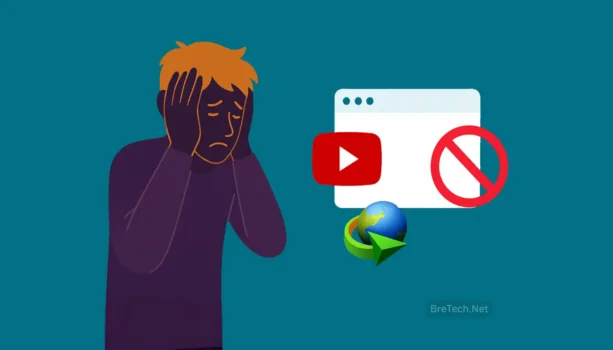
Frustrated person facing YouTube download restriction issue

IDM not downloading videos? While IDM is constantly updated, it can still face temporary issues. Streaming platforms like YouTube frequently update their player technology and underlying Adaptive Streaming protocols to control content distribution. This complication can temporarily prevent the IDM download panel from appearing or block downloads from starting.

Sometimes, this situation happens when a major player update rolls out. When this situation happens, IDM finds some solutions, usually releasing an update that fixes the compatibility issue. This ensures IDM can continue to re-detect and correctly merge the separate audio and video streams used in modern streaming formats.

You should always check for the latest version. For example, the very recent IDM 6.42 Build 52 (released October 23, 2025) provided an immediate solution to the “403 Forbidden” error. This guide gives fast, legal-safe options and step-by-step fixes for the most common causes.

We’ll explain what changes can occur on YouTube, focusing on the Adaptive Streaming protocols. We’ll show you how to repair the IDM Integration Module in your browser, which settings to reset (File Types, site data), and when to expect limits due to site policies.

You’ll also see official alternatives (e.g., YouTube Premium) and desktop tools for content you have rights to save.

Follow the quick checklist below, then the detailed steps to get reliable downloads again—without guesswork.

IDM Not Downloading Videos: What You Need to Know

What Changed?

Streaming platforms like YouTube frequently initiate protocol updates. These changes are specifically designed to block third-party download tools like IDM by complicating the data path, primarily by obscuring the manifest files for high-resolution Adaptive Streaming (DASH/HLS) content.

The immediate effect of these changes is that the IDM “Download Panel” may be gone completely. Users should be aware this is not a random bug, but a deliberate, technical escalation.

What You’ll Notice

  • The IDM panel may not appear on many YouTube videos if you are using an older IDM version (pre-Build 52).
  • Some formats (e.g., Shorts, Music, live streams, DRM/Widevine) often won’t capture because they use stricter encryption or non-standard protocols.
  • IDM may still work on other sites and on some YouTube pages intermittently, but this is usually temporary until further updates are deployed.
  • YouTube Premium: Use the in-app Download button for offline viewing (note: these files are encrypted and only viewable within the YouTube app).
  • Your own content: Download original video files directly from YouTube Studio.
  • For non-YouTube saves where you have rights/permission, consider a desktop tool that updates quickly and handles a wider range of sites:

What Probably Won’t Work Reliably

  • Expect breaks with new YouTube UI/player updates. This is an ongoing technical “arms race.”
  • Even with the latest Build 52, severe 1080p/4K adaptive streams (where audio and video are separate files) may cause intermittent issues; always ensure you have the absolute latest IDM update.
  • Browser extension conflicts (especially with ad blockers or security tools) or strict antivirus HTTPS scanning can interfere and hide the IDM panel.

🛠️ IDM Troubleshooting Checklist: Essential Fixes

This table organizes the necessary steps into actions you Must Take and actions you Must Avoid to resolve IDment download issues.

CategoryAction/StepRationale
✅ DO (Actions to Take)1. Update IDM Immediately. Update to version 6.42 Build 52 (or newest) via Help → Check for updates.This is the number one fix for YouTube protocol changes and the best way to resolve the “403 Forbidden” error.
2. Update Your Browser. Ensure Chrome, Firefox, or Edge is running the latest version.Newer browsers maintain compatibility with the IDM Integration Module.
3. Re-enable the Extension. Go to browser extensions (chrome://extensions) and verify the IDM Integration Module is enabled.The extension is essential for IDM to detect videos. Allow access for Incognito and file URLs.
4. Reset File Types. Restore IDM’s file list to default via Options → File types.Ensures IDM is set to capture standard video formats (MP4, WEBM, MKV, etc.).
❌ DON’T (Actions to Avoid)1. Don’t Seek a “Permanent Fix.” Do not assume the problem is solved if only YouTube is affected.YouTube’s changes are external and technical; the fix is usually temporary until the next platform update.
2. Never Install Cracked Software. Avoid “cracked” versions or unofficial “helper” add-ons.These are a major security risk (malware/spyware) and will not reliably fix official streaming protocol issues.

Is This Allowed? (Important Note)

YouTube’s Terms of Service only permit downloads where the service explicitly provides a download option (Premium/Studio). Relying on a third-party tool to bypass these mechanisms is a violation of their terms.

Will IDM “Fix” This Permanently? IDM developers are highly responsive and quickly issue updates (like the recent Build 52) to address breaks. However, no tool can guarantee a permanent fix on YouTube as long as Google continues to change its streaming methods. Keep IDM current and refer to the checklist above for the best results.

A Special Note for Beginners & What Not to Do

As a beginner, it’s easy to get frustrated when the download button disappears and search for a quick, free fix. However, understanding the basic facts can save you security headaches and legal trouble.

What is Not Right & Correct

  • The Fact: Downloading videos you don’t own violates YouTube’s Terms of Service and international copyright law.
  • The Correct Path: Use official features like YouTube Premium or only download content from your own YouTube Studio.

Never Use Cracked Software

  • The Fact: “Cracked” or free versions of IDM are a massive security risk and are often loaded with malware, viruses, or spyware designed to steal your passwords and banking information.
  • The Correct Path: Always purchase a genuine license from the official IDM website.

Avoid Unofficial Browser Extensions

  • The Fact: Extensions from unverified sources (even if they claim to be for IDM) are a top way for hackers to get access to your browser and data.
  • The Correct Path: Only use the official IDM Integration Module that installs automatically with the genuine software.

Stop Chasing 4K Fixes

  • The Fact: YouTube constantly updates to block download managers. Troubleshooting for stable, high-quality downloads is a constant, wasted effort.
  • The Correct Path: If you require guaranteed, stable downloads, you must use a dedicated, legal, and actively-maintained desktop tool for content you have rights to save.

Why IDM Not Downloading Videos: Common Problems

Internet Download Manager (IDM) is a popular tool for downloading videos, but users often face problems. Knowing why these issues happen is the first step to fixing them. Most problems stem from outdated software, browser integration issues, or other conflicts.

Outdated Software & Browser Updates

One of the biggest reasons IDM might not work is an outdated version. Because web browsers like Chrome and Firefox update constantly, IDM needs to keep up. Keeping IDM updated is crucial for it to work with new video streaming technology.

Integration Module Issues

The video download panel is a key feature of IDM. If it’s not showing up, it’s often due to browser issues. The IDM integration module, which connects IDM to your browser, can get messed up during updates. Making sure it’s correctly set up is essential to fix these problems.

Other Conflicts (DRM & Antivirus)

Sometimes, issues aren’t caused by IDM itself. Video sites may use Digital Rights Management (DRM) to block downloads, which IDM cannot bypass. Also, your antivirus software can mistake IDM for a threat and block it. You may need to add IDM to your antivirus’s exceptions list to allow it to work correctly.

Step-by-Step Solutions to Fix IDM Issues

When IDM fails, a few simple fixes can solve most problems. Start with our quick checklist before moving on to the detailed steps below.

Quick Fix Checklist:

  • Update IDM: Ensure you have the latest version. This is the #1 fix.
  • Check the Extension: Make sure the IDM browser extension is enabled.
  • Restart Everything: Close your browser and restart it completely.

Step 1: Update IDM and Your Browser

The most common reason IDM stops working is a mismatch between your software versions. New video technologies require the latest IDM.

  • Update IDM: Check for updates from the official IDM website to ensure you have the latest version.
  • Update Your Browser: A new browser version can disable old extensions. Always keep Chrome, Firefox, or any other browser up-to-date.

Step 2: Check and Reinstall the IDM Browser Extension

The IDM download panel won’t show up if its extension isn’t working right.

  1. Open your browser’s extension settings.
  2. Look for the “IDM Integration Module” and make sure it is enabled.
  3. If it is not there, reinstall the extension from the official IDM folder.
  4. Disable other non-essential extensions, like ad blockers, to avoid conflicts.

Step 3: Handle Specific Browser and Video Issues

For some websites, you may need to adjust your settings or understand how the site streams content.

  • Chrome Settings: Go to Chrome’s Privacy and Security settings and make sure no options are blocking downloads.
  • YouTube and Adaptive Streaming: Some sites split video and audio into separate files. A recent IDM version is designed to handle this, so ensuring you have the latest update is key.

If you mostly need quick saves from YouTube, Facebook, or TikTok, a dedicated tool like EaseUS Video Downloader can be simpler than IDM when sites change. It’s actively updated by EaseUS and works alongside IDM—use IDM for bulk/large files and a downloader app for fast one-click grabs.

Step 4: Deal with Antivirus and Proxy Conflicts

Sometimes, external programs can interfere with IDM.

  • Antivirus: Your antivirus software might mistakenly block IDM. Add IDM to its “exceptions” or “whitelist” to let it run freely.
  • Proxy Settings: If you use a proxy, verify that IDM’s proxy settings match your browser’s to avoid connection issues.

Step 5: Reinstall IDM for Best Performance

If all else fails, a fresh start is often the best solution.

  • Uninstall: Completely remove the old version of IDM from your computer.
  • Download: Get the newest version directly from the official IDM website.
  • Install: Reinstall the software. This will ensure you have all the latest features and fixes, and it often resolves persistent integration problems.

💡 Prefer a simpler one-click grabber? Try EaseUS Video Downloader for YouTube, Facebook, TikTok, and playlists/audio. Or explore more options in Download Managers. See all tools from EaseUS.

Get Genuine IDM Licenses from BreTech

Having a genuine IDM license is essential for performance, security, and peace of mind. At BreTech, we provide real Internet Download Manager (IDM) licenses in Pakistan, backed by local support and an easy activation process.

Why Choose BreTech for IDM Licenses?

When you buy from us, you’re getting a verified IDM license — no fake keys, no activation issues. We make sure everything works smoothly and support you after purchase. Our goal is to provide Pakistani users with reliable software and trusted service, every step of the way.

Local Support for Pakistani Users

We provide dedicated local support for our customers across Pakistan. Whether you’re activating your IDM license or facing a usage issue, we’re here to help. Our team responds quickly, and we explain everything in simple terms, so you get support in your language—without delays or confusion.

How to Purchase and Activate Your IDM License

Buying and activating your IDM license from BreTech is quick and easy. Just follow these steps:

  1. Visit our website and head to the IDM licensing section.
  2. Choose the IDM license that best fits your needs.
  3. Pay securely using your preferred method.
  4. We’ll email your license details along with clear activation instructions.
  5. Follow the guide to activate IDM smoothly and start downloading right away.

When you buy from us, you get peace of mind. Our genuine IDM licenses ensure safe, stable, and uninterrupted downloads—backed by trusted support for Pakistani users.

Final Thoughts on IDM Video Downloads in 2025

This IDM guide 2025 shows how to download videos well, like from YouTube. It’s all about knowing Internet Download Manager (IDM) and its settings. By using the tips in this article, you can fix IDM problems with browsers and video downloads.

Keeping IDM and your web browsers up to date is key. This keeps everything working smoothly. Fixing common issues, tweaking browser settings, and checking IDM settings helps a lot. Also, getting real licenses from places like BreTech makes IDM work better, helping Pakistani users.

This guide is a great help for dealing with IDM issues in 2025. By making smart changes and following the best ways, you can make IDM download videos perfectly. This means you can easily get all the content you want.

FAQs

A: If IDM isn’t downloading videos or grabbing links, first ensure you have the latest version. Then, check that the browser integration is enabled and that the video isn’t protected. If problems persist, try using the IDM Site Grabber feature by manually adding the video’s URL into IDM.

Q: How can I fix IDM not detecting or showing the download panel for YouTube videos?

A: Sometimes, IDM may not show the download panel for YouTube videos due to changes in their protocols. Ensure you are using the latest version of IDM and that its extension is enabled in your browser. You might also need to refresh the page or restart your browser to make the panel appear.

Q: How can I ensure IDM downloads videos in 1080p quality?

A: To ensure IDM downloads videos in 1080p quality, make sure you select the correct link when the download dialog appears. Choose the option that specifies 1080p. Also, confirm that your internet connection is stable to prevent any interruptions that could affect the download.

Q: What are the solutions for IDM dialog issues?

A: If you encounter issues with the IDM dialog (or download panel), check your browser settings to ensure IDM is properly integrated. Clearing your browser cache or reinstalling IDM might also help. If the problem persists, ensure your antivirus isn’t blocking the dialog.

Q: Can I prevent IDM from downloading specific videos?

A: Yes, you can prevent IDM from downloading specific videos by disabling the browser integration temporarily. Alternatively, you can configure IDM in the ‘Options’ menu to ignore certain file types you don’t want it to handle.

Q: Is there a way to download audio from videos using IDM?

A: Yes, IDM allows you to download audio from videos. When the download dialog appears, IDM often provides different format options. Select the MP3 or audio format you desire to download the audio track instead of the video file.

Q: IDM still won’t capture YouTube — any quick alternative?

A: Use a dedicated app like EaseUS Video Downloader for one-click video/audio saves. For more choices, browse our Download Managers collection from trusted brands like EaseUS.

Further Reading

BreTech
Logo
Compare items
  • Total (0)
Compare
0
Shopping cart