Abdul Basit
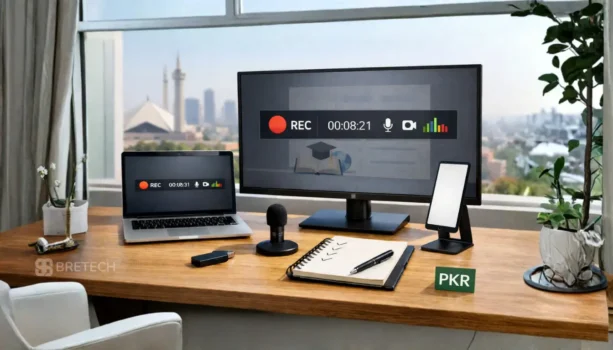
Best screen recording software in Pakistan matters in 2026 because one failed recording can waste a full class, a client demo, or a YouTube upload you already promised. The usual pain is sudden lag, missing system audio, or a watermark that appears right when you press export.
Many people try to save time by installing a random recorder from popups or a YouTube download link. Then they deal with broken audio, messy overlays, update errors, or unsafe installers that can harm your PC.
This guide compares 6 genuine screen recording tools with PKR pricing, digital email delivery on most orders, and local support. You will quickly see which tool fits online classes, office demos, tutorials, and gameplay recording on Windows or Mac.
If you want the safest results, choose a recorder that captures clean system audio and mic, exports in 1080p, and stays stable on your PC. We will also share simple settings tips so your recordings look sharp and sound clear.
For more options, browse our Screen Recorder Software collection in Pakistan.
Quick Overview: Best Screen Recording Software in Pakistan
Check out our quick comparison of the best screen recording software in Pakistan.
| Product | Best For | Key Feature Highlight | Platform |
| DemoCreator | All-in-one creators, educators | AI-powered editing & 4K/120 FPS recording | Windows, Mac |
| Ashampoo Snap 17 | Professionals, office users | Precision capture, AI text recognition | Windows |
| EaseUS RecExperts | Teachers, general users | Flexible recording modes, scheduling | Windows, Mac |
| Movavi Screen Recorder | Beginners, daily use | Simple interface, one-click capture | Windows, Mac |
| Gecata by Movavi | Gamers & streamers | Lightweight, high-FPS gameplay recording | Windows |
| Audials Movie | Streaming video capture | Records HD content from online streams | Windows |
What Makes a Screen Recorder the Best Choice in Pakistan?
Choosing the best screen recorder in Pakistan means looking at key features. These features are important for both professionals and students. They ensure the software works well and is easy to use.
Key Features to Find the Best Screen Recording Software for PC or Mac
Look for high-resolution and customizable settings in screen recording software. Also, make sure it doesn’t have a watermark. These features are crucial for making professional videos. Plus, built-in video editing tools are a big plus, as they let you edit without extra software.
Importance of User-Friendly Interface
A user-friendly interface is key. Software that’s easy to navigate makes recording simpler. It doesn’t matter if you’re new or experienced; easy-to-use tools save time and boost productivity.
Comparing Price vs. Features
It’s important to balance cost and features. Top screen capture software offers lots but can be pricey. Think about what you need, like advanced editing or watermark removal, to get the most value.
By focusing on these points, we help Pakistani users find the best screen recorder. It’s perfect for both work and personal use.
How to Find the Best Screen Recorder for Windows, Mac, or PC?
Finding the right screen recording software can change your results for personal or work projects.
Assessing Your Recording Needs: Gaming, Tutorials, or Streaming
First, figure out why you need a screen recorder. Gamers usually need smooth, high-FPS recording with low CPU usage. Tutors often need webcam + mic capture, plus simple annotation tools. Streamers should look for a recorder that works well with live platforms and stays stable without lag.
Compatibility with Your Operating System
Make sure the screen recorder works with your computer. Some tools support both Windows and macOS, while others are Windows-only. Check your OS version and system requirements so recording stays smooth and exports don’t fail.
Trial Versions: Are They Worth It?
Trial versions are a good way to test screen recording software before you pay. They help you check video quality, audio sync, and how easy the interface feels. Just note that some trials may add a watermark, limit recording time, or restrict export options.
Screen Recorder Comparison Table
Easily compare top screen recording software to find the best fit for your Windows or Mac device in Pakistan.
| Product | Platform(s) | Watermark (Paid) | Editing Tools | Game/Streaming Support | Best Use Case |
| DemoCreator | Windows, Mac | No | Advanced (AI) | Yes (games) | All-in-one creation, tutorials, gaming |
| Ashampoo Snap 17 | Windows | No | Advanced | No | Tutorials, pro editing, screen capture |
| EaseUS RecExperts | Windows, Mac | No | Yes (basic/essential) | No | All-purpose, easy use, clean video |
| Movavi Screen Recorder | Windows, Mac | No | Yes (basic/essential) | No | General use, scheduling, multi-device |
| Gecata by Movavi | Windows | No | Yes (basic) | Yes (games, streaming) | PC gameplay recording & streaming |
| Audials Movie | Windows | No | No (focus: capture only) | Yes (streaming video) | Recording streaming videos in HD |
Note: Ashampoo Snap 17, Gecata by Movavi, and Audials Movie are for Windows PCs only. Movavi Screen Recorder and EaseUS RecExperts are available for both Windows and Mac.
Explore all genuine screen recorders available in Pakistan here.
Find the right screen recording software for your needs: official licenses, local support, and fast digital email delivery on most orders.
Best Screen Recorders in Pakistan: Top 6 Tools in Pakistan
In Pakistan, people are looking for top-notch screen recording tools. These tools are key for professionals, teachers, and gamers. We’ll look at the best screen recorders for Windows, focusing on features like watermark-free recording and affordability.
1. Wondershare DemoCreator: AI-Powered All-in-One Video Creator
Wondershare DemoCreator is a powerful all-in-one screen recorder and video editor designed for both beginners and professionals. Its key strength is its integrated AI features that streamline the entire video creation process, from recording to final editing. It’s an ideal solution for anyone who wants a full creative suite.
2. Ashampoo Snap 17: Best for Tutorials and Professional Editing
Ashampoo Snap 17 is a standout with its AI text recognition. It’s great for making tutorials and videos. It’s easy to use for beginners and pros alike, with advanced editing tools to make your videos look professional.
3. EaseUS RecExperts: Flexible, Watermark-Free Recording for PC and Mac
EaseUS RecExperts is a top pick for its flexible recording options. You can record your whole screen, a window, or a specific area. It’s known for being easy to use and having lots of features. Plus, it lets you record without watermarks, keeping your videos clean.
4. Movavi Screen Recorder: Simple, Powerful Screen Capture for Any User
Movavi Screen Recorder is simple yet powerful. It’s easy for beginners to use but also has advanced features. It lets you schedule recordings and works with multiple devices, making it a top choice today.
5. Gecata by Movavi: Game Recording and Live Streaming for PC Gamers
Gecata by Movavi is made for gamers. It records gameplay smoothly without slowing down your computer. It also lets you live stream to popular platforms. This makes it a top pick for gamers who want to share their gameplay without watermarks.
6. Audials Movie: Record Streaming Videos in HD Without Watermarks
Audials Movie is made for recording streaming videos in HD quality. It captures movies, TV shows, and online videos from popular sites with no watermarks and no quality loss. A great option for users who want to save their favorite content for offline viewing.
Top 6 Bonus Tools for Content Creators in Pakistan
In addition to screen recorders, here are some valuable tools that help with editing, converting, and managing your media after recording. These are ideal for content creators, educators, and professionals in Pakistan.
1. Movavi Video Suite – Complete Media Toolkit
Movavi Video Suite is a powerful all-in-one package that includes screen recording, video editing, format conversion, and slideshow creation. It’s ideal for users who want everything in one place.
2. Audials One – Record, Extract & Convert
Audials One is an advanced tool for recording video/audio from streams, trimming clips, extracting music, and converting to various formats. Great for power users and content collectors.
3. EaseUS Video Converter – Quick Video Format Conversion
EaseUS Video Converter allows you to convert recorded videos to MP4, AVI, MOV, or audio formats. It’s useful for sharing content across platforms or compressing large recordings.
4. Ashampoo Music Studio 10 – Clean Audio for Narrations
Ashampoo Music Studio helps you edit and enhance your audio narrations, trim unwanted noise, and prepare soundtracks for your screen recordings or tutorials.
5. HD Video Converter Factory Pro – Best for Post-Recording Conversion
WonderFox HD Video Converter Factory Pro is ideal for users who want to convert their recorded videos, extract audio, or compress files after screen capture. While it includes a basic screen recorder, its real strength is in fast video conversion and editing.
How to Optimize Your Screen Recording Experience?
To get the best out of your screen recording, focus on a few key areas. This includes setting up the right recording settings, using external devices for better quality, and editing your videos. These steps help make sure your videos and audio are top-notch.
Setting Up Optimal Recording Settings
Start by adjusting your recording settings to match your project. Most screen recording tools let you change things like resolution, frame rate, and bitrate. For the best quality, aim for 1080p resolution and 30 frames per second. Making these adjustments can greatly improve your video’s clarity and quality.
Using External Devices for Better Quality
Adding external devices like microphones and cameras can really boost your recording. External mics help cut down background noise and make audio clearer. Webcams also offer better video quality than laptop cameras. These tools help make your recordings look more professional.
Editing Tools: Enhancing Your Recorded Video
After you’ve recorded, editing tools are key to making your video shine. You can trim clips, add notes, and tweak audio levels. Using these tools in your recording software or a dedicated video editor lets you fine-tune your videos. This ensures they’re polished and meet high standards of quality.
What Are Common Issues Users Face with Screen Recorders?
Screen recording software is key for making tutorials, gaming streams, and professional presentations. But, users often run into problems. Knowing these issues helps fix them and improves the experience.
Resolving Audio and Video Sync Problems
A common issue is the audio-video synchronization problem. It can really mess up your viewing experience. It’s important to make sure your audio and video are in sync.
You can fix this by tweaking the frame rate in your software or using tools to correct sync issues. Also, keeping an eye on your computer’s performance while recording can help.
Addressing Performance Issues During Recording
Performance problems during recording can come from many sources. Performance optimization during recording can be improved by closing unused programs and freeing up system resources. Adjusting your recorder settings for better performance also helps.
For gamers, lowering game settings can ease the load on your CPU and GPU. This helps your system run smoother while recording.
How to Troubleshoot Installation Errors
Users might hit installation errors when setting up screen recording software. These can stem from compatibility issues, damaged installation files, or not meeting system requirements. Make sure your system meets the software’s needs, download from trusted sources, and install with admin rights.
If you still face problems, checking the software’s official support page can provide specific help.
What Are the Future Trends in Screen Recording Technology?
Screen recording technology is always changing. Looking ahead, we see new trends that will change how we record and share screens. These changes include new features, AI integration, and predictions for 2026.
Emerging Features to Look Out For
New features will make screen recording easier and more powerful. Expect high-definition recordings, real-time editing, and cloud storage integration. These will let users share top-notch screen captures easily.
Impact of AI on Screen Recording Software
AI is going to change screen recording a lot. It will bring smart tools like noise reduction, automatic tagging, and video editing. These tools will help users make professional recordings without needing to be tech experts.
Predictions for the Screen Recording Market in 2026
By 2026, the market will grow a lot. This will be thanks to new tech and people wanting easy-to-use software. Look for better collaboration tools, cross-platform use, and designs that focus on the user.
Conclusion: Choosing the Best Screen Recorder in Pakistan
In 2026, the safest way to choose a screen recorder in Pakistan is to avoid random downloads and use a genuine tool that records system audio plus mic cleanly and stays stable on your PC.
A quick recap: DemoCreator is best if you want recording plus editing, Ashampoo Snap 17 suits office guides and tutorials, EaseUS RecExperts and Movavi Screen Recorder cover daily recording for most users, Gecata by Movavi is built for gameplay capture, and Audials Movie fits streaming video recording.
If you also need a toolkit after recording, the bundles and utilities above help with editing, converting, and audio cleanup. Browse all options here: Screen Recorder Software.
FAQs
Q: What is the best screen recorder for PC in 2026?
A: The best screen recorder for PC in 2026 depends on your needs. Many users in Pakistan prefer options like EaseUS RecExperts, Ashampoo Snap 17, and Movavi Screen Recorder for their easy interfaces, high-quality recording, and helpful editing tools. All these let you capture your screen and audio, edit videos, and share your recordings easily.
Q: Can I find screen recording software that works well on Windows 10?
A: Absolutely! Tools like Ashampoo Snap 17, EaseUS RecExperts, and Movavi Screen Recorder work seamlessly on Windows 10 and are trusted by users in Pakistan for their reliable performance and easy setup.
Q: Are there any free screen recorder software options available?
A: Yes, some free options exist, but they may include watermarks or limited features. For a watermark-free experience and more advanced tools, try the free trial versions of EaseUS RecExperts or Movavi Screen Recorder before deciding on a paid license.
Q: What should I look for when choosing the best screen recording software?
A: When choosing the best screen recording software, consider features like recording time limits, support for screen and webcam capture, editing tools, and whether it offers a watermark-free experience in the paid version.
Q: Is there a good screen recorder for Mac users?
A: Yes! Both EaseUS RecExperts and Movavi Screen Recorder work well on Mac, providing high-quality video recording and simple editing tools.
Q: What features are essential in screen recording software?
A: Essential features include the ability to record the entire screen or selected areas, audio recording options, easy-to-use editing tools, and the option to share videos easily. High-quality screen capture is also important.
Q: Can I use a screen recorder to capture gameplay?
A: Yes! Gecata by Movavi is built specifically for gamers and lets you record high-FPS gameplay or live stream without lag. EaseUS RecExperts and Movavi Screen Recorder also support basic gameplay recording.
Q: How can I ensure high-quality screen recordings?
A: To ensure high-quality screen recordings, choose a screen recorder that supports HD video, adjust your recording settings for resolution and frame rate, and use a capable computer for best results.
Q: Are there limitations on recording time with screen recording tools?
A: Yes, some screen recording tools have limitations on recording time in their free versions. If you need unlimited recording time, look for a paid screen recording software or check if your tool offers a subscription plan.
Q: How do I remove a watermark from my screen recordings?
A: To remove a watermark from your screen recordings, you’ll usually need to upgrade to a paid version of the screen recorder software. Most free versions include watermarks as part of their pricing model.
Further Reading
If you want help with specific use cases, comparisons, or performance problems, these guides go deeper:
- Best Screen Recorders Without Watermark in Pakistan
- Best Screen Recorder for Online Classes in Pakistan
- EaseUS RecExperts vs Movavi Screen Recorder in Pakistan
- Screen Recorder No Sound in Windows 11 (Pakistan)
- Screen Recorder Lags or Drops FPS in Pakistan
- Mastering 4:5 and 9:16 Aspect Ratios for Social Media Ads in Pakistan
Browse all related tutorials in Design & Multimedia Guides.