Abdul Basit
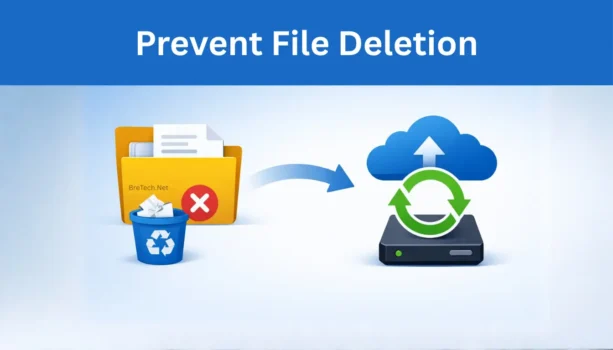
How to prevent accidental file deletion is a practical skill for anyone who stores work files on a PC, phone, or cloud drive. A single wrong click can remove important data, even with a genuine license setup.
In Pakistan, more people now work with shared folders, USB drives, and cloud sync across multiple devices. That makes mistakes easier, so prevention matters more than finding an authorized reseller recovery tool later.
This guide focuses on prevention first, then recovery if deletion already happened. Some features depend on your Windows edition, cloud plan, or app version and may vary by plan/version.
The safest approach is simple: use a real backup (not only sync), keep version history on, and limit delete permissions on shared folders. Test restores once a month so you know your backups work when you need them.
Prevent Accidental File Deletion on Windows and Cloud Drives
To prevent accidental file deletion, use a real backup (not only cloud sync), keep version history enabled, and limit delete permissions on shared folders. These three steps cover most everyday mistakes on Windows and cloud drives.
If you apply them and test a restore once a month, you reduce the risk of permanent loss and you also recover faster when something goes wrong.
Implement Regular Backups
Backups are still the most reliable protection because they work even after emptying the Recycle Bin or formatting a drive. The goal is to keep more than one copy of important files.
Use the 3-2-1 rule
- Keep 3 copies of important data
- Store them on 2 different places (PC + external drive, for example)
- Keep 1 copy offsite (cloud or another location)
Do not confuse cloud sync with backup
Sync tools can copy your mistake to every device. If a file is deleted or overwritten, that change can spread unless versioning is enabled.
Use a backup tool for scheduled backups
If you want automated, scheduled backups, you can use a backup tool that supports full and incremental backups. For example, you can consider AOMEI Backupper Workstation for scheduled tasks and restore points.
Test restore, not just backup
A backup is only useful if you can restore it. Once a month, restore one folder to confirm your path, permissions, and activation method are correct.
Enable File Versioning and Previous Versions
Versioning protects you from mistakes that are not “deletes”, like overwriting or saving the wrong edits.
Turn on File History in Windows
- Go to Control Panel > System and Security > File History
- Turn on File History and choose an external drive or network location
- Use “Restore previous versions” to bring back an older copy
Use restore points and snapshots where available
Some setups use snapshots or “previous versions” on drives or shared storage. If you work in an office, ask your IT person whether snapshots are enabled on the shared drive.
Use Recycle Bin and Trash Features Properly
Most deletions are recoverable at first because files go to Recycle Bin (Windows) or Trash (Mac). The risk starts when the bin is emptied.
Simple habits that prevent permanent loss
- Avoid emptying the bin every day
- Increase Recycle Bin size if you delete large files often
- Check the bin before running cleanup tools
Be careful with Shift + Delete
Shift + Delete can bypass the Recycle Bin in many cases. Train staff and family members to avoid it for important folders.
Reduce Risk on Shared Folders
Shared folders are where most “oops” deletions happen, especially in small teams.
Use permission-based access
Only allow a small number of users to delete or permanently remove files from shared folders. Everyone else can edit or upload, but not delete.
Use a clear folder structure
Keep “Active”, “Archive”, and “Final” folders separate. People delete less when they know where files belong.
Add a simple monthly archive routine
Instead of deleting old files, move them to an Archive folder that is backed up. This is easier than “cleaning” by deleting.
Protect Against Malware and Ransomware
Some file loss looks like accidental deletion, but is caused by malware, ransomware, or corruption. Security reduces that risk.
Use security software and safe browsing habits
Keep your OS and browser updated, and avoid unknown downloads. If you want a security layer for business PCs, you can explore Antivirus & Malware solutions.
Keep backups offline too
Ransomware can encrypt files and also reach connected drives. Keeping one backup offline protects you when online data is affected.
Use Data Recovery Software When Deletion Already Happened
Recovery software is helpful when there is no backup, or the file was removed recently. Recovery success depends on what happened after deletion.
What to do immediately
- Stop using the drive where the file was deleted
- Do not install new apps on that same drive
- Recover to a different drive if possible
Two common recovery options
If you need a professional-grade tool for wider file types and complex cases, you can consider Stellar Data Recovery Technician.
If you need a tool with a simple workflow for scanning and recovery, you can consider EaseUS Data Recovery Wizard Technician.
Browse all recovery options in one place
If you want to compare options by device type and use case, use the Data Recovery category.
Use Business Controls When Data Is Critical
For offices handling sensitive files, prevention should not rely only on “being careful”.
Use endpoint controls and admin policies
Limit install permissions, control access to shared folders, and keep a basic device policy for backups and updates. If you use business security tools, confirm what features are included because system requirements and controls can differ by edition.
Keep one written rule: “No delete without archive”
A simple internal rule reduces panic. Files should be moved to Archive first, then deleted only after a set period.
Data Recovery Services for Severe Data Loss
If the drive is physically failing, making clicking sounds, or not detected, software recovery can make things worse. In such cases, treat the device carefully and consider professional help.
For self-service tools that support deeper scans and more complex recoveries, you can review Stellar Data Recovery Technician.
You can also explore related categories if needed, but keep your approach simple and start with one tool: Data Recovery software.
Conclusion
Accidental deletion is avoidable when you combine backups, version history, and basic permissions on shared folders. This matters for home users and businesses in Pakistan where files move across phones, laptops, and cloud drives daily.
If deletion already happened, recovery tools can help, but prevention is usually cheaper and faster. If you decide to buy software from BreTech, PKR pricing is available and there is email delivery. Options may vary by plan/version, including a one-time purchase or subscription plan depending on the product.
Always check the vendor’s website for the latest features, editions, updates, and system requirements.
If you want it even more neutral, remove “one-time purchase or subscription” and keep only the PKR + email line.
Further Readings
If you are unsure which option fits your device or workload, start with the backup guide, then read recovery and email security next.
- Best Backup Software in Pakistan
- Top Email Security Best Practices for Pakistani Users
- How to Recover Deleted Files from Hard Drive in Pakistan
- Top Affordable Data Recovery Software in Pakistan
- Choosing the Right Local Storage for Your Needs in Pakistan
Want more help with backups, recovery, and security tools? Visit our Data Protection blog section to explore related guides. Browse Data Protection guides