Abdul Basit
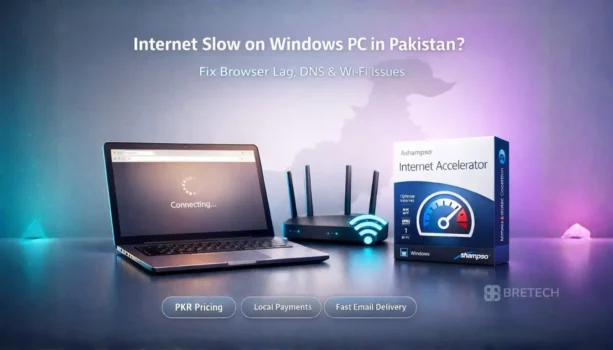
Internet slow on Windows PC in Pakistan? Your package looks fine, but Chrome feels heavy, pages open late, YouTube buffers on laptop, and downloads start fast then drop. This usually happens because Windows, the browser, or Wi-Fi settings are adding delay, even when your ISP speed is okay.
Many users make the risky mistake of installing random “internet booster” apps or changing registry settings from videos. That can break networking and waste hours. The safer approach is to test the real cause, apply clean Windows fixes, then use a trusted optimizer only when needed.
This guide covers practical fixes for Windows 10/11 users in Pakistan and shows where Ashampoo Internet Accelerator fits as a safer shortcut for network tweaks and browser cleanup.
If your internet feels slow on a Windows PC, the cause is often DNS delay, background apps, browser extensions, outdated network drivers, or misconfigured Windows networking. Start by checking if the issue is Wi-Fi or PC-only, then clean the browser, change DNS, reset networking components, and optimize Windows update and startup traffic.
Quick Overview
| Tool Name | What It Fixes | Best For |
|---|---|---|
| Windows Network Reset | Broken network profiles and adapter issues | Slow internet after updates or driver changes |
| Manual DNS Change | Slow site opening and delays before a page loads | “Connecting…” takes long on many sites |
| Browser Cleanup | Heavy browsing, lag, crashes, slow tabs | Older laptops, HDD systems, many extensions |
| Ashampoo Internet Accelerator | Applies safe network tweaks and cleans browser traces | Users who want guided, low-risk optimization |
You can apply these fixes manually, or use a structured solution like Ashampoo Internet Accelerator for guided network optimization and browser cleanup.
You can also view all trusted tools from Ashampoo available at BreTech.
Available in Pakistan with PKR pricing, local payment options, and fast digital email delivery from BreTech as an authorized reseller partner.
Why Internet Is Slow on Windows PC in Pakistan
Internet slow on Windows PC in Pakistan is often not caused by your package alone. In many cases, the delay comes from Windows, the browser, DNS, or Wi-Fi settings.
Background apps, heavy extensions, outdated drivers, and poor network settings can make pages open late, videos buffer, or downloads start fast and then drop after a few seconds.
Before upgrading your package or using risky booster tools, check whether the issue is coming from your PC, browser, Wi-Fi, or ISP. This helps you fix the real cause safely.
Step 1: Confirm the Problem Is Your PC, Not the ISP
Do these quick checks first. They save time.
Check A: Compare laptop vs phone on the same Wi-Fi
Open the same website on your phone and laptop. If the phone is fine but the laptop is slow, it’s a PC-side issue.
Check B: Try a different browser
Test the same site in Chrome and Edge. If one browser is slow and the other is fine, the problem is extensions, cache, or browser settings.
Check C: Use Ethernet cable once (if possible)
If Ethernet is fast but Wi-Fi is slow, your router placement, Wi-Fi band, or adapter driver is the issue.
Check D: Test at peak time
In Pakistan, evenings are busy. If everything slows down only at night on all devices, ISP congestion is likely.
Step 2: Fix the Most Common Cause, Background Apps Using Internet
A PC can “feel slow” even on a fast package if background apps are consuming bandwidth.
- Press Ctrl + Shift + Esc
- Open Task Manager
- Go to Processes
- Click the Network column to sort
Look for: Cloud sync, OneDrive, Google Drive, auto-updaters, game launchers, torrent apps, browser updates.
Close what you do not need right now.
Tip for shops and offices: one PC downloading updates can slow browsing for everyone on the same Wi-Fi.
Step 3: Clean Browser Problems That Slow Browsing
This is one of the highest-impact fixes.
Remove heavy extensions
In Chrome or Edge, disable extensions you do not truly use. Ad blockers and toolbars can slow page loading if you have too many.
Clear cache the right way
Go to browser settings → privacy → clear browsing data. Clear “Cached images and files”. Do not clear saved passwords unless you are sure.
Check “Use hardware acceleration”
Chrome settings → system → hardware acceleration. If your laptop is older, toggle it off and test. If it becomes worse, turn it back on.
Step 4: Change DNS to Reduce “Opening Delay”
When DNS is slow, pages often “wait” before loading.
In Windows 11: Settings → Network & Internet → your connection → DNS settings → Manual.
Common DNS options: Primary: 1.1.1.1 Secondary: 1.0.0.1
Or: Primary: 8.8.8.8 Secondary: 8.8.4.4
If changing DNS helps, the issue was name resolution delay, not your Mbps package.
Step 5: Reset DNS Cache and Windows Networking Components
This fixes many hidden issues after updates, VPN installs, or driver changes.
Open Command Prompt as Administrator and run:
ipconfig /flushdns netsh winsock reset netsh int ip reset
Restart the PC after running these.
What this fixes: DNS stuck issues, socket errors, broken network stack, “connected but no internet” type problems.
Step 6: Stop Windows from Using Bandwidth in the Background
Disable Delivery Optimization
Windows Update can consume bandwidth silently.
Settings → Windows Update → Advanced options → Delivery Optimization → Turn off.
Pause updates when working
If you are uploading client work or attending a meeting, pause updates temporarily.
This is very useful for freelancers and small offices in Pakistan where one connection is shared.
Step 7: Fix Wi-Fi Issues That Look Like “Slow Internet”
If your phone is fine but laptop is slow, your Wi-Fi adapter is often the culprit.
Restart the adapter
Control Panel → Network Connections → disable Wi-Fi → enable again.
Update Wi-Fi driver
Device Manager → Network adapters → your Wi-Fi adapter → Update driver. If Windows does not find one, check the laptop brand support site.
Switch to 5 GHz if available
If your router supports 5 GHz, use it for laptops. 2.4 GHz is more crowded in homes and markets, especially in apartments.
Router placement
Keep the router away from walls, metal cupboards, and UPS. Heat and low quality power can affect routers, a common issue locally.
Step 8: Fix Browser Slow Downloads and “Start Fast Then Drop”
This is usually not a pure speed issue.
Check: VPN on or off Proxy settings Security software web shield Too many downloads at once
Also pause cloud sync temporarily while downloading.
Step 9: When a One-Click Tool Makes Sense
Manual steps work, but not everyone wants to test 10 settings.
This is where Ashampoo Internet Accelerator fits best, especially for non-technical users.
What it helps with
It can apply structured optimization such as: Browser trace cleanup (cache, privacy traces) Common Windows network tweaks Safer adjustments than random registry editing
Best for in Pakistan
Students with older laptops Freelancers who want smoother browsing and uploads Office PCs that get slow over time Users who want guided settings instead of risky tutorials
What it will not do
It will not increase your ISP package speed. If your ISP is slow on every device, you need router checks or ISP support, not a PC tweak.
Pakistan Reality Checks
These local conditions commonly affect browsing: Shared Wi-Fi with 4–8 devices at home Power fluctuation affecting router stability Old routers overheating Older HDD laptops where browser cache gets heavy Peak-time congestion in evenings
That’s why “my package is fast but browsing is slow” is very common.
What to Avoid
Avoid these mistakes because they create bigger problems: Cracked “internet booster” software Multiple cleaner tools running together Random registry tweaks Installing 2–3 VPNs and leaving background services active
Use one clean method, test, then move to the next step.
Conclusion
If your internet is slow on a Windows PC in Pakistan, fix the PC side first before upgrading your package. Most cases are caused by DNS delay, browser clutter, background apps, Windows update traffic, or Wi-Fi driver issues.
If you want a safer, guided way to apply cleanup and network tweaks without manual trial and error, Ashampoo Internet Accelerator is a practical option.
To explore more similar utilities, browse our full PC Optimization Software in Pakistan collection.
FAQs
Q: Why is my internet slow on my Windows PC but fine on my phone?
A: If your phone works fine on the same Wi-Fi but your Windows PC is slow, the issue is usually browser cache, heavy extensions, outdated network drivers, or Windows background apps using bandwidth.
Q: Does changing DNS really speed up internet in Pakistan?
A: Changing DNS does not increase your Mbps speed, but it can reduce website loading delay. If pages take long to “start opening,” a faster DNS may improve browsing responsiveness.
Q: Can an internet accelerator increase my internet speed?
A: No. An internet accelerator cannot increase your ISP package speed. It optimizes Windows network settings to reduce delay, fix configuration issues, and improve browsing efficiency.
Q: Why do downloads start fast and then slow down?
A: This often happens due to background updates, cloud sync, Wi-Fi interference, or ISP traffic management. It is not always a Windows problem.
Q: Is it safe to use Ashampoo Internet Accelerator?
A: Yes, when downloaded from an official source. It applies structured Windows network tweaks safely instead of risky manual registry edits or unknown “booster” software.
Further Reading
For more help with Windows cleanup, optimizer safety, and driver-related slowdowns, these guides are the best match for this topic.
- Windows Cleanup vs PC Optimizers: Which Is Best for You?
- PC Optimizer Made My PC Slow? Fix It Fast!
- Best Driver Updater Software for Windows in Pakistan 2026
- Best PC Optimization Software in Pakistan 2026
- Is Updating Drivers Safe? Tips for Your Laptop in Pakistan
For more helpful guides, visit our Utilities & Optimization blog category.