Abdul Basit
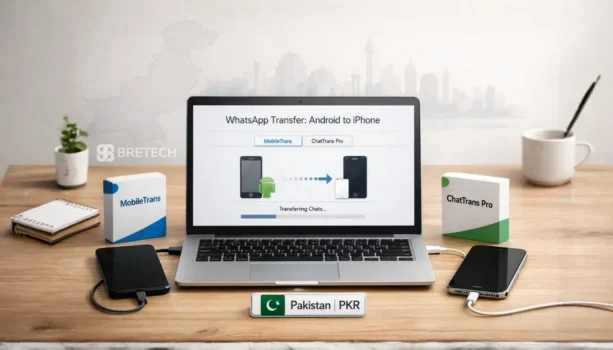
WhatsApp transfer Android to iPhone in Pakistan matters most when you have years of chats, customer messages, photos, and voice notes, and you cannot afford to lose them on a new phone. The panic usually starts when the transfer gets stuck, media goes missing, or WhatsApp shows a “cannot restore” message.
Many people make the situation worse by retrying again and again, changing cables, or installing random “free transfer” apps. A safer approach is to use one reliable method, prepare both phones properly, and then use a dedicated WhatsApp transfer tool if the normal method fails.
If you want a practical solution, this guide compares EaseUS ChatTrans Pro and Wondershare MobileTrans and explains when each one is worth it for Pakistani users. You can also browse similar options in the Data Transfer section.
Available in Pakistan with PKR pricing, local payments, and 1–72 hour digital email delivery on most orders from BreTech, an authorized software reseller, with local setup help if needed.
For most Android to iPhone moves, a dedicated tool is often the most reliable option when WhatsApp’s normal transfer does not work. ChatTrans Pro is more focused on WhatsApp chats and backups, while MobileTrans is often chosen when someone wants a broader phone-to-phone transfer suite alongside WhatsApp support.
Before You Transfer: Do These 7 Checks
- Update WhatsApp on both phones from the official app stores.
- Charge both phones above 50%.
- Use a reliable USB cable and stable internet.
- Keep enough free storage on iPhone for chat media.
- Turn off battery saver and auto-cleaner apps during transfer.
- Keep both phones unlocked during the transfer process.
- Do not keep switching methods mid-process.
MobileTrans vs EaseUS ChatTrans Pro: What’s the Real Difference?
Both tools aim to move WhatsApp chats, but they are made for slightly different buyers.
MobileTrans: Best if you want more than WhatsApp
MobileTrans is a broader transfer tool that is usually picked when someone wants help moving other phone data along with WhatsApp. It suits buyers who prefer a “one tool for many transfer jobs” approach (features can vary by plan/version).
If you want to see other tools from the same company, you can also browse the Wondershare collection.
EaseUS ChatTrans Pro: Best if you need only WhatsApp
ChatTrans Pro is more focused. It is built mainly for WhatsApp chat migration and chat backups, which is why it’s a strong fit when the user says, “I only care about WhatsApp chats and media” (features can vary by plan/version).
To explore more options from the same brand, visit the EaseUS collection.
Comparison Table: MobileTrans vs EaseUS ChatTrans Pro
| Feature | MobileTrans | EaseUS ChatTrans Pro |
|---|---|---|
| Best for | Full phone switching + WhatsApp | WhatsApp transfer focused |
| WhatsApp transfer | Yes (tool-based) | Yes (tool-based) |
| Android to iPhone | Common use case | Common use case |
| Backup and restore chats | Often available | Core use case |
| Shop/technician workflow | Good | Very good |
| When to choose | When you also need other phone transfers | When WhatsApp is the only goal |
Which One Should You Choose?
Pick based on the customer’s exact need.
If you want a full phone move plus WhatsApp, MobileTrans is usually the better fit. If you only want WhatsApp chats and media, ChatTrans Pro is usually the cleaner choice. If you are fixing a failed attempt, start with a focused WhatsApp tool and follow a simple, repeatable process.
Common WhatsApp Transfer Problems and Safe Fixes
If the transfer gets stuck, restart both phones, try a better cable, and keep both phones unlocked during the process.
If chats are missing after transfer, confirm the same phone number is verified and do not mix multiple transfer methods.
If media is missing, free up iPhone storage and allow WhatsApp time to finish indexing after restore.
What we see in BreTech support (Pakistan)
Most failed transfers come from weak cables, low storage on iPhone, or people switching methods halfway. If you keep one method, prepare the phones, and run the tool once properly, results are usually much cleaner.
What to Avoid
Avoid cracked tools and patched apps. Avoid repeated attempts without preparation. Avoid switching transfer methods mid-process. Avoid installing multiple “free transfer” apps that ask for full permissions.
Conclusion
WhatsApp transfer Android to iPhone becomes easier when you prepare both phones and choose the right tool for your situation. If you want a broader transfer suite, MobileTrans can make sense. If your priority is only WhatsApp chats and media, ChatTrans Pro is usually the more focused option.
FAQs
Q: How do I transfer WhatsApp chats from Android to iPhone?
A: Use Apple’s Move to iOS during iPhone setup. On Android, open Move to iOS, enter the code shown on iPhone, then select WhatsApp to transfer.
Q: Why does the WhatsApp transfer get stuck or show “cannot restore”?
A: Common causes are low iPhone storage, weak cable or unstable Wi-Fi, battery saver or cleaner apps running, or switching methods mid-way. Restart both phones, keep them unlocked, and try again with one method only.
Q: Will my photos, videos, and documents move with the chats?
A: Usually yes, but media can take time to finish indexing after the transfer. Leave WhatsApp open on iPhone for a while, keep Wi-Fi on, and avoid force-closing it.
Q: Do I need a computer to move WhatsApp from Android to iPhone?
A: The official Move to iOS method does not need a computer. Many dedicated transfer tools use a Windows PC so you can connect both phones and run the transfer in one process.
Q: Can I restore a Google Drive WhatsApp backup on iPhone?
A: Not directly. Android backups are linked to Google Drive, while iPhone restores use iCloud. If you are moving from Android to iPhone, use Move to iOS or a dedicated transfer tool instead of trying to restore a Google Drive backup on iPhone.
Q: Can these tools transfer WhatsApp Business too?
A: Sometimes, but it depends on the plan/edition. Before you buy, confirm the tool supports WhatsApp Business transfer for Android to iPhone.
Q: What if MobileTrans or ChatTrans Pro fails to detect my phone or complete transfer?
A: Try a different cable and USB port, unlock both phones, allow USB permissions on Android, turn off battery saver, and restart both devices. If it still fails, avoid repeated attempts and stick to one clean method from the start.