Abdul Basit
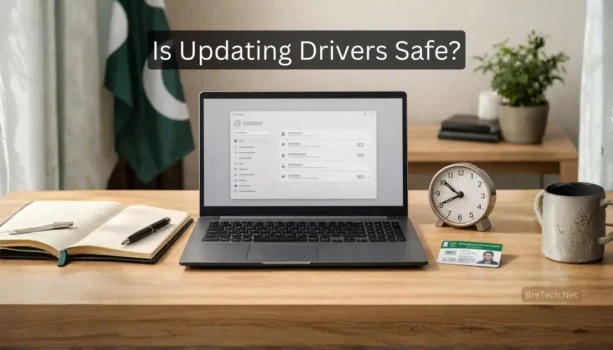
Is updating drivers safe when your laptop dies just before an important online exam in Pakistan? Panic can make you rush, install random updates, and skip backups, then you lose Wi-Fi or sound right when you need it most.
A risky mistake is downloading a late-night file from any website and installing it to meet a deadline. A wrong driver update can break Wi-Fi, audio, or printers and leave you stuck with no easy way back.
The safe solution is to pause, back up files, make a restore point, and use the laptop maker’s site or Windows tools. Buy only genuine utilities when needed, using local PKR delivery from BreTech, an authorized reseller in Pakistan, with PKR pricing, local payments, and 1–72 hour email delivery on most orders.
Is Updating Drivers Safe? Quick answer for Windows users
Is updating drivers safe in most cases? Yes, if you start with Windows Update, create a restore point, and avoid random driver packs or popup “fixer” tools. This keeps changes reversible and reduces the chance of Wi-Fi or audio issues.
If Windows Update cannot fix your problem, update only the device that is failing (Wi-Fi, audio, GPU) using the laptop maker’s official support page. If you manage multiple PCs, a reputable driver updater with rollback can be a safer way to stay updated.
If you want a safer way to keep your PC stable, explore Driver Updater tools with PKR pricing and local support.
Understanding Driver Updates
To really understand if a driver update is safe, we should first understand what drivers are, why you need to update them and the methods users usually employ to do so. So let’s dive in and clarify these basic, but essential concepts.
What are Drivers?
Drivers are essential software components that allow your system to communicate with hardware. Think of a driver as a translator; it lets your Windows operating system talk to your graphics driver, printer, or other devices. Without the correct driver, your device simply won’t work properly, or at all.
Why Update Drivers?
You may ask “Why should I even bother to update drivers?” Well, driver updates often bring performance improvements, fix problems, and enhance security. Keeping your drivers up to date ensures your hardware runs efficiently and protects against potential vulnerabilities. Essentially, it keeps your computer in tip-top shape.
Common Methods to Update Drivers
There are several methods to update drivers. Some approaches are listed in the table below. There are also driver updater tools that claim to automatically handle updates.
| Method | Details |
|---|---|
| Windows Update | Automatically checks for and installs compatible driver updates. |
| Manual Download | Download the latest drivers from the manufacturer’s website or use the device manager. |
| Third-Party Tools | Use only reputable tools from trusted sources, as some may bundle unwanted software or malware. |
Safety of Updating Drivers
Now that we know the basics, let’s tackle the big question: is updating drivers safe? Yes, generally it is safe to perform a driver update, however you should be aware of the risks involved.
Are Driver Updates Safe?
Generally, driver updates are safe, but there are risks. Downloading from unofficial sources can expose your computer to malware. Sometimes, an update can introduce new bugs or compatibility problems, potentially causing your system to become unstable or even break something.
Risks of Outdated Drivers
While updating has risks, using outdated drivers can also pose significant issues. Outdated drivers may lead to reduced performance, system instability, and security vulnerabilities. For example, an outdated gpu driver can result in poor gaming performance or graphic glitches. So, it’s essential to strike a balance between caution and keeping your drivers current.
Using Trusted Sources for Driver Updates
To minimize risks, always download the latest drivers directly from the official manufacturer’s website or use Windows Update. These sources are more likely to provide safe, verified drivers. Avoid third-party driver updater programs, as they might bundle malware or install incompatible versions, unless from a trusted tech source.
Tools for Updating Drivers
Windows Update as a Driver Updater
Using Windows Update, a Microsoft built-in tool, is often the easiest way to update drivers. It automatically searches for and installs compatible driver updates delivered through Windows Update. While not always the most current, it prioritizes safe and compatible drivers for your system.
Using Device Manager for Driver Updates
The Device Manager is another method for driver updates. Users can manually check for updates for specific devices. Right-clicking on a device and selecting “Update driver” allows you to search for drivers automatically or browse your computer for a previously downloaded driver file.
If you want the safest manual method, follow Microsoft’s official guide to updating drivers in Windows so you don’t install the wrong file in a hurry.
Third-Party Driver Update Tools
Numerous third-party driver updater tools promise to simplify the update process. However, be careful, as some may bundle unwanted software or harmful files. Only use reputable tools from trusted sources and read reviews before you install anything.
For cleaning, startup control, and basic performance fixes, see Utilities & Optimization.
Benefits of Automatic Driver Updates
Convenience of Automatic Updates
The main advantage of automatic driver updates is convenience. You don’t need to manually check for updates; the software does it for you, saving time and effort. This is particularly beneficial for users who aren’t tech-savvy or don’t want to deal with the hassle of manually updating drivers.
Speed and Performance Enhancements
Keeping your drivers current can lead to noticeable performance improvements. Newer versions of drivers often include optimizations that enhance the speed and efficiency of your hardware. For example, updating your GPU driver can significantly boost gaming performance and improve graphic rendering.
Maintaining Device Compatibility
Driver updates help ensure compatibility between your hardware and operating system. Outdated drivers can sometimes cause conflicts, leading to system instability or device malfunction.
By keeping your drivers up to date, you can minimize these problems and ensure smooth operation of all your devices.
If driver problems are linked to apps, installs, or system clutter, check File & Software Management for uninstall and system tools.
Conclusion
Updating drivers is generally safe when you use Windows Update or the laptop maker’s official support page. Create a restore point first so you can undo changes if something goes wrong.
If you have problems after an update, roll back the driver or use System Restore, then update only the device that is failing (Wi-Fi, audio, GPU). For trusted tools, browse Driver Updater and for stability fixes see Utilities & Optimization.
FAQs
Q: Is updating drivers safe on Windows laptops?
A: Yes, it is usually safe if you use Windows Update or the manufacturer website and avoid random driver software from unknown websites.
Q: Should I use Windows Update to update drivers?
A: For most users, using Windows Update is a good idea because it helps with stability and reduces hardware issues on common devices.
Q: Where should I download the latest version of a driver?
A: Use the manufacturer or vendor support website (for example Dell) and follow their link to the correct driver for your model.
Q: Can the wrong driver update break my PC?
A: Yes. A wrong driver update can reduce functionality, cause crashes, or create graphics cards problems like display glitches and low performance. If you see a warning, stop and roll back.
Q: Is driver updater software safe to use?
A: Some driver software is legitimate, but many tools are risky. If you do use driver tools, choose a well-known vendor, read the terms of use, and avoid any app that pushes ads or unknown downloads.
Q: How do I know if a driver download link is legitimate?
A: A legitimate link should come from the manufacturer or a trusted vendor website, and it should match your exact hardware. If the page looks odd, has popups, or forces extra downloads, do not proceed.
Q: What advice do you recommend if my laptop fails before an exam?
A: First, solve the urgent issue by restarting, using Windows Update, or rolling back the driver. If the concern is bigger or you suspect hardware issues, get support from a trusted user-focused technician instead of experimenting at the last minute.
Browse genuine PC tools on Driver Updater or Utilities & Optimization and choose the right option for your Windows setup.
Further Reading
If you update drivers to fix lag, stuttering, or crashes, these posts can help you do it safely:
- Best Driver Updater Software for Windows in Pakistan
- Boost Gaming Performance on Low-End PCs in Pakistan
- Windows Cleanup vs PC Optimizers
- PC Optimizer Made My PC Slow
- Internet Slow on Windows PC in Pakistan? Fix It Step by Step
Explore more performance and maintenance tips in Utilities & Optimization.