Abdul Basit
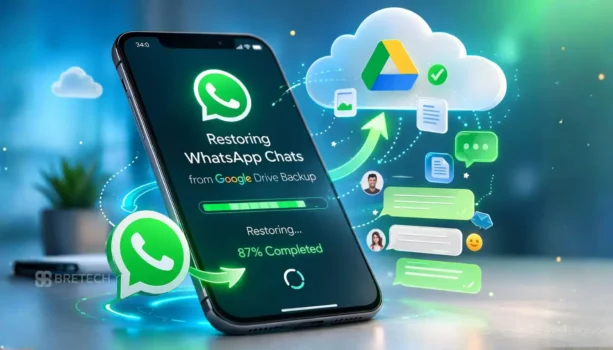
Recover WhatsApp backup from Google Drive lets you restore chat history, WhatsApp messages, and media files on an Android device after reinstalling the app, changing phones, or losing local storage. Many restore problems happen when users sign in with the wrong Google account, verify a different phone number, or try to restore an old backup.
Another common mistake is assuming every Google Drive backup will restore automatically. In reality, WhatsApp restore works only when the backup, Google account, phone number, and internet connection all match.
This guide explains how to restore WhatsApp from Google Drive, how to find your WhatsApp backup, and what to do if the restore fails.
To restore WhatsApp backup from Google Drive, install WhatsApp on your Android device, verify the same phone number, and sign in with the correct Google account. If WhatsApp detects the backup, you can restore your chat history, WhatsApp messages, and media files.
If the restore fails, check the backup date, Google Play services, storage, and internet connection. If the backup is missing or too old, you may need a local backup or data recovery software.
What WhatsApp Backup From Google Drive Means
A WhatsApp backup from Google Drive stores your WhatsApp data, chat history, and media files in your Google account so they can be restored later. This Google Drive backup helps protect your WhatsApp messages if you change phone, reinstall WhatsApp, or move to a new Android device.
WhatsApp backups normally include chats and media, message history, and some app settings. The backup is linked to your Google account and phone number, so restoring WhatsApp works only when both match the original backup used on the old phone.
You can also keep a local backup stored in your phone storage, but Google Drive backups are safer when switching to a new phone or restoring WhatsApp after data loss.
How WhatsApp Backup Restore Works on Android
Restoring WhatsApp on an Android device works by detecting the Google Drive backup linked to your Google account. When you install WhatsApp and verify your phone number, the app checks Google Drive to find your WhatsApp backup and asks if you want to restore your chat history.
If a recent backup is found, WhatsApp downloads the chat history, WhatsApp messages, and chats and media from Google Drive. The restore process usually takes a few minutes depending on the backup size and your internet connection.
After restoring WhatsApp chats, the app continues downloading media files in the background. Once finished, your WhatsApp messages and conversation history appear on the new Android device just like they were on the old phone.
Steps to Restore WhatsApp Backup From Google Drive
Check the Google Account and Phone Number
Before restoring WhatsApp, make sure you are using the correct Google account and the same phone number used for the old backup. If the Google Drive backup belongs to another Google account or a different number used on the old phone, WhatsApp may not find your chat history.
It is also smart to check that Google Play services are working and your Android device has a stable internet connection. These small checks often solve restore problems before you start.
Reinstall WhatsApp and Start the Restore Process
Install or reinstall WhatsApp from the Google Play Store on your Android device, then open the app and verify your phone number. After that, WhatsApp checks your Google account and Google Drive backup to see if a recent backup is available.
If a backup is found, the app will show a restore option. Tap it to start restoring WhatsApp data from Google Drive to your new phone or current Android device.
Restore WhatsApp Chats and Messages
When you tap restore, WhatsApp starts downloading your chat history, WhatsApp messages, and chats and media from the Google Drive backup. The time needed depends on your backup size, phone storage, and internet connection.
Keep the app open and avoid breaking the internet connection during this step. If the restore stops midway, some WhatsApp messages or media files may not appear properly.
Finish Setup After Restoring WhatsApp
Once the main restore is complete, WhatsApp finishes setup and opens your chat list. Your message history usually appears first, while media files may continue downloading in the background.
After setup, check a few chats to confirm the backup restored correctly. If old messages, media, or chat history are missing, you may need to check for a local backup or a more recent Google Drive backup.
How to Find WhatsApp Backup in Google Drive
To find your WhatsApp backup in Google Drive, open Google Drive with the same Google account linked to your WhatsApp backup. On Android, the backup is usually stored under your Google account backups, not as a normal file inside regular Drive folders.
You can go to Google Drive settings or the backup area and look for WhatsApp backups linked to your phone number and device. This helps you confirm whether a recent backup exists, when it was created, and whether the correct Google account is being used before restoring WhatsApp.
If you do not find WhatsApp backup details there, the backup may belong to another Google account, may be too old, or may not have completed properly. In that case, check the old phone, local backup storage, and WhatsApp backup settings before trying to restore again.
Why WhatsApp Backup Is Not Restoring
Google Drive Backup Is Missing
One common reason WhatsApp cannot restore chats is that the Google Drive backup is missing. This can happen if the backup was never created, was deleted from the Google account, or was saved under a different Google account than the one currently used on the phone.
To fix this, open Google Drive with the correct Google account and try to find WhatsApp backup in the backup section. If no backup appears, you may need to check the old Android device or look for a local backup stored in phone storage.
Wrong Google Account or Number
WhatsApp backups are linked to both the Google account and the phone number used when the backup was created. If you sign in with a different Google account or verify a different phone number, WhatsApp will not detect the backup.
Always make sure the correct Google account and number used for the old backup are active on the Android device. Using the same account and phone number usually allows WhatsApp to detect the Google Drive backup automatically.
Backup Date Is Old or Incomplete
Sometimes WhatsApp finds a backup, but it is too old or incomplete. This may happen if the last backup failed because of a weak internet connection, low storage, or interrupted backup process.
Check the backup history in Google Drive to see the recent backup date. If the backup is very old, restoring WhatsApp may not bring back the latest chat history, media files, or WhatsApp messages.
Storage, Internet, or App Issues
Restoring WhatsApp from Google Drive requires enough phone storage, stable internet connection, and working Google Play services. If storage is full or the internet connection breaks during the restore process, the backup may fail to download.
Make sure the Android device has enough storage space, a stable internet connection, and updated Google Play services. Restarting the phone and reinstalling WhatsApp can sometimes fix restore problems.
How to Recover WhatsApp Messages if Google Drive Restore Fails
Recover WhatsApp Chat From Local Backup
If the Google Drive backup cannot restore, you may still recover WhatsApp chat using a local backup stored in phone storage. WhatsApp often saves backup files automatically on the Android device, usually inside the WhatsApp data folder.
By reinstalling WhatsApp and selecting the correct local backup file, you may be able to restore chat history, WhatsApp messages, and chats and media that were saved on the device. This method works best when the local backup is recent and the phone storage was not deleted.
Recover WhatsApp Messages From an Older Backup
Sometimes the most recent Google Drive backup is missing or incomplete, but an older backup may still exist. In that case, restoring WhatsApp from an earlier backup file may help recover chat history and WhatsApp messages that were saved previously.
Before restoring, check the backup date and confirm which backup file contains the chat history you want to restore. Using an older backup may mean losing some newer messages, but it can still recover important WhatsApp chats and media files.
When Recovery Software May Help
If both the Google Drive backup and local backup are missing, damaged, or deleted, you may need data recovery software to recover WhatsApp data. These tools scan Android device storage to recover deleted WhatsApp messages, chats, and media files.
Recovery software may help when WhatsApp data was lost after a phone reset, broken device, or failed restore process. In such cases, specialized WhatsApp data recovery tools can sometimes recover chat history that normal restore methods cannot find.
Tips to Protect WhatsApp Backups in the Future
To avoid losing WhatsApp messages and chat history again, enable automatic WhatsApp backup to Google Drive. Regular backups help protect chats and media files if your phone storage is deleted, your Android device stops working, or you move to a new phone.
Make sure the backup is linked to the correct Google account and that the same phone number remains active. It is also useful to check the backup date occasionally so you know your WhatsApp backups are updating properly.
A stable internet connection and enough storage space are important for successful backups. Using Wi-Fi or a stable mobile data connection helps ensure that WhatsApp can upload chats and media to Google Drive without errors.
When to Use WhatsApp Recovery Software
WhatsApp recovery software may be useful when normal restore methods do not work. If the Google Drive backup is missing, the local backup is deleted, or restoring WhatsApp fails, recovery tools may help recover lost WhatsApp data.
These tools scan Android device storage to locate deleted WhatsApp messages, chats, and media files that are no longer available through normal restore options. This can help in situations such as accidental deletion, phone damage, or failed backup restore.
Recovery software is usually considered a last option when backups cannot be found. Choosing reliable data recovery tools can improve the chances of recovering important WhatsApp messages and chat history.
Recommended Products
If you need a tool built mainly for WhatsApp backup, restore, and transfer, start with EaseUS ChatTrans Pro.
If you want a broader mobile toolkit for backup, transfer, repair, and supported WhatsApp workflows, see Wondershare Dr.Fone Toolkit.
If your chats were deleted and you need a recovery-focused option for Android, check Wondershare Dr.Fone Android Data Recovery.
Explore Related Categories
Compare more options in Mobile Backup & Restore, or browse Mobile Utilities if you are still deciding between backup, transfer, and recovery tools.
If your main issue is lost chats or deleted phone data, also see Data Recovery Software.
Conclusion: Backup WhatsApp and Restore Messages Safely
Recovering WhatsApp backup from Google Drive is usually the easiest way to restore chat history, WhatsApp messages, and media files on an Android device. By using the correct Google account, verifying the phone number, and following the restore steps, most users can recover their chats successfully.
If the restore process does not work, checking the backup history, Google Drive settings, and local backup storage can often solve the problem. Many restore issues happen because the wrong Google account or an old backup is used.
When backups are missing or damaged, data recovery software may help recover lost WhatsApp data. Taking regular backups and keeping your Google Drive backup updated helps protect your WhatsApp messages and chats in the future.
FAQs
Q: What is the easiest way to restore WhatsApp backup from Google Drive?
A: The easiest way to restore WhatsApp is to install WhatsApp on your Android device, verify the same phone number, and sign in with the correct Google account. When WhatsApp detects the Google Drive backup, select WhatsApp restore and follow the steps to restore WhatsApp messages, chat history, and media files.
Q: Why can’t restore WhatsApp backup from Google Drive?
A: If you can’t restore WhatsApp, the most common reasons are using the wrong Google account, wrong phone number, missing Google Play services, or an unstable internet connection. Always check the backup date, storage space, and confirm the Google Drive backup belongs to the same account before trying to restore again.
Q: Can I restore WhatsApp messages to a new Android phone?
A: Yes, you can restore WhatsApp messages to a new Android phone if a recent Google Drive backup exists. Install WhatsApp, verify the phone number used for the backup, and the app will detect the backup. After you restore WhatsApp messages, chats and media will begin downloading to the new device.
Q: Is it possible to restore WhatsApp messages from a manual backup?
A: Yes, if Google Drive restore does not work, you may still restore WhatsApp messages using a manual backup or local backup stored in phone storage. During setup, WhatsApp may detect the backup file and allow you to restore chats and media from the device.
Q: Can I restore WhatsApp backup from Google Drive without the old phone?
A: Yes, you can restore a Google Drive backup without the old phone if the backup was already created. Install WhatsApp on the new device, sign in with the correct Google account, verify the same phone number, and the app should detect the backup automatically.
Q: What happens to media files during WhatsApp restore?
A: When restoring WhatsApp from Google Drive, chat history usually restores first. After that, media files and media backup such as photos, videos, and documents continue downloading in the background until the process is complete.
Q: How can I recover WhatsApp data if backups are missing?
A: If backups are missing or deleted, you may need to recover WhatsApp data using data recovery tools. These tools scan device data to find deleted WhatsApp messages, chats, and media files when normal restore methods cannot recover the data.
Further Reading
For more help before you buy, read these related BreTech guides:
- Best WhatsApp Data Recovery Software in Pakistan
- Best Mobile Data Recovery Software in Pakistan
- WhatsApp Transfer Android to iPhone in Pakistan
Browse more mobile backup and recovery guides in our Data Recovery section.