Abdul Basit
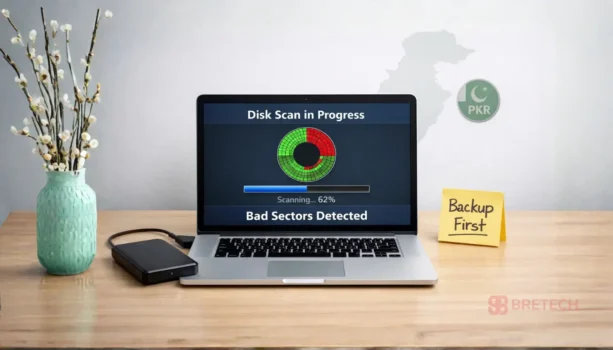
Bad sector repair software in Pakistan becomes important when a drive slows down, freezes, or shows disk errors and you need a safe way to protect your data.
Dealing with bad sectors can be stressful, especially when a hard drive starts slowing down or showing repeated errors. This guide explains what bad sectors mean, what software can and cannot do, and which tools are safer to use in Pakistan.
We’ll focus on practical steps, genuine disk repair tools, and when it is smarter to stop troubleshooting and replace the drive.
BreTech provides genuine software licenses in Pakistan with PKR pricing, local payments, 1–72 hour digital email delivery on most orders, and local support as an authorized reseller partner.
Bad sector repair software cannot physically repair a damaged hard drive, but it can scan for bad sectors, check file system errors, and isolate weak areas. It can also help you move or recover files before the drive gets worse.
If clicking noises start or errors increase quickly, prioritize hard drive recovery and plan a replacement.
Quick Decision Table
| If your problem is… | Best next step | Tool type |
|---|---|---|
| PC is slow or freezing | Scan the disk for weak sectors | Partition tool with surface test |
| Disk errors or file corruption | Check and isolate bad sectors | Disk management software |
| Files missing or unreadable | Recover important data first | Data recovery software |
| Clicking noise or repeated failures | Stop repairs and replace drive | Data recovery + new drive |
If the drive is freezing or clicking, do not keep running scans again and again. Recover what you can first, then plan a replacement to avoid full failure.
Choose the Right Recovery Tool in Pakistan
If bad sectors are involved, choosing the correct tool category matters more than the brand. Start with the category that matches your situation.
- For deleted, corrupted, or unreadable files caused by disk errors, explore Data Recovery Software.
- If the issue is limited to partitions, surface tests, or weak sectors, browse File & Drive Recovery Tools.
- When Windows itself is failing to boot or access files due to disk damage, focus on Windows Data Recovery Solutions.
If you are not sure where to start, begin with Data Recovery first, then move to partition or disk utilities once your important files are safe.
Understanding Bad Sectors
Let’s dive deep into the topic of bad sectors. We’ll describe what bad sectors are and what causes them. We’ll also mention the signs you need to look for to recognize that your hard drive is failing.
What are Bad Sectors?
Bad sectors are damaged areas on your hard drive or disk that can no longer store data reliably. To understand what bad sectors are, think of them like scratches on a CD where data cannot be read properly.
These disk issues can lead to data loss and system instability, so it is important to address them early. Identifying bad sectors is the first step.
Bad sectors can be logical (file system related) or physical (hardware damage). Physical damage usually gets worse over time.
Causes of Bad Sectors
Bad sectors can happen due to physical damage (like a drop), manufacturing defects, power surges, or simple wear and tear from daily use.
Over time, a hard drive can degrade and start developing bad sectors. Stable power and safe shutdowns can reduce risk, but you still need to watch for signs.
Signs of a Failing Hard Drive
Recognizing the signs of a failing hard drive early can save you a lot of headaches. Common symptoms to watch out for include:
- Frequent crashes or slow performance
- Strange noises, such as clicking or grinding
- Files becoming corrupted, or the system failing to boot
If you notice these signs, it’s time to scan the drive for bad sectors and consider data recovery or a backup.
Hard Disk Repair Tools: What They Can Do for Bad Sectors
So, what can disk repair software actually do? It’s important to manage expectations here. No software can magically fix physical bad sectors. But these tools can help you manage the issue and salvage as much data as possible before total failure. Here’s what software can do.
For bad sectors, recovery alone is not enough. You also need tools that can test, isolate, and manage damaged disk areas safely.
- For surface tests, partition checks, and bad sector isolation, use tools from Partition Management Software.
- For disk diagnostics, boot checks, and system-level disk health, see System & Disk Utilities.
Best practice: run one deep scan, note the result, and stop if bad sectors increase because repeated scans can stress a weak drive.
Detection of Bad Sectors
One of the primary functions of disk repair software is to detect bad sectors. These tools scan the drive and identify areas that are failing or have already failed.
This helps you understand how serious the problem is and plan your next steps. Look for tools that show clear disk health reports so you can decide quickly.
File System Checks and Isolation
Disk repair utilities can also run file system checks, like CHKDSK, to find and attempt to isolate bad sectors. When sectors are marked as unusable, Windows avoids writing new data there, which can reduce further damage.
This step helps stabilise the system and lowers the risk of more file corruption while you prepare recovery or replacement.
Data Migration and Recovery
Before a hard drive fails completely, it is important to move your data to a safe location. Data recovery software can help you recover files from readable areas and clone the disk to a new drive.
Disk cloning is useful because it lets you keep your system and files in the same setup, even after you replace the drive.
Top Bad Sector Repair Software in Pakistan (2026)
These tools are available at BreTech with PKR pricing, local payments, and fast digital email delivery on most orders, so you can use genuine disk repair tools instead of risky free downloads or command-line shortcuts.
1. AOMEI Partition Assistant
AOMEI Partition Assistant is a comprehensive disk management tool that includes features for checking bad sectors using surface tests, partition management, and disk cloning. It’s a solid choice for home and office users who need advanced disk control and repair capabilities.
These editions let you choose the right disk repair tools for PC users, server environments, or technician work, while keeping your disk management workflow simple.
Available editions: Professional | Server | Technician | Unlimited
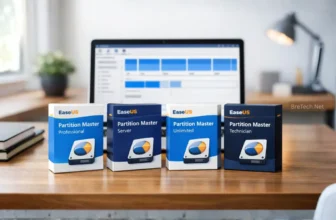
2. EaseUS Partition Master
EaseUS Partition Master is a disk management tool that comes in multiple editions and is known for a user-friendly interface with strong partition features. It helps you manage partitions, check disks for errors, and clone a drive for backup, which is useful when you want to keep data safety the priority.
These editions are useful when a drive is failing and you need reliable partition recovery tools and disk migration options before the situation gets worse.
Available editions: Professional | Server | Technician | Unlimited
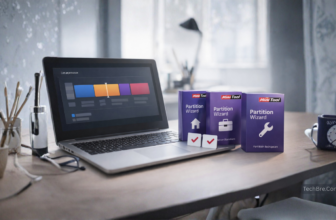
3. MiniTool Partition Wizard
MiniTool Partition Wizard is a disk partitioning and management tool available in multiple editions for different user needs. It offers features to scan for bad sectors, extend or resize partitions, and perform disk cloning, making it a strong choice for day-to-day disk diagnostics and recovery preparation.
These editions help you pick the right partition control tools for personal use, business use, or technician work.
Available editions: Pro | Pro Platinum | Pro Ultimate | Server | Enterprise | Technician
4. EaseUS Data Recovery Wizard
EaseUS Data Recovery Wizard is a set of data recovery tools designed to recover data from various storage devices, including hard drives, SSDs, external drives, and USB flash drives. It supports various file types and can retrieve data lost due to formatting, deletion, or disk corruption and even bad sectors.
These editions are best used when repair attempts are not enough and your priority is to recover data before the drive fails completely.
Available editions: Professional | Bootable Media | Technician | Technician Premium | for Mac | for Mac Technician | Bootable Media for Mac
5. Stellar Data Recovery
Stellar Data Recovery is a powerful data recovery tool that helps you retrieve lost files from damaged hard drives, SSDs, and external HDDs. It supports various file systems and offers advanced features like disk imaging to handle severe disk issues.
These editions help you choose the right recovery approach for valuable data when a drive is unstable and you need a safer recovery process.
Available editions: Standard | Professional | Premium | Technician | for Mac
Trusted Disk Repair Brands Available at BreTech
All tools listed in this guide come from verified vendors with proper licensing and updates.
- View all disk and partition tools from AOMEI.
- Compare recovery and disk management software by EaseUS.
- Explore partition and recovery solutions from MiniTool.
Pick the brand you already trust, then select the right edition based on home use, business use, or technician work. This avoids buying the wrong license type.
What to Avoid When Using Repair Tools
Using the wrong repair tool or method can sometimes do more harm than good. Here are a few things to steer clear of when dealing with bad sectors.
Free or Cracked Software Risks
While the idea of a completely free repair tool might sound tempting, using free or cracked software is risky. These tools present several potential problems, including:
- Bundling malware or viruses that can further compromise your system.
- Exposure of your data to security threats.
Always stick to genuine, licensed software from reputable sources. If you can, avoid completely free tools to repair your damaged hard.
CMD-based and One-click Repair Tools
Be wary of CMD-based or one-click repair tools that promise instant fixes. These tools often lack the sophistication to properly diagnose and repair disk issues, potentially causing more damage. Stick with professional hard disk repair software that offers detailed scan and analysis capabilities.
Ignoring Signs of Hardware Failure
Sometimes, despite your best efforts, a hard drive is simply beyond repair. If you continue to experience issues after using repair tools, or if the disk shows signs of severe physical damage, it’s time to consider replacing the drive. Continuing to attempt to repair a failing hard drive can lead to permanent data loss and further system instability. Recognize when it’s time to let go.
Safe Practices for Hard Disk Health
Regular Backups
Creating regular backups is your first line of defense against data loss. Think of it as creating a safety net for your precious files. If bad sectors do strike, you’ll have a recent copy of your data ready to go.
Monitoring Disk Health
Keep an eye on your disk health proactively using disk management tools. Many utilities provide S.M.A.R.T. status reports, which can alert you to potential issues before they become critical. Catching problems early gives you time to recover data.
Preventing Future Bad Sectors
While you can’t entirely prevent bad sectors, you can minimize their occurrence. Keep your system cool, protect it from power surges, and avoid abrupt shutdowns. Gentle handling goes a long way in preserving your hard drive’s lifespan.
When to Replace Your Hard Drive
Indicators of a Failing Drive
Sometimes, a hard drive is simply too far gone. If you’re experiencing constant crashes, excessive bad sectors, and grinding noises, it’s a sign that replacement is inevitable. Ignoring these signs can lead to complete data loss. Scan the drive to be sure.
Cost-Effectiveness of Replacement
Evaluate the repair costs versus the price of a new drive. If data recovery and repair attempts are becoming too expensive or time-consuming, investing in a new hard disk is often the more practical solution. Do not attempt to repair if the new one is cheaper.
Choosing the Right Replacement Drive
When selecting a replacement, consider your storage needs, budget, and whether you want to upgrade to an SSD for improved performance. Look for reliable brands and models with good warranties. Your new disk should serve you well for years.
Conclusion: Repair Bad Sectors Safely and Recover Data
We’ve covered several effective disk repair tools, including AOMEI Partition Assistant, EaseUS Partition Master, MiniTool Partition Wizard, EaseUS Data Recovery Wizard, and Stellar Data Recovery. Choose the tool that best meets your needs and technical expertise. Check your disk regularly.
BreTech helps Pakistani users choose the correct tool before a weak drive turns into full data loss. Start with a surface test or partition check, then switch to data recovery early if errors keep increasing.
Buy genuine licenses with PKR pricing, local payments, and fast email delivery on most orders, so you get clean installers, updates, and proper activation support when it matters most.
FAQs
Q: Can hard disk repair software fix bad sectors on an HDD?
A: On an hdd, software can help repair logical issues and manage soft bad sectors. It cannot physically fix hard bad sectors on a damaged hard drive, but it can help you confirm the problem and reduce more damage.
Q: What should I do first if my damaged hard drive is slowing down or freezing?
A: Stop heavy use and start hard drive recovery planning. Run a scan using trusted disk repair tools to check bad sectors using a surface test, then recover data you cannot replace.
Q: Is it safe to use a disk utility or utility in Windows to fix bad sectors?
A: A disk utility or utility in windows can help check file system errors and sometimes help with fix bad sectors that are logical. If the drive is unstable, do not repeat deep scans many times because it can stress a failing disk.
Q: How do I recover data from an HDD with bad sectors?
A: Focus on recover data from readable areas first. If normal copying fails, use third-party software made for hard drive recovery to extract important files from hard drive data before the drive worsens.
Q: Can I repair an external hard drive with bad sectors the same way?
A: Yes, an external hard drive or external hdd is still an hdd inside a case. Use the same approach: scan, recover important files, and consider replacement if bad sectors keep increasing or the drive disconnects.
Q: Do tools like HDD Regenerator really repair hard bad sectors?
A: Some tools like hdd regenerator may help with certain read issues, but they cannot restore physically damaged areas on a failing disk. If you suspect hard bad sectors, treat the drive as risky and prioritize recovery and replacement.
Q: How can I prevent bad sectors in the future?
A: You cannot fully prevent bad sectors, but you can reduce risk with stable power, safe shutdowns, less heat, and regular backups. Replace aging drives early if warnings increase, so you avoid emergency recovery later.
Further Reading
For more help with hard drive errors, bad sectors, and safe recovery steps in Pakistan, explore these BreTech guides:
- Recover Deleted Files From a Hard Drive in Pakistan
- Affordable Data Recovery Software in Pakistan
- Best Data Recovery Software in Pakistan
- Best File Repair Software & Tools in Pakistan
- How to Clone a Hard Drive Safely
Browse more guides here: File & Drive Recovery Blogs