 Abdul Basit
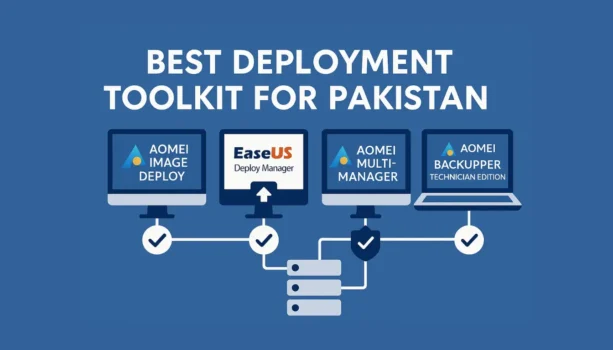
Best Windows deployment software in Pakistan helps IT teams set up many Windows PCs faster and with fewer mistakes. It is useful for schools, offices, repair shops, MSPs, and businesses that need the same Windows setup on multiple computers.
Instead of installing Windows, drivers, apps, and settings again and again, you can create one clean system image and deploy it to other PCs. This saves time and helps keep all systems consistent.
In this guide, we compare AOMEI, EaseUS, imaging, migration, and disk preparation tools available through BreTech. It will help you choose the right option for your PC rollout, backup plan, and user migration needs in Pakistan.
Quick Picks: Best Tools From BreTech
| Need | Best Fit | Why It Fits |
|---|---|---|
| Deploy one image to many PCs | AOMEI Image Deploy Technician | PXE-based network rollout |
| Deploy EaseUS backup images | EaseUS Deploy Manager Bundle | Good for structured business deployment |
| Create master images and backups | AOMEI Backupper Business editions | Imaging, restore, clone, and rollback |
| Move users to new PCs | EaseUS Todo PCTrans | Transfers files, profiles, and apps |
| Prepare disks before rollout | AOMEI Partition Assistant | Partition, resize, clone, and disk prep |
| Enterprise deployment planning | Contact BreTech for licensing help | Best handled by quote/request |
Explore the main category: System Migration & Deployment Software in Pakistan.
What Is Windows Deployment Software?
Windows deployment software helps IT teams install or restore a prepared Windows system image to multiple computers.
It is useful when you need many systems to have the same Windows setup, apps, drivers, and basic configuration.
A good deployment setup normally helps with:
- deploying a Windows image over LAN
- setting up many PCs with the same base system
- reducing manual installation time
- preparing school labs and office systems
- restoring systems after failure
- supporting PC refresh and migration projects
- keeping a rollback image ready if something goes wrong
A complete deployment workflow normally includes three parts:
- Deployment tool for rolling out the image
- Imaging tool for creating and testing the master image
- Migration tool for moving users, apps, and files
Why Businesses in Pakistan Need Deployment Tools
Manual Windows setup is fine for one or two PCs. It becomes slow and risky when you are handling 10, 50, or 200 systems.
A proper deployment workflow helps you:
- save setup time
- reduce repeat mistakes
- keep all systems consistent
- prepare rollback images
- reduce downtime during PC replacement
- support branches, labs, and client sites more easily
This is especially useful for schools, call centres, software houses, IT service providers, training centres, repair shops, and SMEs in Pakistan.
Best Windows Deployment Software in Pakistan
1. AOMEI Image Deploy Technician
AOMEI Image Deploy Technician is the best fit when you want to deploy one system image to many computers over a local network.
It is useful for labs, offices, and technicians who need the same Windows setup on multiple PCs. Instead of installing Windows manually on every machine, you prepare one clean image and deploy it to other systems.
Best for:
- school computer labs
- office PC rollout
- repair centres
- MSP deployment work
- same-hardware or similar-hardware batches
Key benefits:
- deploy system images over LAN
- useful for PXE-based deployment workflows
- install or restore images to many PCs
- reduce repeated manual setup work
- useful for IT departments and service providers
Choose this if your main goal is simple network-based Windows deployment.
2. EaseUS Deploy Manager Bundle
EaseUS Deploy Manager Bundle is a strong option for teams that already use EaseUS backup images or want a deployment workflow connected with EaseUS tools.
It is designed to deploy system backup images to multiple machines. This makes it useful when an office or IT team wants faster Windows setup for PCs or servers.
Best for:
- SMEs
- office IT teams
- business PC refresh
- repeated deployment work
- teams using EaseUS Todo Backup images
Key benefits:
- deploy system images to multiple PCs
- supports network-based deployment workflow
- useful for business deployment planning
- works well with backup-based deployment
- helps reduce repeated Windows installation work
Choose this if you want deployment plus backup planning in the EaseUS ecosystem.
3. AOMEI Backupper Business Editions
AOMEI Backupper editions are important because most deployment problems start before rollout.
If the master image is weak, every deployed PC will repeat the same problem. AOMEI Backupper helps you create, test, restore, clone, and maintain system images.
Best for:
- master image creation
- system backup
- disk cloning
- rollback planning
- technician service work
- SSD upgrade projects
Good fit editions:
- Professional: single PC power users
- Workstation: business desktops
- Server: Windows Server systems
- Technician: service providers
- Technician Plus: wider technician and multi-system use
Choose this if you need a reliable imaging and recovery tool before deployment.
4. EaseUS Todo PCTrans
EaseUS Todo PCTrans is not a deployment tool for imaging, but it is very useful after deployment.
When a new PC is ready, users still need their files, apps, settings, and profiles. PCTrans helps reduce the time needed to move users from old PCs to new PCs.
For personal users, freelancers, or office staff moving data to a new computer, choose EaseUS Todo PCTrans Professional.
For IT technicians, repair shops, or service providers handling migration work for different customers, choose EaseUS Todo PCTrans Technician.
Best for:
- office PC replacement
- user migration
- laptop upgrades
- technician migration jobs
- reducing reinstall time
Key benefits:
- transfer user data to a new PC
- move selected apps where supported
- reduce manual reinstall work
- useful for office refresh projects
Choose this if your rollout includes replacing old PCs and moving users to new systems.
5. AOMEI Partition Assistant Business Editions
AOMEI Partition Assistant editions help with disk preparation before or after deployment.
This is useful when you need to resize partitions, prepare disks, handle cloning tasks, or fix partition layout issues before imaging.
Best for:
- disk preparation
- SSD upgrades
- partition resizing
- MBR/GPT conversion needs
- technician disk management work
Key benefits:
- prepare drives before imaging
- resize and manage partitions
- help with SSD migration tasks
- useful for technician workflows
Choose this when disk layout and storage preparation are part of your rollout.
6. Paragon Business Deployment Options
Paragon can be considered for more complex business deployment, backup, disk management, recovery, and file system needs, especially when the environment has mixed hardware or stricter business requirements.
It may be useful for IT teams, service providers, and businesses that need more than simple Windows deployment. For example, some buyers may need disk imaging, backup and restore, deployment support, drive wiping, APFS or NTFS access, or advanced disk management in one workflow.
Because Paragon options depend on the customer’s exact environment, it is better to compare the available tools before choosing blindly.
Read our guide on which Paragon software you need to understand the main Paragon tools for backup, deployment, disk management, wiping, and file system access.
To get the right recommendation, share:
- number of PCs
- Windows version
- same hardware or mixed hardware
- server requirement
- deployment method
- backup and rollback needs
- whether the rollout is one-time or repeated
AOMEI Image Deploy vs EaseUS Deploy Manager
AOMEI Image Deploy Technician is better when your main need is to deploy one prepared system image to many PCs over LAN. It is a practical choice for school labs, office batches, repair centres, and MSPs that want simple network-based deployment.
EaseUS Deploy Manager Bundle is better when you want to deploy EaseUS system backup images across multiple machines. It fits offices and SMEs that already prefer EaseUS tools or want deployment connected with a backup workflow.
If your main job is same-image rollout, choose AOMEI Image Deploy Technician. If your main job is EaseUS backup-image deployment, choose EaseUS Deploy Manager Bundle.
Best Software to Deploy Windows to Multiple PCs
For most buyers in Pakistan, the best software to deploy Windows to multiple PCs depends on how the rollout will be done. If you want network-based deployment over LAN, AOMEI Image Deploy Technician is usually the clearest fit.
If you also need to create, test, and restore the master image, use AOMEI Backupper with it. If users are moving from old PCs to new PCs, add EaseUS Todo PCTrans for app, file, and profile migration.
For schools, labs, offices, and service providers, this combination is usually safer than installing Windows manually on every computer.
Best Tool Combination by Use Case
Best PXE Deployment Software for Schools and Computer Labs
Use AOMEI Image Deploy Technician with AOMEI Backupper.
This helps you create one clean master image and deploy it to many lab PCs over the network. It is useful when all systems need the same Windows setup, classroom apps, and basic configuration.
For Office IT Teams
Use EaseUS Deploy Manager Bundle with EaseUS Todo PCTrans.
This helps you deploy systems and then move users, files, and apps where needed. It is useful during PC refresh projects, staff laptop replacement, and office upgrades.
Best Deployment Tools for MSPs and Technicians
Use AOMEI Backupper Technician with AOMEI Image Deploy Technician.
This is better for repeat client work, imaging jobs, and service-based deployment. It gives technicians a cleaner way to handle image creation, restore, and rollout tasks.
For Disk Preparation and SSD Upgrade Jobs
Use AOMEI Partition Assistant with AOMEI Backupper.
This helps with partition work, cloning, and safe system image recovery. It is useful when a deployment project also includes SSD upgrades or disk layout changes.
For Larger Business Environments
For larger business environments, start with the real project need instead of choosing a product only by name.
Use AOMEI Image Deploy Technician if the main job is deploying one prepared Windows image to many PCs over LAN. Add AOMEI Backupper Business editions when you also need master image creation, backup, restore, and rollback planning.
If the environment uses EaseUS backup images, use EaseUS Deploy Manager Bundle. If users also need to move files, profiles, and apps to new PCs, add EaseUS Todo PCTrans.
For complex environments with many PCs, mixed hardware, servers, or stricter recovery needs, contact BreTech before buying so the correct edition and workflow can be checked first.
Simple Windows Deployment Workflow
A safe rollout does not start with all PCs at once. Start small, test properly, then deploy to the full batch.
- Prepare one clean Windows master PC
- Install Windows updates, drivers, and required business apps
- Remove unnecessary software
- Create a full system image
- Test the image on one spare PC
- Fix drivers, naming rules, and network settings
- Deploy to a small pilot batch
- Check login, apps, printer, network, and activation
- Roll out to the full batch
- Keep a rollback image ready
Do not skip the pilot test. A small test batch can save many hours later.
Need Windows licenses for the PCs you are deploying? Browse Operating System Licenses in Pakistan to compare available Windows options for your rollout.
Free vs Paid Deployment Tools
Free tools may help for very small or basic work, but business deployment usually needs more control, support, and reliability.
Paid deployment software is better when:
- you manage many PCs
- downtime costs money
- you need repeat deployments
- you need business licensing
- you want support and updates
- you cannot risk cracked software
- you need a proper recovery plan
For Pakistani businesses, a genuine license is safer because activation, updates, vendor support, and correct usage rights are part of the buying decision.
Read also: How to Verify a Software License Is Genuine in Pakistan
Which Deployment Tool Should You Buy?
Choose AOMEI Image Deploy Technician if your main need is deploying one prepared system image to many PCs over LAN. It is a strong fit for school labs, office batches, repair centres, and MSP rollout work.
Choose EaseUS Deploy Manager Bundle if you want an EaseUS-based deployment workflow using system backup images. It is useful for offices and SMEs that want deployment plus a cleaner backup plan.
Choose AOMEI Backupper if you need to create, test, clone, and restore master images before deployment. It is also useful for rollback planning, SSD upgrades, and technician imaging work.
Choose EaseUS Todo PCTrans if you need to move user files, apps, settings, and profiles after PC replacement. It is best for office refresh projects where users need to continue work quickly on new systems.
Choose AOMEI Partition Assistant if your rollout includes disk preparation, partition resizing, MBR/GPT conversion, cloning, or SSD migration tasks. It helps prepare storage before or after deployment.
Choose Paragon only after discussing your exact business requirement. It is better for more complex environments, mixed hardware, or enterprise-style deployment needs where the right product depends on the setup.
Buying Checklist for Pakistani IT Teams
Before buying deployment software, check these points:
- How many PCs do you need to deploy?
- Are all systems the same hardware or mixed hardware?
- Do you need PC deployment, server deployment, or both?
- Will you deploy over LAN/PXE?
- Do you need user migration after deployment?
- Do you need disk cloning or partition work?
- Do you need a technician license for client work?
- Do you need backup and rollback before rollout?
- Do you need help choosing the right edition?
This checklist helps avoid buying the wrong tool or edition.
Common Mistakes to Avoid
Using an Untested Master Image
A bad master image creates the same problem on every PC. If Windows updates, drivers, apps, or settings are not checked properly, the issue will repeat across the full batch.
Always test the image on at least one spare PC before full rollout. For mixed hardware, test it on a few different models so you can catch driver, boot, activation, or network problems early.
Ignoring Drivers
Mixed hardware can create driver issues, especially in offices that use different laptop and desktop brands. A system image that works on one PC may not work perfectly on another model.
Before deploying everywhere, test the image on different systems. Check display drivers, network drivers, printer access, Wi-Fi, audio, and any business software that depends on hardware or device settings.
Skipping Backup
Deployment should never start without a recovery plan. If something goes wrong during rollout, you need a clean rollback image or backup to restore the system quickly.
Keep a tested backup of the master system and important user data. This is especially important for offices, schools, and service providers where downtime can stop daily work.
Using Cracked Tools
Cracked deployment tools may look cheaper at first, but they can fail during activation, miss important updates, or include security risks. They are not safe for business rollout, client work, or professional IT service.
For business use in Pakistan, genuine software is the safer choice. It gives cleaner activation, better update access, and proper licensing for office, technician, or service-provider use.
Buying Without Checking Edition Limits
Some tools are made for single-PC use, while others are made for business, server, technician, or multi-system work. Buying the wrong edition can limit deployment, recovery, or commercial usage.
Before buying, check your PC count, hardware type, Windows version, and whether you need technician rights. This helps you avoid paying twice or choosing a license that does not match your real work.
Final Thoughts
The best deployment software in Pakistan depends on your rollout size, hardware type, and recovery plan.
For most schools, offices, and service providers, AOMEI Image Deploy Technician + AOMEI Backupper is a strong setup for creating a clean master image and deploying it to multiple PCs.
For EaseUS users, EaseUS Deploy Manager Bundle + EaseUS Todo PCTrans is useful when you want to deploy EaseUS backup images and then move user files, profiles, and apps to new systems.
For disk preparation and SSD upgrade work, AOMEI Partition Assistant can help with partition resizing, disk preparation, cloning, and storage layout tasks.
If you are not sure which edition fits your PC count or business use case, start from the main category and compare available options before buying. This helps you choose a genuine license that matches your rollout instead of guessing.
Explore System Migration & Deployment Software at BreTech
FAQs
Q: What is the best Windows deployment software in Pakistan?
A: For network-based deployment, AOMEI Image Deploy Technician is a strong option. For EaseUS-based deployment workflows, EaseUS Deploy Manager Bundle is a good fit.
Q: Can I deploy Windows to multiple PCs at the same time?
A: Yes. PXE-based deployment tools can help deploy a prepared system image to multiple PCs over a local network.
Q: Do I need AOMEI Backupper with AOMEI Image Deploy?
A: In many cases, yes. AOMEI Backupper helps create and maintain the system image, while AOMEI Image Deploy helps roll it out to multiple PCs.
Q: Is EaseUS Deploy Manager good for business use?
A: Yes. It is useful for offices and IT teams that want to deploy system backup images to multiple machines.
Q: Which tool is best after PC replacement?
A: EaseUS Todo PCTrans is useful after PC replacement because it helps transfer files, apps, profiles, and settings.
Q: Do deployment tools include Windows licenses?
A: No. Deployment tools help deploy or restore systems. Each PC still needs a valid Windows license according to its licensing type.
Q: Should I use cracked deployment software?
A: No. Cracked software can create activation, security, update, and support problems. For business work, use genuine software.
Further Reading
- PC Migration Software in Pakistan
- AOMEI Partition Assistant vs Backupper in Pakistan
- Full Guide to Clone NVMe SSD to NVMe SSD
- AOMEI Partition Assistant vs EaseUS Partition Master in Pakistan
For more helpful guides, visit our System Utilities blog category.