Abdul Basit
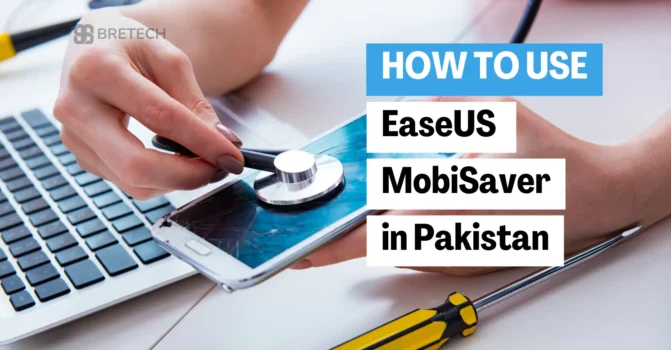
How to use EaseUS MobiSaver in Pakistan in 2026starts with picking the right version and following safe recovery steps, so you don’t overwrite the data you’re trying to get back.
Available in Pakistan with PKR pricing, fast digital email delivery on most orders, and local support from BreTech as an authorized reseller.
If you deleted photos, videos, contacts, messages, or WhatsApp media, EaseUS MobiSaver can help you scan and recover what is still recoverable. The key is to act fast and avoid making the loss worse.
What EaseUS MobiSaver is and when it helps
EaseUS MobiSaver is a recovery tool designed to help retrieve lost data from mobile devices. It’s commonly used when data is deleted by mistake, after an update issue, or when media disappears from the phone gallery.
It can be useful for:
- Photos and videos
- Contacts and call logs
- Messages (when supported)
- WhatsApp media or chat-related data in some cases (results depend on device and backup status)
Before you start: do these 5 things first
Most recovery failures happen because the phone keeps writing new data.
- Stop using the phone (no new photos, no new apps, no downloads).
- Turn on airplane mode if possible.
- If your phone has a memory card, remove it and keep it safe.
- If WhatsApp is involved, check backups first (Google Drive on Android, iCloud on iPhone).
- Save recovered files to your computer, not back to the same phone storage.
Get EaseUS MobiSaver from BreTech (Pakistan)
Use the official BreTech product page so you receive a genuine license and proper activation help:
- Buy EaseUS MobiSaver from BreTech
- Explore EaseUS tools on BreTech
- Browse Data Recovery software in Pakistan
How to use EaseUS MobiSaver for Android (step-by-step)
Step 1: Install on your Windows PC and connect your phone
Install EaseUS MobiSaver on your PC, then connect your Android phone using a good USB cable.
Use the original cable if you can. Many “charging-only” cables cause device detection issues.
Step 2: Enable USB debugging
On your Android phone:
- Enable Developer options
- Turn on USB debugging
- Allow the “Trust/Allow” prompt when it appears
Step 3: Scan and preview what can be recovered
Start the scan, then wait for results. When items appear, preview them if the tool allows it and select only what you need.
Important: On some Android phones and versions, deeper recovery may require extra access (and in some cases rooting is mentioned in vendor guides). If the tool suggests actions you’re not comfortable with, stop and ask for help before proceeding.
Step 4: Recover to a safe location
Recover files to your PC first. After you confirm your files open correctly, you can copy them back to the phone later.
How to use EaseUS MobiSaver for iPhone or iPad (step-by-step)
iPhone recovery works best when you use backups (many users in Pakistan already have iCloud enabled without realising it).
Option 1: Recover from the iOS device
Connect your iPhone/iPad to your computer and tap Trust when prompted. Run a scan, then preview and recover files to your PC.
Option 2: Recover from iTunes/Finder backup
If you had device backups on your computer, this option can recover older data without scanning the phone deeply.
Option 3: Recover from iCloud backup
If iCloud backup was enabled, you may be able to pull back data from the cloud. This can be the safest option for WhatsApp and photos.
Recover WhatsApp media the safe way (Pakistan checklist)
Before using any recovery scan, try these steps in order:
- Check WhatsApp backup settings (Google Drive/iCloud).
- Check your gallery “Recently Deleted” folder (if available).
- If you have a backup, restore WhatsApp from backup first.
- If there’s no backup, then run MobiSaver and focus on media folders and attachments.
This avoids wasting time scanning when a backup can restore everything in minutes.
Troubleshooting: common problems and fixes
EaseUS MobiSaver does not detect my phone
- Try a different USB cable and USB port
- Unlock the phone screen while connected
- Confirm USB debugging is on (Android)
- Tap Trust on iPhone/iPad
- Install or update device drivers on the PC if prompted
Scan is stuck or takes too long
- Close heavy apps on the PC
- Keep the phone connected and awake
- Start with a simpler target (photos/videos first), then try deeper options if needed
Nothing useful is found
This usually means the data was overwritten, the phone is heavily encrypted, or the deletion happened a long time ago. In these cases, backups (iCloud/Google Drive) often give better results than scanning.
What to avoid (so you don’t lose data permanently)
- Installing new apps on the same phone after deletion
- Recording new videos/photos before recovery
- Saving recovered files back onto the same phone storage immediately
- Doing repeated factory resets or “cleaners” before recovery
Conclusion: best way to recover data with MobiSaver in 2026
EaseUS MobiSaver can help you recover lost mobile data, but your results depend on how fast you act and whether the deleted data was overwritten. If you follow the safe checklist, you give yourself the best chance of getting photos, contacts, messages, and WhatsApp media back.
To buy a genuine license in Pakistan with local help, visit the EaseUS MobiSaver product page on BreTech or explore more tools in Data Recovery software in Pakistan.
FAQs
Q: Can EaseUS MobiSaver recover deleted photos and videos on Android?
A: It can often recover photos and videos if the data has not been overwritten. Stop using the phone quickly and scan as soon as possible.
Q: Can I recover WhatsApp chats with EaseUS MobiSaver?
A: Sometimes, but backups are usually the safest route. First check WhatsApp backup on Google Drive (Android) or iCloud (iPhone), then use MobiSaver if no backup exists.
Q: Do I need a PC to use EaseUS MobiSaver?
A: For most recovery workflows, yes. A computer is used to scan and safely save recovered files.
Q: Where should I save recovered files?
A: Save them to your computer first. After you confirm they open properly, you can copy them back to your phone or external storage.
Q: What if my device is not detected?
A: Try another cable, keep the phone unlocked, enable USB debugging on Android, tap Trust on iPhone, and retry with a different USB port.
Further Reading
Want to learn more about recovery and safety in Pakistan? Check out these helpful posts: