Abdul Basit
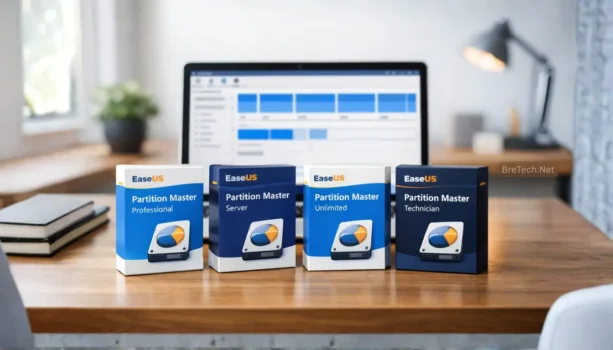
EaseUS Partition Master editions in Pakistan matter most when you are trying to resize C drive, merge partitions, or fix “unallocated space” and you cannot risk a boot problem. Many people hit this panic moment right after a Windows update or a sudden disk warning on the same PC.
The risky move is using cracked partition tools or buying the wrong edition under pressure. One wrong step can break the boot, corrupt partitions, or waste time when you need the PC working again fast.
The safe path is picking the right edition for your use and doing changes in a planned order. This guide helps you compare Professional, Server, Unlimited, and Technician so you don’t overpay or end up with the wrong license.
Available in Pakistan with PKR pricing, fast digital email delivery on most orders, and local payments via bank transfer and other local payment options from BreTech, an authorized reseller.
EaseUS Partition Master Professional is usually enough for personal PCs and a single user. If you manage Windows Server, choose Server. If you need one license for multiple PCs, go with Unlimited, and if you do client work as a technician, choose Technician.
In short: Professional for 1 PC, Server for Windows Server, Unlimited for offices, Technician for client work.
Quick Overview: EaseUS Partition Master Editions (Paid)
| Edition | Best For | Key Fit | Approx. Price (PKR) |
|---|---|---|---|
| EaseUS Partition Master Professional | 1 PC user (home/office) | Partition resize/merge, OS migration | ~ 9,360 – 21,840 |
| EaseUS Partition Master Server | Windows Server admins | Server partitions + migration | ~ 49,608 – 80,808 |
| EaseUS Partition Master Unlimited | Small office (many PCs) | One license for multiple PCs | ~ 124,488–186,888 |
| EaseUS Partition Master Technician | Client work & services | Portable use + commercial support | ~ 186,888 – ₨249,288 |
Trials may have limits, and big partition changes should be planned. Always review pending actions before you click Apply.
Compare and buy the official edition: EaseUS Partition Master products.
How to Choose the Right Edition Without Overpaying
Start by deciding what you manage today, not what you might do later. Most buyers only need the edition that matches their current device type and work style, then they can upgrade later if needed.
If you only manage your own PC or a single office PC, Professional is the right starting point. It covers everyday partition tasks and is usually enough for home users, students, and small offices.
If your system is Windows Server, pick Server for Windows Server machines. This avoids edition limits and fits IT admins managing server storage and partitions.
If you need one license for multiple PCs in a small office, choose Unlimited for multiple PCs. It is a better fit when you handle several computers and want to standardize tools.
If you do client work, repairs, or paid services, Technician is the commercial choice. It suits technicians who work on different customer PCs and need a license built for service work.
Before you buy, write down your exact use case: PC or server, number of machines, and whether it is personal use or client work. That one check prevents most wrong purchases.
Paid EaseUS Partition Master Editions Compared
These short notes explain what each license is made for, so you do not overbuy or pick the wrong scope.
1. EaseUS Partition Master Professional
If you are upgrading a laptop SSD, resizing C drive, or fixing “unallocated space” at home, Professional is the most practical paid option in Pakistan for a single PC.
- Resize, move, merge, split, and format partitions
- Migrate OS to SSD/HDD (useful after a new drive install)
- Convert common disk/partition formats when needed
- Preview changes before you apply them
Ideal for: Home users, students, freelancers, and small offices managing 1 PC
2. EaseUS Partition Master Server
Server edition is the safer choice when the machine is running Windows Server and you need partition changes without hitting edition limits.
- Partition management features built for server environments
- OS migration support for server upgrade projects
- Helps reorganize server storage during maintenance windows
- Preview and apply workflow to reduce mistakes
Ideal for: IT admins managing Windows Server machines
3. EaseUS Partition Master Unlimited
Unlimited is made for small offices that manage several PCs and want one license that fits internal use across machines.
- Use on multiple PCs within the same organization
- Standardize partition tasks across office computers
- Useful for lab PCs, shop PCs, and shared workstations
- Same preview-before-apply workflow
Ideal for: Small businesses managing many PCs (in-house use)
4. EaseUS Partition Master Technician
Technician edition is meant for service work when you handle customer PCs or do partition jobs as a paid technician.
- Designed for technician and service use cases
- Useful for working across different client machines
- Supports professional workflows where mistakes are costly
- Preview and apply system to reduce risky changes
Ideal for: Repair shops, IT support, and technicians doing client work
Key features that affect the buying decision
These features decide whether you should chooseProor move to a business edition for Server or service work.
OS migration to SSD/HDD
OS migration with EaseUS Partition Master edition helps you move Windows to a new SSD or hard disk without reinstalling the system. This disk copy or clone operation saves time during an upgrade. Always back up first to avoid data loss on the target disk.
WinPE bootable media
WinPE bootable media is a useful tool in paid editions that lets you repair the system when Windows won’t start. Use the WinPE creation function before a bad boot day so you can boot outside the system and run partition recovery or disk management without reinstalling.
Command line usage
The command line in certain editions lets technicians script repeatable disk partitioning tasks across many PCs. This makes operations like create, resize, convert, or clone partitions automated and faster. It’s aimed at IT teams who manage multiple servers or workstations.
Dynamic disks and RAID-5 items
If you use dynamic volumes or RAID-5 you need the right edition and careful testing before changing them. The program can resize dynamic volumes or repair RAID-5 but these advanced disk management tasks can cause downtime if done without proper backups or technician care.
Boot repair and disk conversion
Tools like rebuild MBR and MBR to GPT conversion in EaseUS Partition Master help fix boot issues and let you use GPT disk layouts for larger drives. Confirm BIOS or UEFI mode and back up first, because converting system disks can break boot settings if done incorrectly.
Common problems and quick fixes
These quick checks solve most cases people face when extending C: or moving to a new SSD.
C: drive will not extend
If C: won’t extend you often need unallocated space directly beside it or to move a partition so space is adjacent. When Windows Disk Management can’t do this, EaseUS Partition Master can safely move or merge partitions and resize without data loss after you back up.
Windows does not boot after changes
First check BIOS boot order and disk type, then use rebuild MBR or the partition recovery wizard if the boot record is broken. If Windows won’t start, boot from WinPE or a recovery media to repair the disk and avoid reinstalling the OS.
Missing space on large disks
If a drive over 2TB shows less space you may be on MBR and need to convert to GPT to use the full capacity. Convert only after confirming your boot mode and backing up, because system disks need correct settings or the system may not boot afterward.
BitLocker and locked volumes
If BitLocker is enabled, partition operations can fail or take longer, so have your recovery key ready and consider decrypting before major moves. Using EaseUS Partition Master, you can shrink, extend, or merge partitions more safely when the volume is not locked.
Pakistan use cases BreTech buyers ask about
These examples help match the right edition without overthinking the feature list.
Tuition center SSD upgrade
A tuition center upgrading many PCs needs a repeatable, safe solution for disk copy, clone and resize. EaseUS Partition Master Unlimited edition can migrate system and extend C: without data loss. This disk management tool helps manage gpt or mbr disks and improve performance.
IT shop doing customer jobs
An IT repair shop doing paid upgrades needs licensing that covers client work and server or technician use. EaseUS Partition Master Technician edition can copy, convert and recover partitions with a partition recovery wizard. It is a useful disk management program for many customers.
Freelancer moving to a bigger SSD
A freelancer upgrading one laptop wants an easy, low cost solution to migrate OS and resize partitions. The Professional edition of EaseUS Partition Master can clone a hard disk, extend NTFS or create a new primary without reinstalling. It solves low disk space problems safely.
What to avoid before changing partitions
These mistakes cause most issues even with good software.
- Avoid resizing without a recent backup
- Avoid converting MBR/GPT without confirming boot mode
- Avoid doing big moves on unstable power or low laptop battery
- Avoid cracked tools that can bring malware
Conclusion: Choosing The Right EaseUS Partition Master Edition
If you only manage one PC, Professional is usually enough for safe, everyday partition tasks. It keeps things simple and avoids paying for features you will not use.
If your machine is Windows Server, choose Server for server work so you do not hit edition limits later. For offices managing many PCs, Unlimited is the better fit, and for client work, Technician makes more sense.
To shop safely with local support, explore our Partition Management collection and the EaseUS brand hub on BreTech. Most orders are delivered by email in 1–72 hours with PKR pricing and local payment options.
Explore Partition Management tools: Partition Management
Browse all EaseUS software: EaseUS Brand Hub

FAQs
Q: Which EaseUS Partition Master version should I buy in Pakistan?
A: Choose the version by your scope. Professional fits most PCs, Server fits Windows Server, Unlimited fits one company with many PCs, and Technician fits client service work.
Q: Does EaseUS Partition Master replace Windows disk management utilities?
A: It can work alongside Windows tools, but it offers extra manager features for resizing, moving, and migrating partitions when built-in disk tools cannot handle the job.
Q: Will I need to reboot after resizing or moving partitions?
A: Sometimes a reboot is required, especially when changing the system partition or running tasks that lock the drive while Windows is active.
Q: Can it manage logical and extended partitions safely?
A: Yes, it supports logical partitions and can work with extended layouts. Always back up first because layout changes can affect boot and file access.
Q: Does it support FAT drives and older USB or memory cards?
A: It can work with FAT volumes in common cases, but features depend on the edition and the file system type you are using.
Q: Which edition is best for business users with many PCs to manage?
A: For business users who need the tool across many PCs inside one organization, Unlimited is usually the best fit for users to manage at scale.
Q: Can I redistribute the license across multiple PCs or client machines?
A: License redistribute rules depend on edition. Unlimited is for one company’s internal PCs, while Technician is designed for paid client work on different machines.
Further Reading
- AOMEI Partition Assistant vs EaseUS Partition Master (Pakistan 2026)
- EaseUS vs AOMEI vs MiniTool: Backup + Partition Comparison
- How To Clone NVMe SSD To NVMe SSD
- Disk Health Checker Tools For Windows (Pakistan)
- Recover Lost Files With EaseUS Data Recovery Wizard
Want more help like this? Browse all Utilities & Optimization guides: Utilities & Optimization