 Abdul Basit
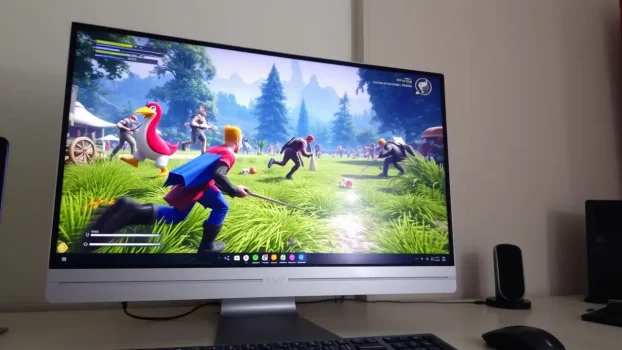
Finding the best game booster for PC gaming in Pakistan in 2026 is not about installing every FPS booster you see online. The right tool should help your Windows PC run cleaner, reduce background load, manage startup apps, update drivers safely, and keep games stable during longer sessions.
Many Pakistani gamers use mid-range laptops, older desktops, or shared home PCs. On these systems, games can lag because of background apps, outdated drivers, low RAM, junk files, poor cooling, or Windows slowdown. A good PC booster for gaming can help free system resources before you play, so gameplay feels smoother and more responsive.
This guide compares the top game booster and PC optimization tools for gaming, including free vs paid choices, laptop-friendly options, and safer ways to improve FPS without using cracked or risky software.
Quick Overview: Top Game Booster Tools for PC
| Tool | Best For | Key Benefit | Licence Type |
|---|---|---|---|
| Advanced SystemCare Ultimate | Gamers who also want antivirus protection | PC cleanup, optimization, and security in one tool | 1 PC |
| Advanced SystemCare PRO | General PC optimization for gaming | Cleans junk, manages startup items, and improves system responsiveness | 1 PC |
| Glary Utilities PRO | Quick Windows tune-ups | One-click maintenance for slower PCs | Multi-PC |
| Avast Cleanup Premium Multi-Device | Multi-device households | Cleanup and background app sleep tools | Multi-device |
| AVG TuneUp Multi Device | Regular PC maintenance | Automatic cleanup and performance maintenance | Multi-device |
| Ashampoo WinOptimizer | Users who want more control | Deep Windows cleanup and optimization tools | 1 PC |
| AVG PC TuneUp | Classic Windows maintenance | Cleanup, startup control, and system tune-up | 1 PC |
| Avast Cleanup Premium for Windows | One Windows PC cleanup | Removes junk and helps reduce background load | 1 PC |
If you want to compare more options before choosing, browse our System Optimization Software category. If your main issue is outdated graphics or device drivers, check our Driver Updater Software category instead.
Top Game Boosters for PC Gaming in Pakistan 2026
1. Advanced SystemCare Ultimate: PC Booster with Antivirus Protection
Advanced SystemCare Ultimate is useful for gamers who want PC optimization and antivirus protection in one package. It can help clean junk files, reduce unnecessary background activity, and keep the system safer while gaming.
This is a strong option for Pakistani users who play games on a shared family PC or older Windows desktop where malware, junk files, and slow startup apps may affect performance.
Best for: Gamers who want performance cleanup and antivirus protection together.
Useful features:
- PC cleanup for junk and temporary files
- Startup optimization for faster boot and game launch
- Background process management
- Real-time protection against common online threats
- Simple one-click maintenance for non-technical users
Buy if: You want one tool for both PC performance care and security.
2. Advanced SystemCare PRO: Smart PC Optimization for Smoother Gaming
Advanced SystemCare PRO is a good choice for users who mainly need a cleaner and faster Windows PC. It helps remove junk files, manage startup items, and reduce unnecessary system load before gaming.
For mid-range laptops and older desktops in Pakistan, this type of PC booster can be helpful when games feel slow because Windows itself is overloaded.
Best for: General PC optimization, older laptops, and casual gaming PCs.
Useful features:
- Junk file and privacy cleanup
- Startup manager for faster Windows loading
- Background app and service control
- Real-time system monitoring
- Simple maintenance tools for daily PC use
Buy if: Your PC feels slow even before you open a game.
3. Glary Utilities PRO: One-Click PC Maintenance for Gamers
Glary Utilities PRO is useful for quick tune-ups when you do not want a complicated setup. It focuses on one-click maintenance, junk removal, registry cleanup, and startup management.
It is not only for gaming, but it can help prepare your PC before gaming by reducing unnecessary load and keeping Windows cleaner.
Best for: Users who want fast, simple PC maintenance.
Useful features:
- One-click maintenance
- Junk and temporary file cleanup
- Startup optimization
- Registry repair tools
- Disk cleanup and basic performance tools
Buy if: You want an easy PC cleaner that helps keep Windows responsive.
4. Avast Cleanup Premium Multi-Device: Cleanup for Multiple Devices
Avast Cleanup Premium Multi-Device is suitable for households where more than one device needs cleanup and maintenance. It can help remove junk, clean browser data, and put unused background apps to sleep.
For gaming, the main benefit is reducing unnecessary background load, especially on laptops and shared home PCs.
Best for: Families or users with more than one device.
Useful features:
- Junk file cleanup
- Browser cleaning
- Sleep Mode for unused apps
- Automatic maintenance
- Multi-device support
Buy if: You want one cleanup licence for multiple devices at home.
5. AVG TuneUp Multi Device: Automatic PC Maintenance for Gaming PCs
AVG TuneUp Multi Device helps maintain Windows performance through cleanup, automatic maintenance, and background app control. It is useful for users who want their system cleaned regularly without doing everything manually.
For Pakistani gamers using laptops with limited RAM or storage, regular cleanup may help reduce stutter caused by system clutter.
Best for: Multi-device users who want automatic PC maintenance.
Useful features:
- Automatic maintenance
- Junk and browser cleanup
- Sleep Mode for unused programs
- Software cleanup tools
- Multi-device support
Buy if: You want regular PC maintenance across more than one device.
6. Ashampoo WinOptimizer: Deep Windows Optimization for Gamers
Ashampoo WinOptimizer gives more control to users who want detailed Windows cleanup and optimization tools. It can help clean junk files, manage system settings, and improve general PC responsiveness.
This is a good option for users who like to check system health and adjust settings instead of relying only on one-click cleanup.
Best for: Users who want more control over Windows optimization.
Useful features:
- System cleanup
- Startup and service management
- Privacy cleaning
- Performance analysis tools
- Windows optimization modules
Buy if: You want deeper PC optimization tools and more manual control.
7. AVG PC TuneUp: Classic Windows Tune-Up Tool
AVG PC TuneUp is useful for users who prefer a classic PC maintenance tool for cleaning junk, improving startup speed, and managing system clutter.
It can help older PCs feel more usable, especially when slow Windows performance is affecting gaming.
Best for: Older Windows PCs that need regular cleanup.
Useful features:
- Junk file cleanup
- Startup optimization
- System maintenance tools
- Browser cleanup
- Basic performance improvement tools
Buy if: You want a simple and familiar tune-up tool for Windows.
8. Avast Cleanup Premium for Windows: Cleanup for One Windows PC
Avast Cleanup Premium for Windows is a practical choice if you only need cleanup for one Windows PC. It helps remove junk, clean browser data, and reduce background app activity.
It is useful for gamers who do not need a multi-device licence but still want a cleaner Windows system before playing.
Best for: One Windows PC or laptop.
Useful features:
- Junk file removal
- Browser cleaning
- Sleep Mode for unused apps
- Automatic maintenance
- PC cleanup tools
Buy if: You need cleanup and background app control for one Windows computer.
What Is Game Booster Software?
Understanding FPS and Frame Rate
FPS means frames per second. It shows how many frames your PC can display every second during gameplay.
Higher FPS usually means smoother movement and better response. Low FPS can cause choppy visuals, input delay, and poor gameplay, especially in online games.
What a PC Booster Can and Cannot Do
A PC booster can help by closing background apps, cleaning junk files, managing startup items, and freeing system resources before gaming.
It cannot turn weak hardware into a high-end gaming PC. If your graphics card, CPU, RAM, or storage is too weak for a game, software optimization can only help to a limited level.
Types of Tools That Help Gaming Performance
Different tools solve different problems. A PC optimizer helps with junk files, startup apps, and Windows slowdown. You can compare more options in our guide to the best PC optimization software in Pakistan.
A driver updater helps when games lag, crash, or perform poorly because of outdated GPU or system drivers. For more details, read our guide to the best driver updater software for Windows in Pakistan.
Free vs Paid Game Booster Software: Which Should You Choose?
Free game booster tools can help with basic tasks like closing background apps, freeing RAM, or applying quick Windows performance settings before gaming.
Paid PC optimization tools are better when your system needs deeper cleanup, startup control, automatic maintenance, software updates, and long-term Windows performance care.
For Pakistani gamers using older laptops, shared home PCs, or low-end desktops, the better choice depends on the real problem. If your PC is slow overall, a system optimizer is more useful. If games lag because of outdated graphics drivers, a driver updater may be the better first step.
Windows also includes some basic cleanup and performance options. To understand when built-in tools are enough and when paid tools make sense, read our guide on Windows cleanup vs PC optimizers.
How to Optimize Your Gaming PC for Higher FPS
Update Graphics Drivers Safely
Outdated graphics drivers can cause poor performance, game crashes, black screens, or compatibility problems with new games.
Use official GPU software or a trusted driver updater. Before updating drivers, it is also worth reading our guide on Is Updating Drivers Safe For Gaming PCs? so you avoid risky driver sources.
Adjust In-Game Graphics Settings
Lowering heavy settings can improve FPS more than any booster. Start with shadows, anti-aliasing, texture quality, view distance, and resolution scale.
For low-end PCs and laptops, balanced graphics settings are usually better than ultra settings. Smooth gameplay is more important than maximum visuals.
Close Background Apps Before Gaming
Browsers, launchers, cloud sync tools, chat apps, and update services can use RAM, CPU, and disk activity in the background.
Before gaming, close apps you do not need. A PC booster can help by identifying common background programs that are using system resources.
Keep Your Gaming Setup Cool
Heat can reduce performance. If your laptop or desktop gets too hot, the CPU or GPU may slow down to protect the hardware.
Keep vents clean, use the laptop on a hard surface, and avoid blocking airflow. For desktops, make sure fans and dust filters are clean.
Common Reasons for Low FPS and Gaming Lag
Hardware Bottlenecks
Low FPS often happens when the CPU, GPU, RAM, or storage drive is not strong enough for the game.
If your PC has very low RAM or an old graphics card, a booster may help slightly, but hardware limits will still remain.
Too Many Startup Apps
Many PCs slow down because too many apps start with Windows. This can affect gaming even before the game opens.
Use a startup manager or PC optimizer to disable unnecessary startup items. Keep only important apps enabled.
Junk Files and Low Storage Space
Junk files do not directly increase FPS in every game, but they can make Windows slower and reduce available storage.
Cleaning temporary files, browser cache, and old system clutter can help your PC feel smoother, especially on older drives.
Internet Lag vs Low FPS
Low FPS and internet lag are different problems. If the game looks choppy, it is usually a system performance issue. If the game freezes, delays, or rubber-bands online, your internet may be the problem.
If your whole connection feels slow, check our guide on fixing slow internet on a Windows PC in Pakistan.
Recording, Streaming, and Overlays
Screen recorders, overlays, and streaming tools can reduce FPS because they use CPU, GPU, and RAM while you play.
If your gameplay slows down while recording, see our guide on why a screen recorder lags or drops FPS in Pakistan.
How to Measure FPS Before and After Optimization
Use Built-In FPS Counters
Many games include a built-in FPS counter. Steam, Xbox Game Bar, NVIDIA, AMD, and other tools may also show FPS during gameplay.
Check FPS before and after cleanup so you know whether the optimization actually helped.
Test the Same Game Area
For a fair test, use the same game, same map, same graphics settings, and same scene. Random testing can give confusing results.
Write down average FPS, lowest FPS, and stutter moments before changing settings.
Watch CPU, GPU, RAM, and Temperature
FPS is only one part of performance. Also check CPU usage, GPU usage, RAM usage, disk activity, and temperature.
If temperature is too high, cooling may matter more than software cleanup. If RAM is full, closing apps or upgrading RAM may help more.
Which Game Booster Should You Choose?
Best for Older Laptops
Choose Advanced SystemCare PRO, Glary Utilities PRO, or Avast Cleanup Premium for Windows if your older laptop needs junk cleanup, startup control, and background app management.
These tools are useful when Windows feels slow even during normal use.
Best for Multi-Device Homes
Choose AVG TuneUp Multi Device or Avast Cleanup Premium Multi-Device if you need cleanup for more than one laptop or desktop at home.
This is useful for families, students, and shared PCs.
Best for Security Plus Optimization
Choose Advanced SystemCare Ultimate if you want antivirus protection and PC optimization in one licence.
This can be useful for gamers who download files, browse gaming sites, or use a shared Windows PC.
Best for More Manual Control
Choose Ashampoo WinOptimizer if you want more control over cleanup, system settings, and Windows optimization.
It is better for users who like checking system details instead of only using one-click cleanup.
Buying Genuine Game Booster Software in Pakistan
Avoid cracked game boosters and fake licence keys. These tools may contain malware, unwanted ads, or modified installers that can harm your PC.
Buying genuine software is safer because you get a proper licence, cleaner installation, and better activation support. You can also read our guide on how to buy genuine software in Pakistan if you are unsure what to check before purchasing.
BreTech offers genuine software licences in Pakistan with PKR pricing, local payment options, digital delivery, activation help, and invoice support.
Final Recommendation
The best game booster for PC gaming in Pakistan depends on your real problem. If your PC is slow because of junk files, startup apps, and background processes, a system optimization tool can help.
If your games lag because of outdated graphics drivers, a driver updater may be more useful. If your FPS is low because of weak hardware, lower graphics settings and hardware upgrades may matter more than booster software.
For most Pakistani gamers using older laptops, shared PCs, or low-end desktops, the best approach is simple: keep Windows clean, update drivers safely, reduce startup load, close background apps, and use genuine software from a trusted source.
FAQs
Q: What is the best game booster for PC gaming in Pakistan?
A: The best game booster depends on your PC problem. Advanced SystemCare PRO, Glary Utilities PRO, AVG TuneUp, Avast Cleanup, and Ashampoo WinOptimizer are useful options for cleanup, startup control, and background app management.
Q: Can a game booster increase FPS?
A: A game booster may help improve FPS stability if background apps, junk files, or Windows slowdown are causing performance issues. It cannot replace weak hardware or make every game run at high settings.
Q: Is free game booster software enough?
A: Free tools are fine for basic tasks like closing apps or freeing memory. Paid tools are better if you need deeper cleanup, automatic maintenance, startup control, and long-term Windows optimization.
Q: Which is better for gaming, a PC optimizer or driver updater?
A: A PC optimizer is better when Windows is slow because of junk files, startup apps, and background processes. A driver updater is better when games lag, crash, or perform poorly because of outdated drivers.
Q: Do game boosters work on Windows 10 and Windows 11?
A: Most modern PC optimization tools support Windows 10 and Windows 11. Always check the product page before buying to confirm compatibility with your system.
Q: Can a game booster fix internet lag?
A: No, not directly. A game booster can help system performance, but internet lag usually comes from Wi-Fi issues, ISP speed, routing, or server problems.
Q: Should I use cracked game booster software?
A: No. Cracked software can include malware, fake licence keys, unstable files, or unwanted background programs. For gaming PCs, genuine software is safer and more reliable.
Q: What should I do first before buying a game booster?
A: First check your FPS, close background apps, update graphics drivers safely, reduce graphics settings, and clean junk files. If your PC still feels slow, then a paid PC optimization tool can be useful.
Further Reading
For more related guides, browse our PC Optimization blog category.