Abdul Basit
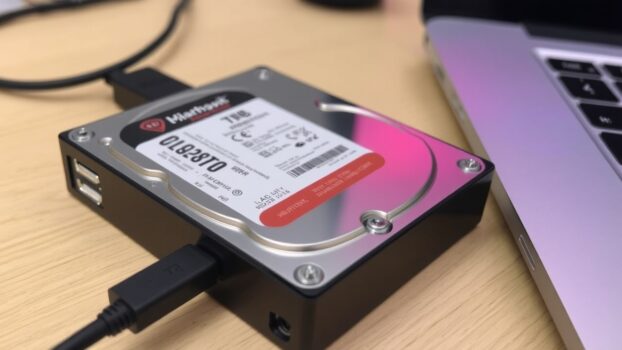
Did you know that nearly 70% of PC users upgrade their hard drive due to insufficient storage space? Running out of space can slow down your system and even lead to data loss. That’s where disk cloning comes in—a reliable solution to upgrade your device without losing important files.
At BreTech, we simplify this process for beginners. Our guide will walk you through every step, ensuring a smooth transition to a larger or faster hard drive. Whether you’re upgrading to an SSD or simply creating a backup, our expert-approved tool makes it easy.
By following our guide, you’ll not only save time but also protect your data from unexpected failures. Let’s get started and unlock the full potential of your system today!
Introduction to Disk Cloning in Pakistan
Many users face storage issues without realizing the solution lies in disk cloning. This process allows you to create an exact copy of your hard drive, including the operating system, files, and partitions. It’s a reliable way to upgrade your device or create a backup without losing any data.
Understanding the Basics of Disk Cloning
Disk cloning differs from imaging. Cloning creates a direct copy of your drive, while imaging saves it as a single file. Built-in Windows tools often lack the flexibility needed for this task. That’s why third-party software like AOMEI Backupper Standard or Macrium Reflect Free is recommended.
These tools simplify the cloning process and ensure compatibility with various systems. Whether you’re upgrading from an HDD to an SSD or simply expanding your storage, cloning is the most efficient solution.
Disk Cloning Solutions Available at BreTech in Pakistan
At BreTech, we provide access to disk cloning software from trusted partners, designed for users in Pakistan. These user-friendly tools support a wide range of devices, from laptops to desktops. With features like bootable media creation and partition management, they make the cloning process hassle-free.
The software we offer ensures that your data is transferred securely and efficiently. Whether you’re a beginner or an advanced user, these tools are designed to meet your needs. Below is a comparison of popular cloning software options:
| Feature | AOMEI Partition Assistant | EaseUS Partition Master |
|---|---|---|
| Partition Resizing | Under 30 seconds | 28 seconds |
| Data Transfer Rate | Up to 100 MB/s | 120 MB/s |
| Bootable Media Creation | Yes | No |
By choosing BreTech, you gain access to trusted software solutions that simplify disk cloning. We ensure you get authentic tools at the best prices in Pakistan, helping you save time and protect your data during the cloning process.
Preparing for Your Hard Drive Cloning Process
Before diving into the cloning process, it’s crucial to prepare your system and data to ensure a seamless transition. Proper preparation minimizes risks and ensures your files remain safe throughout the process.
Backing Up Your Essential Data
Always start by creating a backup of your important files. This step is non-negotiable, as it protects your data in case of unexpected errors. Use an external drive or cloud storage to save your files securely.
Double-check that your backup includes all critical data, such as documents, photos, and system settings. This ensures you can restore your system if needed.
Checking Hard Drive Storage and Compatibility
Next, verify that your new drive has enough storage capacity to accommodate your current hard drive. Ensure it’s compatible with your device, whether it’s a laptop or desktop.
Here are some key steps to follow:
- Compare the storage size of your old and new drives.
- Check the connection type (e.g., SATA or USB) to ensure compatibility.
- Prepare necessary tools like a screwdriver and cables for the hardware swap.
By taking these precautions, you’ll avoid common pitfalls and ensure a smooth cloning process.
How to Clone Your Hard Drive for Free in Pakistan
Upgrading your system doesn’t have to be expensive or complicated. With free disk cloning software, you can create an exact copy of your hard drive, preserving your operating system, files, and partitions. This method is especially useful for beginners in Pakistan who want to upgrade their storage without spending money.
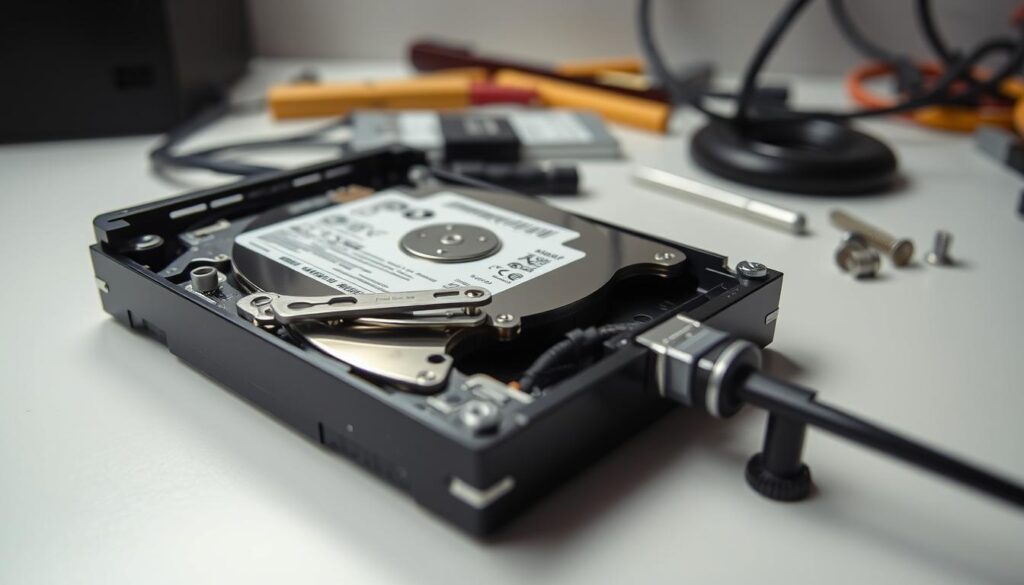
The cloning process ensures that all your data is transferred securely. Unlike built-in Windows tools, free third-party software offers more flexibility and features. Tools like AOMEI Backupper Standard and Macrium Reflect Free are user-friendly and support a wide range of devices.
Here’s why free disk cloning is a great solution:
- It creates an exact copy of your drive, including the operating system.
- It’s accessible for beginners, with step-by-step guidance.
- It saves money, making it ideal for users in Pakistan.
To avoid data loss, always back up your files before starting the cloning process. Ensure your new drive has enough storage space and is compatible with your device. Below is a comparison of popular free disk cloning software:
| Feature | AOMEI Backupper Standard | Macrium Reflect Free |
|---|---|---|
| Partition Cloning | Yes | Yes |
| Bootable Media Creation | Yes | Yes |
| User Interface | Simple | Advanced |
| Supported File Systems | NTFS, FAT32 | NTFS, FAT32, exFAT |
By choosing the right tool, you can simplify the cloning process and ensure a smooth transition to a new drive. Free disk cloning is a practical solution for upgrading your system without breaking the bank.
Step-by-Step Guide to the Cloning Process
Cloning your hard drive can seem daunting, but with the right tools, it’s straightforward. We’ll walk you through each step, ensuring a smooth and secure cloning process. From selecting the best software to safely executing the clone, this guide has you covered.
Choosing the Right Disk Cloning Software
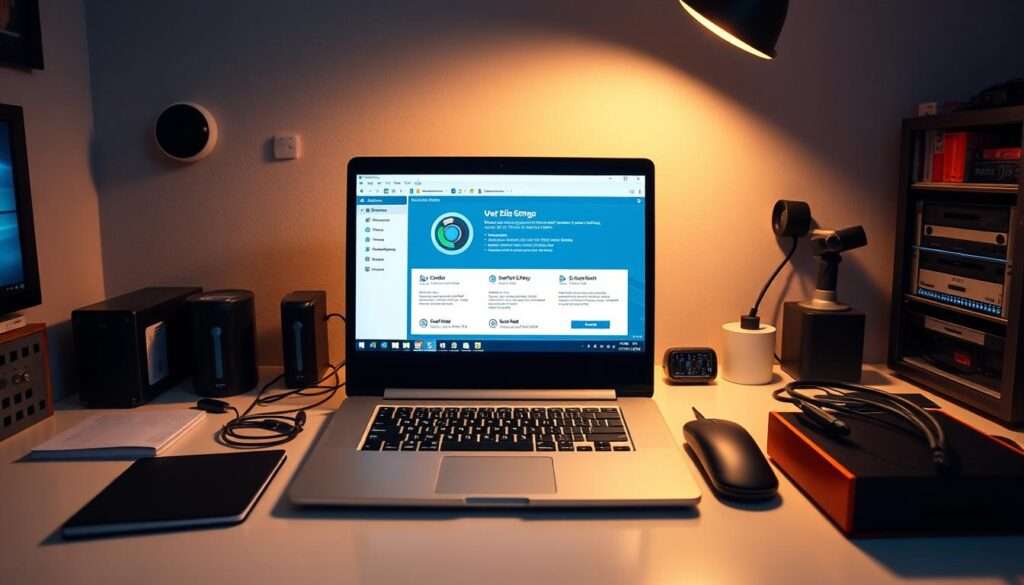
The first step is selecting the right tool for your needs. Free options like AOMEI Backupper Standard and Macrium Reflect Free are excellent choices. These programs are user-friendly and support a wide range of devices, from laptops to desktops.
Macrium Reflect Free, for instance, is known for its speed, making it ideal for users who want a quick cloning process. AOMEI Backupper Standard, on the other hand, offers a simple interface, perfect for beginners. Here’s a comparison of their key features:
| Feature | AOMEI Backupper Standard | Macrium Reflect Free |
|---|---|---|
| Partition Cloning | Yes | Yes |
| Bootable Media Creation | Yes | Yes |
| User Interface | Simple | Advanced |
| Supported File Systems | NTFS, FAT32 | NTFS, FAT32, exFAT |
Connecting and Configuring Your New Drive
Once you’ve chosen your software, the next step is connecting your new drive. Ensure it’s compatible with your system and has enough storage space. Use a SATA or USB connection, depending on your device.
Before starting, take a photo of your original drive arrangement. This will help you reassemble everything correctly. Double-check all connections to avoid interruptions during the cloning process.
Executing the Cloning Process Safely
With your new drive connected, launch your chosen software. Follow the on-screen instructions to start the cloning process. Avoid shutting down your system during this time, as it can lead to data loss.
After the clone is complete, verify that all files and partitions have been transferred correctly. If needed, resize partitions on your new drive to optimize storage space.
By following these steps, you can ensure a seamless transition to your new hard drive. With the right preparation and tools, the cloning process is both simple and reliable.
Optimizing PC Performance with a Cloned Drive
Upgrading your system’s storage can dramatically enhance its performance, especially when switching from an HDD to an SSD. A cloned drive ensures a seamless transition, retaining all your settings and minimizing downtime. This process not only boosts speed but also improves reliability, making it a smart choice for tech-savvy users. For more insights, check out our blog post on the benefits of upgrading to an SSD.
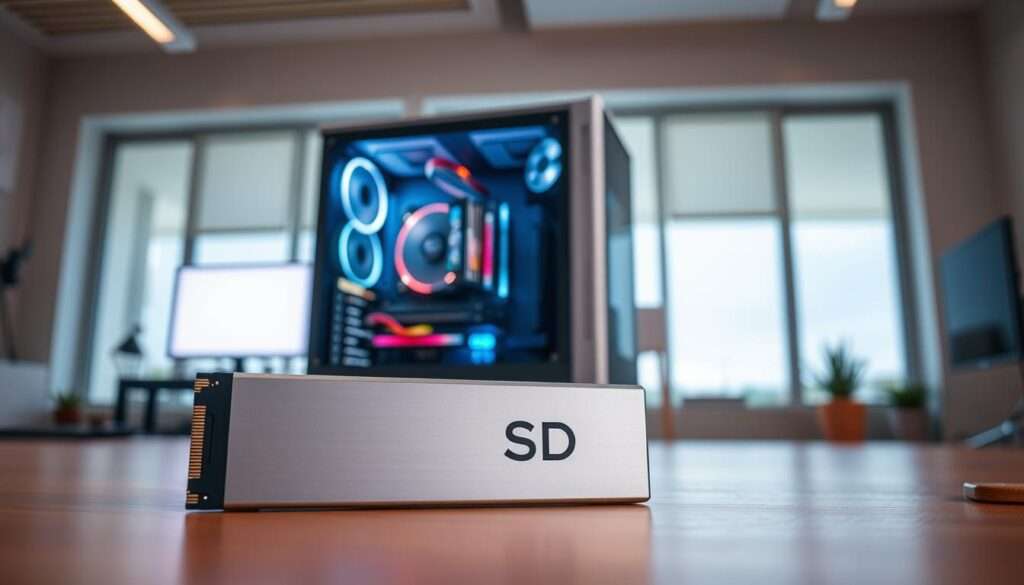
Upgrading from HDD to SSD
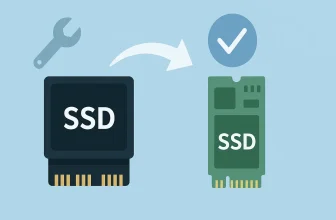
Moving from a traditional HDD to an SSD offers significant benefits. SSDs provide faster boot times, quicker file access, and improved overall performance. For example, SSDs can achieve read/write speeds exceeding 500 MB/s, compared to the average 100 MB/s of HDDs.
Cloning your hard drive ensures that all your files, partitions, and the operating system are transferred intact. This eliminates the need for a fresh installation, saving time and effort. BreTech’s recommended tools make this process straightforward, even for beginners.
Maintaining System Speed and Reliability
After upgrading, it’s essential to maintain your system performance. Regular backups and system checks can prevent issues and ensure smooth operation. Here are some tips to keep your device running efficiently:
- Ensure your SSD has sufficient storage space to accommodate cloned data.
- Disable unnecessary startup items to improve boot time.
- Regularly check for Windows updates to keep your operating system optimized.
By following these strategies, you can maximize the benefits of your upgraded drive and enjoy a faster, more reliable system.
“Upgrading to an SSD is one of the most effective ways to breathe new life into an older system, offering speed and reliability that HDDs simply can’t match.”
BreTech offers tools from trusted partners and expert guidance to ensure that your cloning process is hassle-free. Whether you’re upgrading for gaming, video editing, or everyday use, we’re here to support your journey to better performance.
Troubleshooting and Expert Tips for a Smooth Cloning Experience
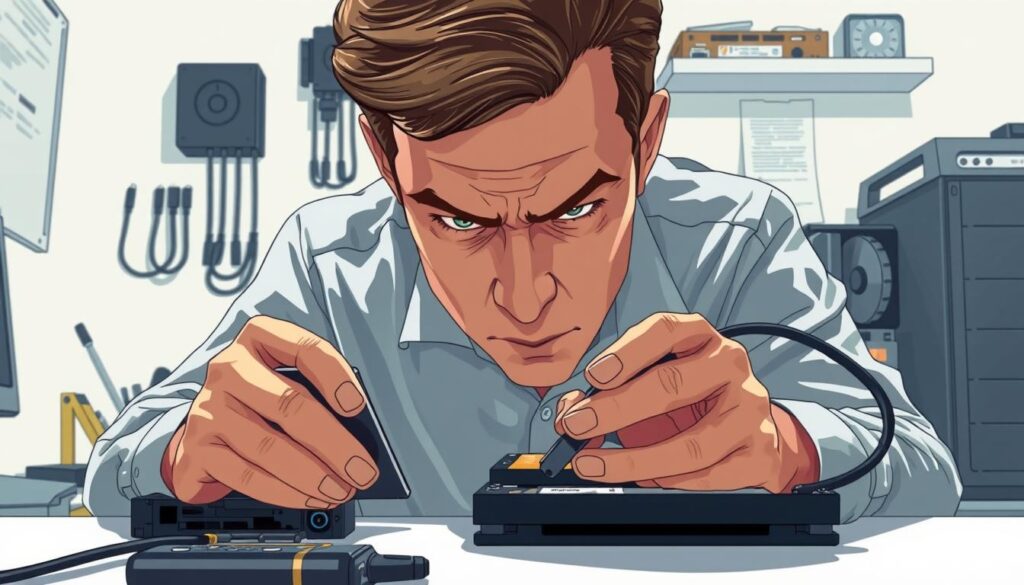
Even with the best preparation, cloning your hard drive can sometimes hit unexpected snags. Whether it’s a connection error or insufficient storage space, these issues can disrupt the cloning process. We’re here to help you troubleshoot effectively and safeguard your data every step of the way.
Identifying and Resolving Common Cloning Issues
One of the most frequent problems users face is connection errors. Ensure your drive is properly connected via SATA or USB. If the issue persists, try a different cable or port. Another common challenge is insufficient disk space. Always verify that your new drive has enough capacity to accommodate the cloned data.
Software glitches can also occur. If your cloning software freezes or crashes, restart the process and ensure your system is updated. For advanced users, resetting BIOS boot priority may resolve boot issues after cloning.
Pro Tips for Safeguarding Your Data
Maintaining updated backups is crucial. Before starting the cloning process, create a backup of all essential files. This ensures you can recover your data if something goes wrong. Additionally, consider creating bootable rescue media using tools like Macrium Reflect or AOMEI Backupper. This allows you to restore your system in case of a disaster.
Here’s a quick comparison of tools for creating bootable media:
| Feature | Macrium Reflect | AOMEI Backupper |
|---|---|---|
| Bootable Media Creation | Yes | Yes |
| User Interface | Advanced | Simple |
| Supported File Systems | NTFS, FAT32, exFAT | NTFS, FAT32 |
“Always verify your BIOS settings after cloning to ensure your new drive is recognized as the primary boot device.”
If you encounter persistent issues, don’t hesitate to seek professional help. BreTech’s team is here to support you with license purchases and provide initial guidance to ensure a smooth and secure cloning process. By following these tips, you can minimize risks and achieve a successful upgrade.
Premium Disk Cloning Software in Pakistan
For those seeking advanced disk cloning solutions, consider the following premium products:
- AOMEI Backupper Professional: A comprehensive tool offering system and disk cloning features, ideal for personal use.
- AOMEI Backupper WorkStation: Designed for business environments, this software provides reliable disk cloning and backup functionalities.
- AOMEI Backupper Server Edition: Tailored for server systems, it ensures secure and efficient disk cloning processes.
- AOMEI Backupper Technician Edition: Suitable for IT professionals, offering advanced cloning features across multiple devices.
- AOMEI Backupper Technician Plus Edition: Provides comprehensive cloning solutions with additional tools for large-scale deployments.
- AOMEI Backupper Pro Family: A family pack that offers professional disk cloning features for multiple PCs.
- EaseUS Disk Copy Professional: A powerful disk cloning utility that ensures data is copied accurately and efficiently.
- EaseUS Disk Copy Technician: Designed for IT technicians, this tool offers advanced disk cloning capabilities.
- EaseUS Todo Backup for Mac: A reliable backup and cloning solution tailored for Mac users.
- EaseUS Partition Master Unlimited: Combines disk partitioning and cloning features, suitable for unlimited usage within organizations.
These tools offer robust features to ensure efficient and secure disk cloning for various needs.
Conclusion: Top Free Disk Cloning Software for Pakistani Users
Ensuring your system’s efficiency and data safety is easier than you think. By following our guide, you can seamlessly upgrade your hard drive while safeguarding your important files. The cloning process not only protects your data but also enhances your system performance.
We’ve outlined the essential steps, from preparing your drive to executing the cloning safely. Using reliable software from our trusted partners ensures a hassle-free experience. Whether you’re upgrading to an SSD or creating a backup, our expert tips make the process accessible for everyone.
Remember, careful preparation and attention to detail are key to avoiding data loss. With BreTech’s guidance, you can confidently move forward with your system upgrades. Explore our resources for more insights and solutions tailored to your needs.
Further Reading
- AOMEI Partition Assistant vs. Backupper in Pakistan
- AOMEI Partition Assistant vs. EaseUS Partition Master
- Best Backup Software in Pakistan
- MiniTool Partition Wizard in Pakistan Choose the Right Tool
- Full Guide to Clone NVMe SSD to NVMe SSD
- Best Bad Sector Repair Software in Pakistan
FAQs
Q: What is the best free disk cloning software available in Pakistan?
A: The best free disk cloning software you can use in Pakistan includes reliable options like EaseUS Partition Master Free, AOMEI Backupper Standard, and Macrium Reflect Free Edition. These tools provide excellent disk cloning features and are user-friendly.
Q: How can I clone my hard disk to a smaller SSD?
A: To clone your hard disk to a smaller SSD, use a disk cloning tool that supports disk resizing. Make sure the data on your hard disk is less than the capacity of the smaller SSD, then run the cloning software to transfer the system disk and other data.
Q: Can I clone a HDD to an SSD without reinstalling Windows?
A: Yes, you can clone a HDD to an SSD without reinstalling Windows. Use a reliable disk cloning tool to clone the entire hard drive, including the Windows OS and all your applications, to the SSD.
Q: What steps should I follow to clone a hard drive in Windows 10 or Windows 11?
A: To clone a hard drive in Windows 10 or Windows 11, first install a disk cloning software, connect the new SSD, select the source disk (old hard drive) and the destination disk (new SSD), and follow the on-screen instructions to complete the cloning process.
Q: Is it possible to clone a disk image to another drive?
A: Yes, you can clone a disk image to another drive using disk cloning software. This method is useful if you want to clone a disk to disk or disk to another type of storage device, ensuring all data and disk layout are preserved.
Q: How do I clone a HDD to an SSD using EaseUS Partition Master Free?
A: To clone a HDD to an SSD using EaseUS Partition Master Free, download and install the software, select ‘Clone’ from the menu, choose your source disk (HDD) and destination disk (SSD), and follow the step-by-step guide provided by the software.
Q: What should I do if my new SSD is not recognized by the cloning tool?
A: If your new SSD is not recognized by the cloning tool, check the connections, ensure the SSD is properly initialized in Disk Management, update your drivers, and verify the SSD is compatible with your system before attempting to clone again.
Q: Can I clone a hard drive to a new SSD without losing data?
A: Yes, you can clone a hard drive to a new SSD without losing data by using a reliable disk cloning tool that ensures the data on the target disk is identical to that on the source disk, preserving your files and system settings.